
Summary
On your Windows 7 PC, shortcuts that you create on the desktop may be missing.
This can happen if the the System Maintenance troubleshooter detects the shortcuts as broken.
The System Maintenance troubleshooter performs a weekly maintenance of the operating system. The System Maintenance troubleshooter either fixes problems automatically or reports problems through Action Center. When there are more than four broken shortcuts on the desktop, the System Maintenance troubleshooter automatically removes all broken shortcuts from the desktop.What is a broken link?
A "Broken" shortcut is a shortcut to a file, folder or drive that may not always be available, for example, a desktop shortcut for a USB device may be regarded as broken if the USB device is not connected when the System Maintenance troubleshooter performs its maintenance, or, a network folder that is currently not available due to the network not being available.
Workaround
To work around this issue, use one of the following methods.
Method 1: Remove all but 4 broken shortcuts from your desktop
Keep the number of broken shortcuts on your desktop to four or less. You might accomplish this by removing all but 4 of your most used shortcuts on the Desktop. If have more than 4 shortcuts, you can also create a folder on your desktop and move the shortcuts to that folder. These shortcuts will not be removed since they don't sit directly on the desktop.
Method 2: Disable the System Maintenance troubleshooter
If you must have more than four broken shortcuts on your desktop, you can disable the System Maintenance troubleshooter.
Note If you disable the System Maintenance troubleshooter, all the maintenance tasks that it performs are disabled. Therefore, we recommend that you use Method 1.
To disable the System Maintenance troubleshooter, follow these steps:
-
Click Start

-
Under System and Security, click Find and fix problems.
Note: If System and Security is not displayed you will need to change how you are viewing Control Panel. To change your view, click the down arrow in View by and select Category. View by is located in the top right corner of the Control Panel.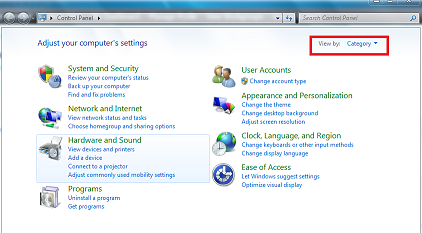
-
On the left navigation pane, click Change settings.
-
Set Computer Maintenance to Off.








