
INTRODUCTION
Microsoft Office Document Imaging (MODI) is removed in Microsoft Office 2010. This article provides methods you can follow to install MODI on the computer. It also describes the alternative methods that you can use to regain the functionalities of certain MODI features.
To install Microsoft Office Document Imaging (MODI) for use with Microsoft Office 2010, use one of following methods.
Method 1: Download and install MDI to TIFF File Converter
To download and install MDI to TIFF File Converter, go to the following Microsoft website:
Method 3: Install MODI with the 2007 Office System media
To use MODI in the 2007 Office System together with Office 2010, follow these steps:
-
Start the 2007 Office System setup process.
-
Review, and then accept the software license.
-
Click Customize to open the installation options.
-
On the Installation Options tab, click the down arrow and select Not Available for all sections.
-
Expand Office Tools.
-
Click the down arrow for the Microsoft Office Document Imaging option, and then select Run all from my computer.
-
Click Install Now, and then click Close.
Screenshot displaying the location of MODI during the 2007 Office system installation: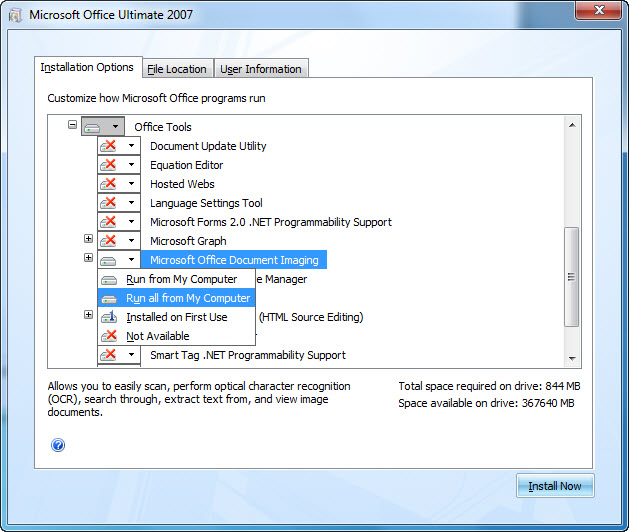
To start Microsoft Office Document Imaging, follow these steps:
-
Click Start, and then select All Programs.
-
Click Microsoft Office, and then select Microsoft Office Tools.
-
Click Microsoft Office Document Imaging.
Note: No support is provided for side-by-side installations of 64-bit and 32-bit editions of Office. For more information about 64-bit editions of Office 2010, visit the following Microsoft web site:
64-bit editions of Office 2010
Note: A repair of Office 2010 may need to be done after installing MODI when using Office 2007 media. For more information on how to use Office 2010 with other versions of Office installed, click the following article number to view the article in the Microsoft Knowledge Base:
2121447Information about how to use Office 2010 suites and programs on a computer that is running another version of Office
More Information
If you cannot install MODI by using one of the methods that are provided in the "Resolution" section of this article, there are some alternative methods that you can use to regain some functionality that was provided by Microsoft Office Document Imaging.
Microsoft Office Document Scanning
The Microsoft Office Document Scanning component of MODI is used to scan documents and to make documents available on your computer by using any scanner that is installed. To scan documents, use the Windows Fax and Scan service. For more information about the Windows Fax and Scan service, visit the following Microsoft websites:
Set up your computer to send and receive faxes
Note If you use a third-party scanning software or a scanning software that is included with your scanning or printing device, you should contact your device manufacture for more information.
Microsoft Office Document Image Writer print driver
The Microsoft Office Document Image Writer print driver is included in MODI. This driver enables you to save any Microsoft Office document in the .tiff format or in the .mdi format. We recommend that you use the Microsoft XPS Document Writer printer driver or the Windows Fax Printer driver. For more information about the Microsoft XPS Document Writer, visit the following Microsoft websites:
View .tiff files or .mdi files
If you want to view .tiff files, use one of the following applications:
-
Windows XP: Windows Picture and Fax Viewer
-
Windows Vista and later versions: Windows Photo Viewer or Windows Photo Gallery
Currently, there is no viewer available from Microsoft to view .mdi files in Office 2010. To open an .mdi file, either use a third-party converter or convert the file to the .tiff format and then view the file in MODI from Office 2003 or from the 2007 Office System.
Optical character recognition
MODI also enables you to perform optical character recognition (OCR). By performing OCR, you can then copy text from a scanned image or from a fax into another location. To implement the functionality of this feature, use Microsoft OneNote 2010. To do this, follow these steps:
-
In OneNote 2010, on the Insert tab, click Picture.
-
Locate and then open the scanned file. The file is inserted into OneNote 2010 as a picture.
-
Right-click the picture, click Copy Text from Picture, and then paste the information to another location.
OneNote 2010 uses the XPS Document Writer printer driver to print to OneNote.
iFilter
For more information about how to download Microsoft support files, click the following article number to view the article in the Microsoft Knowledge Base:
119591 How to obtain Microsoft support files from online services Microsoft scanned this file for viruses. Microsoft used the most current virus-detection software that was available on the date that the file was posted. The file is stored on security-enhanced servers that help prevent any unauthorized changes to the file.
Live Meeting
Previously, Microsoft Live Meeting used MODI to upload a Microsoft Word document to a meeting. Now, Live Meeting installs a version of the MODI printer driver.








