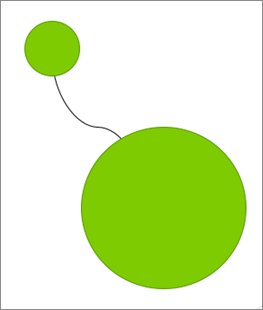
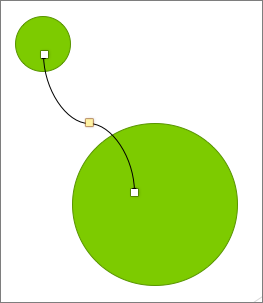
Select objects, shapes, pictures or text boxes, to change or move them. Sizing handles indicate that a shape or object has been selected.
Which Office app are you using?
Excel
Click the object to select it. If that does not select it, on the Home tab, in the Editing group, click Find & Select and do one of the following:
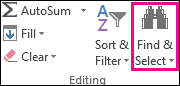
- To select objects that are hidden, stacked, or behind text, click Select Objects, and then draw a box over the objects.
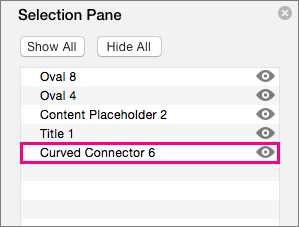
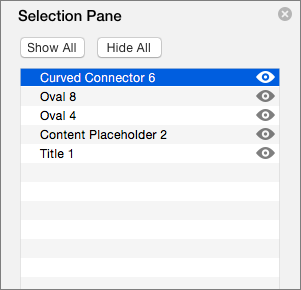
- To open the task pane where you can select, multi-select, show, hide, or change the order of objects, click Selection Pane, and then click the options that you want.
Tips for selecting shapes and objects
| To do this | Do the following |
|---|---|
| Select multiple objects. | Press and hold Shift or Ctrl while you click the objects. |
| Select an object that is under other objects and cycle forward through the stack of objects. | Select the top object, and then press Tab. |
| Select an object that is under other objects and cycle backward through the stack of objects. | Select the top object, and then press Shift+Tab. |
| Select objects that are part of a group. | Select the group, and then do one of the following:
|
| Cancel the selection of one object at a time. | Press and hold Shift or Ctrl while you click each object. |
See Also
Group or ungroup shapes, pictures, or other objects
PowerPoint
Click the object to select it. If that does not select it, on the Home tab, in the Editing group, click Select and do one of the following:

- To select all of the objects and placeholders on the slide, click Select All.
- To select objects that are hidden, stacked, or behind text, click Select Objects, and then draw a box over the objects.
- To open the selection pane, where you can select, multi-select, show, hide, or change the order of objects, click Selection Pane, and then click the options that you want.
Tips for selecting shapes and objects
| To do this | Do the following |
|---|---|
| Select multiple objects. | Press and hold Shift or Ctrl while you click the objects. |
| Select an object that is under other objects and cycle forward through the stack of objects. | Select the top object, and then press Tab. |
| Select an object that is under other objects and cycle backward through the stack of objects. | Select the top object, and then press Shift+Tab. |
| Select objects that are part of a group. | Select the group, and then do one of the following:
|
| Cancel the selection of one object at a time. | Press and hold Shift or Ctrl while you click each object. |