يمكنك تحديد العناصر أو الأشكال أو الصور أو مربعات النصوص لتغييرها أو نقلها. تشير مقابض التحجيم إلى تحديد شكل أو كائن.
ما تطبيق Office الذي تستخدمه؟
Excel
انقر فوق الكائن لتحديده. وإذا لم يؤد ذلك إلى تحديده، فضمن علامة التبويب الصفحة الرئيسية، في المجموعة تحرير، انقر فوق بحث وتحديدثم قم بأي مما يلي:

- لتحديد العناصر المخفية أو المكدسة أو الموجودة خلف نص، انقر فوق تحديد عناصر، ثم قم برسم مربع فوق العناصر.
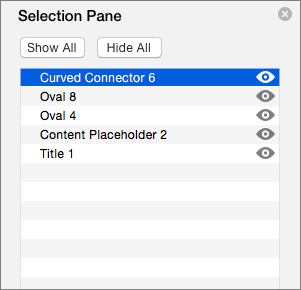
- لفتح جزء المهام الذي تستطيع فيه تحديد العناصر أو التحديد المتعدد لها أو إظهارها أو إخفاءها أو تغيير ترتيبها، انقر فوق "جزء التحديد"، ثم انقر فوق الخيارات التي تريدها.
تلميحات لتحديد الأشكال والعناصر
| لتنفيذ هذا الإجراء | قم بما يلي |
|---|---|
| تحديد عدة عناصر. | اضغط باستمرار على Shift أو Ctrl أثناء النقر فوق العناصر. |
| تحديد عنصر موجود أسفل عناصر أخرى والتقدم خلال مكدس العناصر. | حدد العنصر العلوي، ثم اضغط على المفتاح Tab. |
| تحديد عنصر موجود أسفل عناصر أخرى والتراجع خلال مكدس العناصر. | حدد العنصر العلوي، ثم اضغط على Shift+Tab. |
| تحديد العناصر التي تشكل جزءا من مجموعة. | حدد المجموعة، ثم قم بأي مما يلي:
|
| إلغاء تحديد عنصر واحد في كل مرة. | اضغط باستمرار على Shift أو Ctrl أثناء النقر فوق كل عنصر. |
اطلع أيضاً على
تجميع الأشكال أو الصور أو العناصر الأخرى أو إلغاء تجميعها
PowerPoint
انقر فوق الكائن لتحديده. وإذا لم يؤد ذلك إلى تحديده، فضمن علامة التبويب الصفحة الرئيسية، في المجموعة تحرير، انقر فوق تحديد ثم قم بأي مما يلي:

- لتحديد كافة العناصر والعناصر النائبة على الشريحة، انقر فوق تحديد الكل.
- لتحديد العناصر المخفية أو المكدسة أو الموجودة خلف نص، انقر فوق تحديد عناصر، ثم قم برسم مربع فوق العناصر.
- لفتح جزء التحديد، الذي تستطيع فيه تحديد العناصر أو التحديد المتعدد لها أو إظهارها أو إخفاءها أو تغيير ترتيبها، انقر فوق "جزء التحديد"، ثم انقر فوق الخيارات التي تريدها.
تلميحات لتحديد الأشكال والعناصر
| لتنفيذ هذا الإجراء | قم بما يلي |
|---|---|
| تحديد عدة عناصر. | اضغط باستمرار على Shift أو Ctrl أثناء النقر فوق العناصر. |
| تحديد عنصر موجود أسفل عناصر أخرى والتقدم خلال مكدس العناصر. | حدد العنصر العلوي، ثم اضغط على المفتاح Tab. |
| تحديد عنصر موجود أسفل عناصر أخرى والتراجع خلال مكدس العناصر. | حدد العنصر العلوي، ثم اضغط على Shift+Tab. |
| تحديد العناصر التي تشكل جزءا من مجموعة. | حدد المجموعة، ثم قم بأي مما يلي:
|
| إلغاء تحديد عنصر واحد في كل مرة. | اضغط باستمرار على Shift أو Ctrl أثناء النقر فوق كل عنصر. |


 »
»