
- Windows 11
- Windows 10
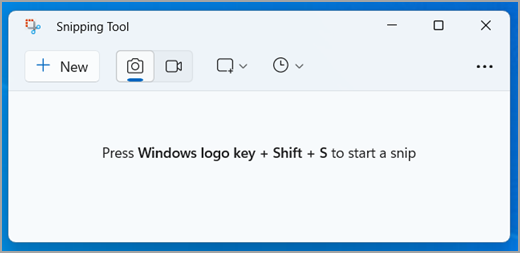
Направете снимка на екрана, за да копирате думи или изображения от всички или от част от екрана на вашия компютър. Използвайте инструмента за изрязване, за да направите промени или бележки, след което да записвате и споделяте.
Можете да заснемете следните типове изрезки:
| Свободна форма | Начертайте произволна форма около даден обект. |
|---|---|
| Правоъгълник | Плъзнете курсора около обект, за да оформите правоъгълник. |
| Window | Изберете прозорец, като например прозорец на браузър или диалогов прозорец, който искате да заснемете. |
| Цял екран | Направете снимка на целия екран. |
| Изрезка на видео | Записки на правоъгълна селекция на всяка част от екрана, която харесвате. |
Когато заснемете дадена изрезка, тя се копира автоматично в прозореца на инструмента за изрязване, където можете да правите промени, записвате и споделяте.
Използване на функциите на Copilot+ PC в инструмента за изрязване
На Copilot+ PC можете също да използвате тези функции, поддържани от ИИ:
| Перфектна екранна снимка | Перфектната екранна снимка автоматично настройва областта на заснемане, така че да поставя плътно кадър на съдържанието на екрана, намалявайки необходимостта от изрязване след заснемане. |
|---|---|
| Икона за стартиране на диалогов прозорец в групата ''Размер'' в раздел ''Инструменти за рисуване, Форматиране'' | Записки на точни стойности на цветовете от всяко място на екрана. |
Отваряне на инструмента за изрязване
Изберете бутона с емблемата на Windows, въведете инструмента за изрязване, след което изберете инструмента за изрязване от резултатите. Можете да използвате тези клавишни комбинации, за да свършите работата си с инструмента за изрязване по-бързо:
- Натиснете клавиша с емблемата на WindowsShift + S
+ за да отворите наслагване на инструмента за изрязване и да направите снимка на изображението.
- Натиснете клавиша с емблемата на Windows,
+ Shift + R, за да отворите наслагването на инструмента за изрязване за заснемане на видеоклип.
- Натиснете Print Screen (PrtSc) за статично изображение на целия екран и го поставете в клипборда.
Работа с вашите екранни снимки
При отворен инструмент за изрязване изберете едно от следните неща, за да създавате и работите с вашите екранни снимки.
Заснемане на изрезка
В инструмента за изрязване изберете изрязващия режим. и изберете желания вид изрезка и изберете "Създай".
- Правоъгълник: Позволява ви да изберете правоъгълна област, която да заснемете.
- Прозорец: позволява ви да изберете прозорец, който искате да заснемете.
- Цял екран: Незабавно заснема снимка на целия екран.
- Свободна форма: Позволява ви да начертаете фигура със свободна форма, за да изберете областта, която искате да заснемете.
В зависимост от опцията, която изберете, ще видите, че целият екран става малко сив, което показва, че сте готови за заснемане на изрезка.

Записки на перфектна екранна снимка
Забележка
- Перфектната екранна снимка е налична само на Windows 11 AI + PC.
- Перфектната екранна снимка е налична само на Copilot+ PC.
В инструмента за изрязване изберете "Перфектна екранна снимка", след което изберете правоъгълна област на екрана.
"Перфектна екранна снимка " автоматично настройва областта на заснемане, така че да поставя плътно кадър на съдържанието на екрана, намалявайки необходимостта от изрязване след заснемане. Когато се активира, инструментът използва правоъгълна селекция, която анализира видимия екран и прилепва около най-забележимото съдържание в изгледа. Той осигурява манипулатори за изрязване за опционална фина настройка и е проектиран да направи заснеманията по-чисти и по-ефективни с минимални усилия.
Използване на селекцията на цвят
Забележка
- Инструментът за избор на цвят е наличен само на Windows 11 AI + PC.
- Инструментът за избор на цвят е наличен само на Copilot+ PC.
В инструмента за изрязване изберете избора на цвят, след което изберете цвят от екрана и го копирайте в клипборда.
Анотиране на изрезка
След като заснемете изрезка на изображение, можете да:
- Пишете или рисувайте върху или около него, като изберете бутоните на перото или маркера .
- Добавете фигури или емоджита към изрезката, като изберете бутона "Фигури".
- Изберете гума, за да премахнете редовете или фигурите, които сте добавили.
- Изрежете изображението, като изберете бутона "Изрежи изображението ".
- Изберете бутона "Текстови действия ", за да извлечете и копирате желания текст от изрезката.
- Изберете "Отмени " или " Върни ", за да отмените или да повторите вашите анотации.
Записки на видео изрезка

За да заснемете изрезка на видео, отворете инструмента за изрязване, изберете бутона "Запис", след което изберете "Създай" или натиснете клавиша + с емблематана Windows Shift + R. Изберете областта от екрана, която искате да запишете, след което изберете "Старт". Когато сте готови, изберете Спри. В този момент можете да запишете записа без промяна или да изберете Редактиране в Clipchamp, за да работите с него във видео редактора на Clipchamp.
Добавяне на надписи или аудио към изрезка на видео
Когато приключите със записването на изрезка на видео, изберете бутона "Редактиране в Clipchamp", за да добавите надписи или аудио.

Генериране и добавяне на надписи
- Придвижете се до раздела "Надписи " и изберете бутона " Транскрибиране на мултимедия ".
- Изберете своя език и опции за филтриране от изскачащия прозорец.
- Навигирайте и изберете Транскрибиране на мултимедия , за да генерирате надписи.
Добавяне и откачване на аудио от видеоизрезката
- Изберете раздела "Аудио " от страничната лента.
- Регулирайте силата на звука в диапазона от 0 до 200%.
- За да изтеглите аудиото отделно, изберете бутона за разкачане на аудио .
- За достъп до изтегления аудиофайл натиснете клавиша с емблемата+ R и въведете "изтегляния" в диалоговия прозорец.
За повече информация вижте "Добавяне на надписи и аудиоописание към изрезка на видео".
Забележка
- За да добавите автоматичен надпис към фрагмента от видеото, вижте Как да използвате автоматични надписи в Clipchamp.
- За да използвате функцията за преобразуване на текст в говор, вижте "Как се използва функцията за преобразуване на текст в говор".
Записване на изрезка
След като заснемете изрезка, тя автоматично се записва във вашата папка "Екранни снимки". За да промените поведението на автоматичното записване или папката по подразбиране за екранни снимки, изберете "Вижте ", след което изберете "Настройки
 ".
".
Можете също да запишете допълнително копие на заснетата изрезка, като изберете бутона "Запиши като ", след което изберете местоположението и името на файла и Запишете файла.
Споделяне на изрезка
След като заснемете дадена изрезка, изберете менюто "Вижте още горе вдясно и след това изберете "Споделяне".
Копиране или редактиране на текст
След като сте заснемали дадена изрезка, изберете бутона "Действия с текст ", за да активирате функцията за оптично разпознаване на знаци (OCR). Това ви позволява да извличате текст директно от вашето изображение. Оттук имате възможност да изберете и копирате конкретен текст или да използвате инструментите за копиране на целия текст или за бързо редактиране на имейл адреси или телефонни номера в изрезката. Всички процеси за разпознаване на текст се извършват локално на вашето устройство.
Клавишни комбинации за използване в инструмента за изрязване
| Натиснете тези клавиши | За да направите това |
|---|---|
| Alt + M | Избор на изрязващ режим. |
| Alt + N | Създаване на нова изрезка в същия режим като последния. |
| Shift +клавиши със стрелки | Преместване на курсора за избор от различни типове изрезки. |
| Alt + Г | Забавяне на заснемането с 1-5 секунди |
| Ctrl + В | Копиране на изрезката в клипборда |
| Ctrl + S | Записване на изрезката |
Уголемяване, завъртане или изрязване на изрезка на изображение
Когато вашето заснемане е отворено в инструмента за изрязване, изберете "Редактиране>и редактиране с Paint", за да използвате функциите за оразмеряване, цвят, текст, както и много други подобрения.
Печат на изрезка на изображение
В папката, където сте записали вашата изрезка, щракнете с десен бутон върху изрезката. Изберете Печат от опциите и изберете начина, по който искате да отпечатате вашето изображение.
Поставяне на изрязващия инструмент в лентата на задачите
В полето за търсене в лентата на задачите въведете инструмент за изрязване. Ще видите приложението „Инструмент за изрязване“ и списък с действия, които можете да предприемете. Изберете Закачи към лента на задачите.
Отлагане на вашата екранна снимка
Първо идентифицирайте менюто или други компоненти, които искате да снемете. В инструмента за изрязване изберете Отлагане и след това изберете например 5 секунди. Изберете желания режим на изрязване, след което изберете "Създай ", за да стартирате 5-секундното отброяване. В рамките на 5 секунди отворете меню или съставете вашето изображение по друг начин. След 5 секунди, когато видите екрана да става сив, използвайте мишката, за да рисувате около желаната област.
