Here are some things you can do to extend your PC’s battery life.
Choose energy saving settings
You can help lower your device's carbon footprint while helping your battery last longer. The Energy recommendations section is a quick place to go when you're looking for a collection of settings that affect your power usage.
Select Start
 , and then select Settings
 > System
 > Power & battery
 > Energy recommendations.
Select Apply all or individually adjust settings that are likely to use more power than average, such as screen brightness, screen saver, and how long your device can be inactive before it goes to sleep or turns off. To learn about each setting, see Learn more about energy recommendations.
Use energy saver
Energy saver automatically manages system processes and power usage for an optimal balance of PC performance and longer battery life.
Select Start
> Settings
> System
> Power & battery
. If you want energy saver to turn on whenever the battery falls below a certain level, select Energy saver to expand options, then next to Turn energy saver on when battery level is at, select the battery level you'd like. To turn on energy saver now and leave it on until the next time you plug in your PC, set Always use energy saver to On, or select the Battery icon in the notification area, then select the Energy saver quick setting.
Change display settings
Adjust some of your PC's display settings to help extend battery life. For example:
| Set a shorter duration for an active display. |
Select Start
> Settings
> System
> Power & battery
> Screen and sleep. For On battery power, turn off my screen after, pick a shorter duration.
Open Power & sleep settings |
| Reduce your display’s brightness. |
Select Start
> Settings
> System
> Display
 > Brightness
 . Clear the Change brightness automatically when lighting changes or the Help improve battery by optimizing the content shown and brightness check box (if either appears), and then use the slider to set the brightness level you want.
Open Display settings |
| Reduce the screen refresh rate. |
A higher refresh rate will provide smoother motion on your display, but it also uses more power. If you want to lower the screen refresh rate, select Start
> Settings
> System
> Display
> Advanced display
. For Choose a refresh rate, select a lower rate. |
| Choose custom graphics options for an app. |
Select Start
> Settings
> System
> Display
> Graphics. Under Custom options for apps, select an app, select Options, then choose Power saving. |
| Use a dark background. |
Select Start
> Settings
> Personalization
 > Background
 , and then choose a dark picture or dark solid color.
Open Background settings |
| Use a dark theme. |
Select Start
> Settings
> Personalization
> Themes
> Current theme, and then choose a dark theme.
Open Themes settings |
Change power settings
Adjust some of your PC's power settings to help extend battery life. For example:
| Let Windows change some power settings for you automatically. |
Select Start
> Settings
> System
> Troubleshoot
 > Other troubleshooters
, then select Run next to Power
> Other troubleshooters
, then select Run next to Power
 .
.
Open Troubleshooter |
| Set a shorter duration for when your PC sleeps. |
Select Start
> Settings
> System
> Power & battery
> Screen and sleep. For On battery power, put my device to sleep after, choose a shorter duration.
Open Power & sleep settings |
| Change the background activity setting for some apps. |
Some apps let you manage background activity. If you find that an app is using a lot of battery when running in the background, you can change the setting for apps that allow it. Select Start
> Settings
> System
> Power & battery
> Battery usage. Under Battery usage per app, see which apps might be using more battery in the background. For an app that let you manage the background activity, select More options
 > Manage background activity. On the settings page for that app, change the setting for Let this app run in the background.
 |
| Put a lid on it. |
Most laptops can go to sleep automatically by closing the lid. To set this, select Search
 on the taskbar, enter control panel, then select it in the list of results. In Control Panel, select Power options > Choose what closing the lid does.
 |
| Choose a more efficient power mode. |
Select Start
> Settings
> System
> Power & battery
. For Power mode, choose a power mode that's more efficient.
This option isn't available on all PCs and depends on your PC hardware and manufacturer. |
| Just press a power button. |
Most PCs let you turn off your display, shut down, sleep, or hibernate with a press of the Power button.
To choose what the power buttons do, select Search
on the taskbar, enter control panel, then select it from the list of results. In Control Panel, select Power options, and then Choose what the power buttons do. |
| Choose different battery options for playing videos on battery. |
Select Start
> Settings
> Apps
 > Video playback
 . For Battery options, select Optimize for battery life. To help save more battery, select the Play video at a lower resolution when on battery check box.
 |
Other things you can do
| Keep your PC plugged in until it’s fully charged. |
To check your PC’s battery level, select Start
> Settings
> System
> Power & battery
. At the top you can see your current battery level and how your battery level changes throughout the day. |
| Restart your PC. |
This can sometimes fix problems that can shorten battery life. Select Start
, and then select Power
> Restart
 .
. |
| Turn on airplane mode if you don’t need Internet, Bluetooth, or other wireless communications. |
Select Start
> Settings
> Network & internet
 , and then turn on Airplane mode
 .
.
Open Airplane mode settings |
Choose energy saving settings
You can help lower your device's carbon footprint while helping your battery last longer. The Energy recommendations section is a quick place to go when you're looking for a collection of settings that affect your power usage.
Select Start
, and then select Settings
> System
> Power & battery
> Energy recommendations.
Select Apply all or individually adjust settings that are likely to use more power than average, such as screen brightness, screen saver, and how long your device can be inactive before it goes to sleep or turns off. To learn about each setting, see Learn more about energy recommendations.
Use battery saver
When battery saver is on, your PC temporarily turns off some things that use a lot of power, like automatic email and calendar syncing, live tile updates, and apps you’re not actively using. Using battery saver is the easiest way to extend battery life.
Select Start
> Settings
> System
> Power & battery
. If you want battery saver to turn on whenever the battery falls below a certain level, select Battery saver, then choose the battery level you'd like. To turn on battery saver now and leave it on until the next time you plug in your PC, select Turn on now next to Battery saver , or select the Battery icon in the notification area, then select the Battery saver quick setting.
Change display settings
Adjust some of your PC's display settings to help extend battery life. For example:
| Set a shorter duration for an active display. |
Select Start
> Settings
> System
> Power & battery
> Screen and sleep. For On battery power, turn off my screen after, pick a shorter duration.
Open Power & sleep settings |
| Reduce your display’s brightness. |
Select Start
> Settings
> System
> Display
> Brightness
. Clear the Change brightness automatically when lighting changes or the Help improve battery by optimizing the content shown and brightness check box (if either appears), and then use the slider to set the brightness level you want.
Open Display settings |
| Reduce the screen refresh rate. |
A higher refresh rate will provide smoother motion on your display, but it also uses more power. If you want to lower the screen refresh rate, select Start
> Settings
> System
> Display
> Advanced display
. For Choose a refresh rate, select a lower rate. |
| Choose custom graphics options for an app. |
Select Start
> Settings
> System
> Display
> Graphics. Under Custom options for apps, select an app, select Options, then choose Power saving. |
| Use a dark background. |
Select Start
> Settings
> Personalization
> Background
, and then choose a dark picture or dark solid color.
Open Background settings |
| Use a dark theme. |
Select Start
> Settings
> Personalization
> Themes
> Current theme, and then choose a dark theme.
Open Themes settings |
Change power settings
Adjust some of your PC's power settings to help extend battery life. For example:
| Let Windows change some power settings for you automatically. |
Select Start
> Settings
> System
> Troubleshoot
> Other troubleshooters
, then select Run next to Power
.
Open Troubleshooter |
| Set a shorter duration for when your PC sleeps. |
Select Start
> Settings
> System
> Power & battery
> Screen and sleep. For On battery power, put my device to sleep after, choose a shorter duration.
Open Power & sleep settings |
| Change the background activity setting for some apps. |
Some apps let you manage background activity. If you find that an app is using a lot of battery when running in the background, you can change the setting for apps that allow it. Select Start
> Settings
> System
> Power & battery
> Battery usage. Under Battery usage per app, see which apps might be using more battery in the background. For an app that let you manage the background activity, select More options
> Manage background activity. On the settings page for that app, change the setting for Let this app run in the background. |
| Put a lid on it. |
Most laptops can go to sleep automatically by closing the lid. To set this, select Search
on the taskbar, enter control panel, then select it in the list of results. In Control Panel, select Power options > Choose what closing the lid does. |
| Choose a more efficient power mode. |
Select Start
> Settings
> System
> Power & battery
. For Power mode, choose a power mode that's more efficient.
This option isn't available on all PCs and depends on your PC hardware and manufacturer. |
| Just press a power button. |
Most PCs let you turn off your display, shut down, sleep, or hibernate with a press of the Power button.
To choose what the power buttons do, select Search
on the taskbar, enter control panel, then select it from the list of results. In Control Panel, select Power options, and then Choose what the power buttons do. |
| Choose different battery options for playing videos on battery. |
Select Start
> Settings
> Apps
> Video playback
. For Battery options, select Optimize for battery life. To help save more battery, select the Play video at a lower resolution when on battery check box. |
Other things you can do
| Keep your PC plugged in until it’s fully charged. |
To check your PC’s battery level, select Start
> Settings
> System
> Power & battery
. At the top you can see your current battery level and how your battery level changes throughout the day. |
| Restart your PC. |
This can sometimes fix problems that can shorten battery life. Select Start
, and then select Power
> Restart
. |
| Turn on airplane mode if you don’t need Internet, Bluetooth, or other wireless communications. |
Select Start
> Settings
> Network & internet
, and then turn on Airplane mode
.
Open Airplane mode settings |
Use battery saver
When battery saver is on, your PC temporarily turns off some things that use a lot of power, like automatic email and calendar syncing, live tile updates, and apps you’re not actively using. Using battery saver is the easiest way to extend battery life.
Select Start
, and then select Settings
 > System
 > Battery
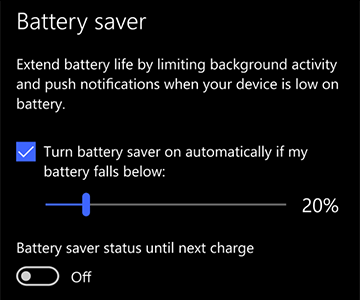
. If you want battery saver to turn on whenever the battery falls below a certain level, select Turn battery saver on automatically if my battery falls below: and set it where you’d like. To turn on battery saver now and leave it on until the next time you plug in your PC, turn on Battery saver status until next charge.
> Battery
. If you want battery saver to turn on whenever the battery falls below a certain level, select Turn battery saver on automatically if my battery falls below: and set it where you’d like. To turn on battery saver now and leave it on until the next time you plug in your PC, turn on Battery saver status until next charge.
Change display settings
Adjust some of your PC's display settings to help extend battery life. For example:
| Set a shorter duration for an active display. |
Select the Start
button, and then select Settings
> System
> Power & sleep
. Under On battery power, turn off after, pick a shorter duration.
Open Power & sleep settings |
| Reduce your display’s brightness. |
Select the Start
button, and then select Settings
> System
> Display
 . Turn off Change brightness automatically when lighting changes (if it appears), and then use the Change brightness slider to set the brightness level you want.
Open Display settings |
| Use a dark background. |
Select the Start
button, select Settings
> Personalization
 > Background, and then choose a dark picture or dark solid color.
Open Background settings |
| Use a dark theme. |
Select the Start
button, select Settings
> Personalization
> Themes > Theme settings, and then choose a dark theme.
Open Themes settings |
Change power settings
Adjust some of your PC's power settings to help extend battery life. For example:
| Let Windows change some power settings for you automatically. |
Select the Start
button, and then select Settings
> Update & security
 > Troubleshoot
> Power
and then select Run the troubleshooter.
> Troubleshoot
> Power
and then select Run the troubleshooter.
Open Troubleshooter |
| Set a shorter duration for when your PC sleeps. |
Select the Start
button, and then select Settings
> System
> Power & sleep
. Under On battery power, PC goes to sleep after, choose a shorter duration.
Open Power & sleep settings |
| Disconnect from a Wi-Fi network when your PC sleeps. |
Select the Start
button, and then select Settings
> System
> Power & sleep
> When my PC is asleep and on battery power, disconnect from the network. Change the setting to Always or Managed by Windows instead of Never.
This option isn’t available on all PCs and depends on your PC hardware and manufacturer. |
| Put a lid on it. |
Most laptops can go to sleep automatically by closing the lid. To set this, select the Start
button, and then select Settings
> System
> Power & sleep
> Additional power settings > Choose what closing the lid does. |
| Choose a lower power mode. |
Select the Battery
icon on the right side of the taskbar. To reduce power use, move the slider toward Best battery life.
This option isn’t available on all PCs and depends on your PC hardware and manufacturer. |
| Just press a power button. |
Most PCs let you turn off your display, shut down, sleep, or hibernate with a press of the Power
button.
To choose what the power buttons do, select the Start
button, and then select Settings
> System
> Power & sleep
> Additional power settings,and then Choose what the power buttons do. |
Change sync settings
Increase battery life by changing how frequently your PC syncs. For example:
| Sync email less often. |
Select the Start
button, and then select Settings
> Accounts
 > Email & accounts
 .
.
Open Email & account settings
Select the account that you want to change, and then select Manage > Change mailbox sync settings. Under Download new email, choose a longer interval. |
| Sync only the email, calendars, and contacts you want. |
You don’t have to sync email, calendars, or contacts unless you want to.
Select the Start
button, and then select Settings
> Accounts
> Email & accounts
.
Select the account that you want to change and the Manage button, and then select Change mailbox sync settings. Under Sync options, select Email, Calendar, or Contacts to turn them off. |
Other things you can do
| Keep your PC plugged in until it’s fully charged. |
To check your PC’s battery level, move the mouse pointer over the Battery
 icon on the taskbar, or go to Settings
> System
> Battery
.
icon on the taskbar, or go to Settings
> System
> Battery
. |
| Restart your PC. |
This can sometimes fix problems that can shorten battery life. Select the Start
button, and then select Power
> Restart. |
| Turn on airplane mode if you don’t need Internet, Bluetooth, or other wireless communications. |
Select the Start
button, then select Settings
> Network & Internet
 > Airplane mode
, and turn on airplane mode.
> Airplane mode
, and turn on airplane mode.
Open Airplane mode settings |
| Use Microsoft Edge for browsing. |
Tests show that when browsing with Microsoft Edge, your battery lasts 36-53% longer per charge than when browsing with Chrome, Firefox, or Opera on Windows 10. |
For more info on batteries, see, Surface battery won’t charge or Surface won’t run on battery on Windows 10 or PC is charging slowly or discharging while it's plugged in.
