
Filter
You can add a filter to easily find important contents. There are two ways to apply a filter:
- Tap or click on a filter on the Search Panel
- Tap or click on a filter on the Side Panel when a journal is open
Filter on Search Results
The Search Panel on the top of Microsoft Journal provides a powerful Search experience. You can add a filter to refine your content search, with or without a keyword.
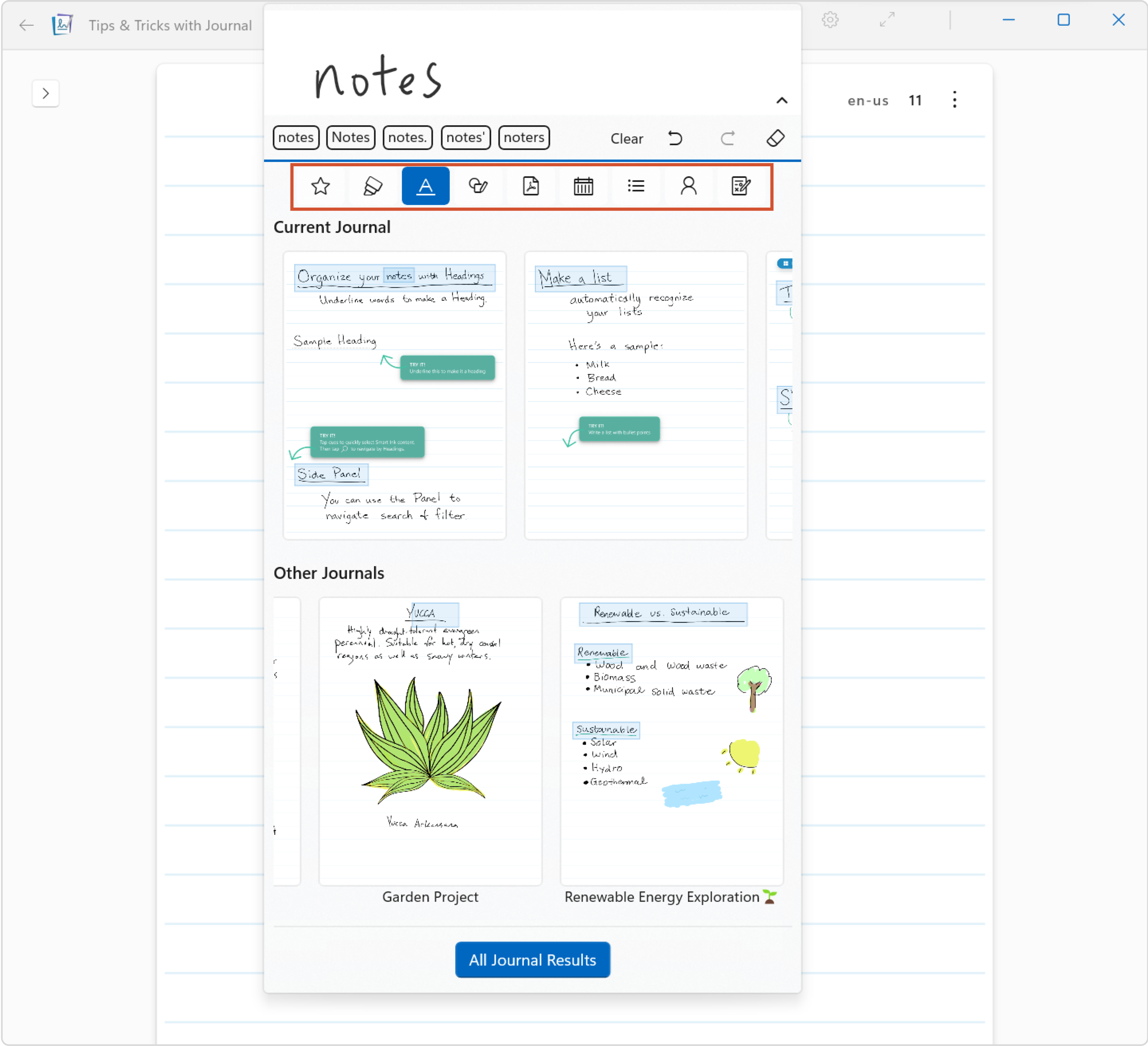
Filter through Side Panel
The Side Panel provides powerful ways to help you find content within a journal. Refer to Page and Card Navigation help page for more details on Side Panel navigation.
To reach your desired content faster, add filter by selecting the
 icon and a list of filter icons will appear. Pages with the filtered content will appear on the Side Panel.

List of Available Filters
Below is a list of available filters, based on content type and recognized Ink gestures.
| Filter | Icon | Description |
|---|---|---|
| Stars |

|
Content next to a five-point star or an asterisk |
| Highlights |

|
Content marked up with a Highlighter tool |
| Headings |

|
Content underlined as a heading. Only content starting at the beginning of a line will be recognized as heading |
| Drawings |

|
Contents recognized as a drawing |

|
Pages containing an imported PDF | |
| Calendar Meetings |

|
Pages created from Calendars that have the meeting header Available for users who signed in using a Microsoft account |
| Lists |

|
Content recognized as list |
| @Mention |

|
@Mention content added to page Available for users who signed in using a Microsoft account |
| Annotations |

|
PDF pages marked up with Ink |