Search
The Search Bar at the top of Microsoft Journal brings you a powerful search experience. Quickly start a keyword search from anywhere in the app and add filters to enhance your search.
Quick Start on Search
There are two ways to start a search:
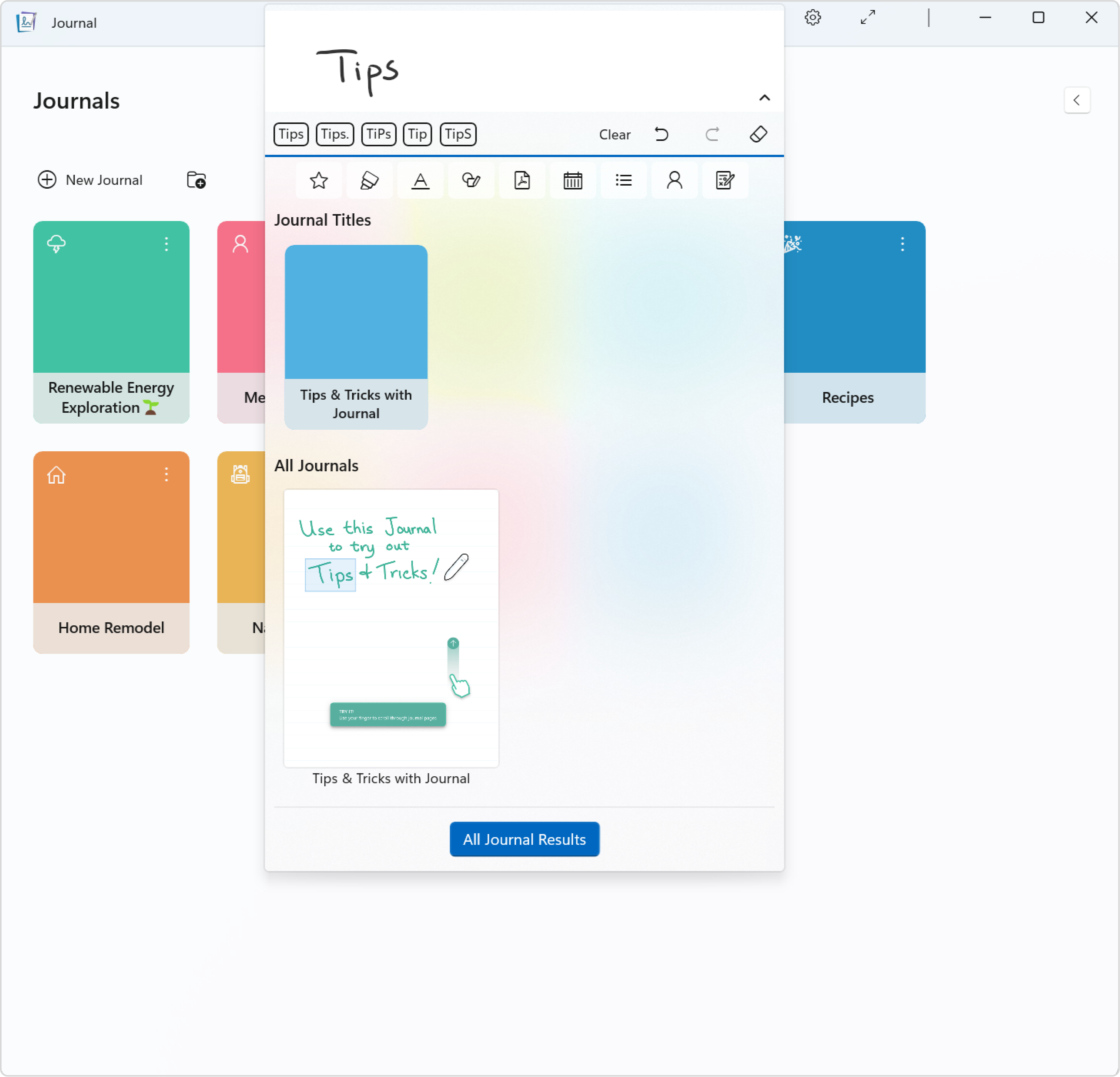
- Tap the Search Bar with your pen, and the Search Bar will expand to give you more space to handwrite the keyword
- Click on the Search Bar with your mouse or finger, and start typing the keyword
The Search Bar will expand to a Search Panel, displaying top results with searched content highlighted. Select to jump to a specific journal or page.
Filter on Search Results
In the Search Panel, you can add a filter to refine your content search, with or without a keyword.
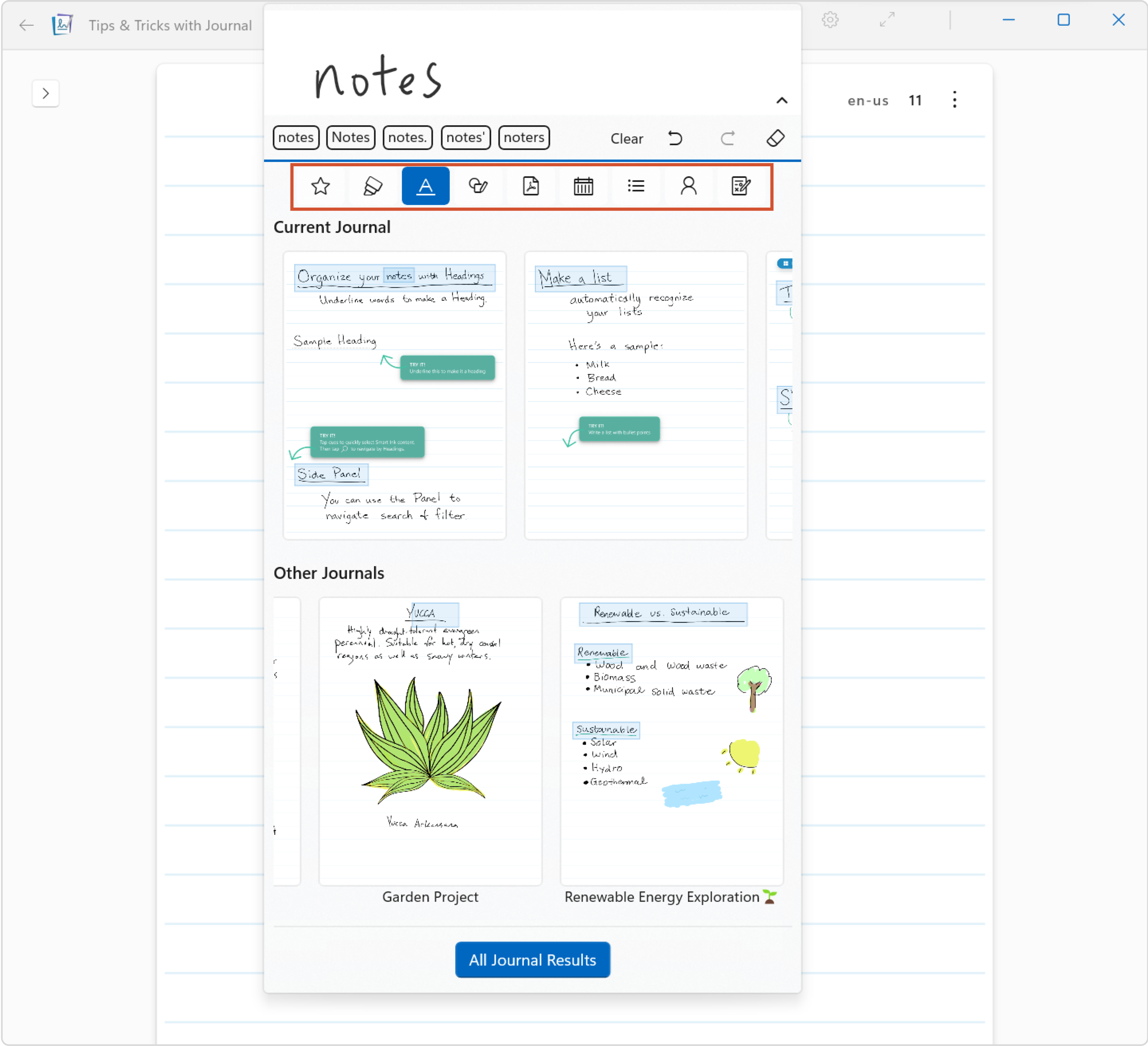
Refer to the Filter help page for more details on filtering.
Full Search Page
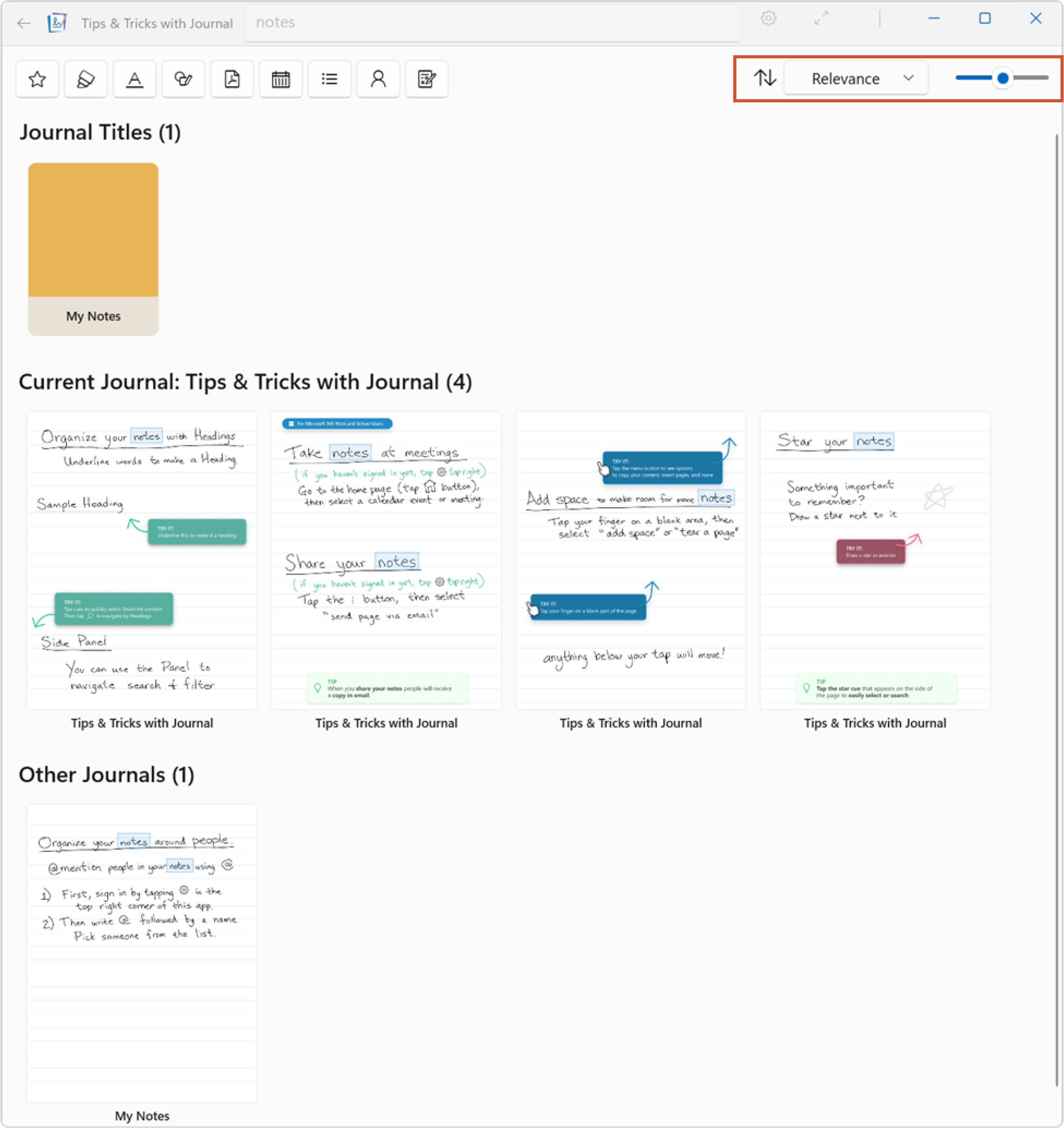
Once you select “All Journal Results” at the bottom of the Search Panel, a new page will launch showing all search results in three categories:
- Journals with a title match
- Pages matching from the current journal
- Pages matching from all other journals
You can also configure the page view by choosing sort options and thumbnail size on the top right corner.