
Headings
Headings allow you to easily create lightweight structure in a journal. Headings automatically turn into bookmarks for easy navigation.
Add a Heading
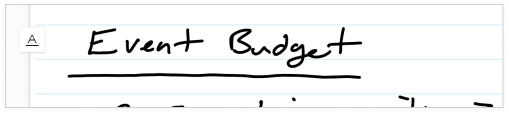
Underline the words on a line to make it a heading.
When an underline is recognized as a heading, a Heading Cue
 appears on the left edge of a page.
Tapping a Heading Cue selects the heading
Find or Navigate by Headings
You can view a table of contents using the headings you created in your journal using the Side Panel. Select the Heading filter
and then set the Side Panel to the Cards tab
 .
.
Cards containing only Headings will appear. Tap a card to navigate your journal to the page containing that heading. Learn more in the Search and Filter article.
You can also tap the Heading Cue
on the edge of a journal page, and then tap the Filter button
 to filter the side panel to all your headings.