
If you would like to make your presentations more dynamic and exciting, try using zoom for PowerPoint.
To add a zoom, on the Insert tab, select Zoom.
- To summarize the entire presentation on one slide, choose Summary Zoom
- To show selected slides only, choose Slide Zoom
- To show a single section only, choose Section Zoom
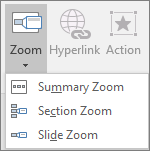
Overview
When you create a zoom in PowerPoint, you can jump to and from specific slides, sections, and portions of your presentation in an order you decide while you're presenting.
Note
See the Requirements table below regarding which versions of PowerPoint support the features described in this article.
Summary zoom
A summary zoom is like a landing page where you can see the pieces of your presentation all at once. When you're presenting, you can use the zoom to go from one place in your presentation to another in any order you like. You can get creative, skip ahead, or revisit pieces of your slide show without interrupting the flow of your presentation.
Create a summary zoom
- Select the Insert tab, then select Zoom.

- Select Summary Zoom.
- The Insert Summary Zoom dialog box opens.
Select slides you want to include in your summary zoom. These become the first slides of your summary zoom sections. To learn more about using sections in PowerPoint, see Organize your PowerPoint slides into sections.
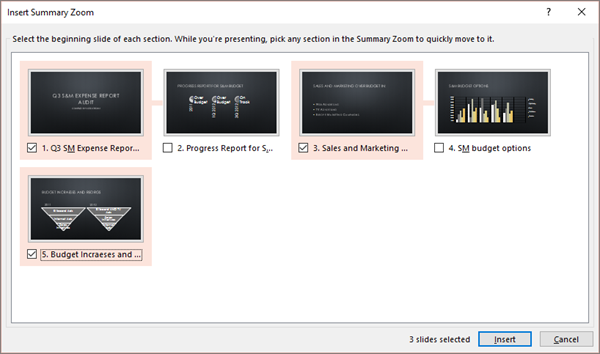
If you already have sections in your presentation, the first slide of each section is preselected by default. If you don't want to include certain sections in your zoom, deselect them. Then, if you want PowerPoint to get rid of any sections you didn't include in your summary zoom, clear the check box next to Keep unused sections in your presentation. Don't worry—the slides in the sections you're discarding will still be part of your presentation.
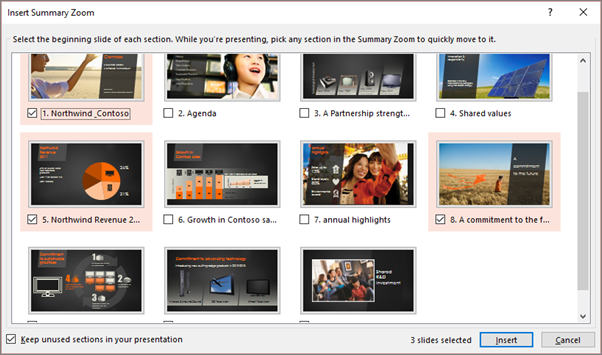

- Once you've selected all the slides you want to use for your summary zoom, select Insert. Your summary zoom is created, and it appears as a new slide just before the first slide you included in your summary zoom.
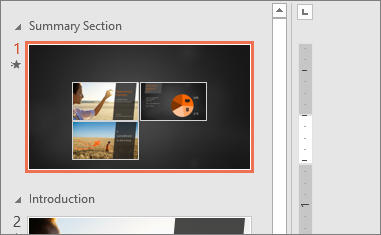
Add or remove sections from your summary zoom
Once you've created a summary zoom, you might still want to add or remove sections of your presentation. If you've made changes since first making your summary zoom that you want to capture, you don't have to start from scratch—just update your summary zoom.
Select your zoom, then select the Zoom tab on the ribbon.

Select Edit Summary, choose the sections you want to have in your summary zoom, and then select Update.
Note
You won't be able to add or remove sections from your presentation in this view, just from your summary zoom.
Slide zoom
A slide zoom can help you make your presentation more dynamic, allowing you to navigate freely between slides in any order you choose without interrupting the flow of your presentation. They're a good option for shorter presentations without lots of sections, but you can use slide zooms for lots of different presentation scenarios.
Slide zooms help you drill down into multiple pieces of information while feeling as though you're staying on the same canvas.
Create a slide zoom
- Select the Insert tab, then select Zoom.
- Select Slide Zoom.
- The Slide Zoom dialog box opens. Select the slides you want to use in your slide zoom.
- Once you've selected all the slides you want to use, select Insert.
- An item for each slide you selected in step 3 is added to the slide. Select each item in turn and drag to arrange them on the slide.
Tip
In PowerPoint for Windows, if you want to, you can create a slide zoom quickly by simply selecting the slide you want from the thumbnail pane and dragging it onto the slide you'd like to have your slide zoom on. This way, you can create slide zooms and change them quickly and arrange them however you like simply by clicking and dragging.
Change the preview image of your slide zoom
Your slide zoom by default will be a preview thumbnail image of the slide, but you can choose a new image from your PC or the web to represent the section or slide you'll be going to.
- Select your zoom, and then select the Zoom tab on the ribbon.
- Select Change Image to choose a new picture from the web or your PC to use instead of the thumbnail.
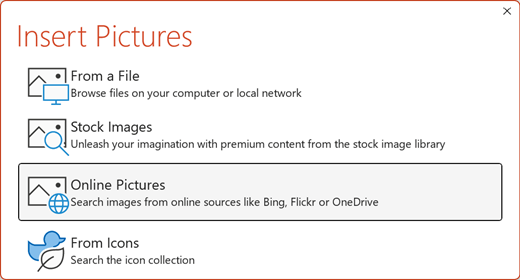
- Choose or search the web for the image you want. When you've selected the image you want, select Insert.
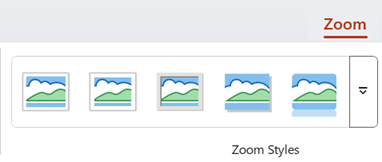
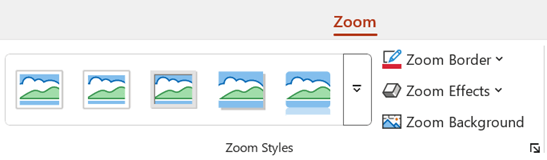
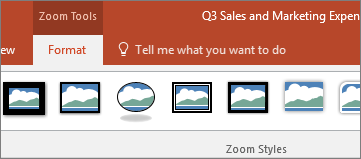
You can also choose various looks for your zooms from Zoom Styles—you can change the border, add visual effects, or pick from any of the border and effect combinations in the gallery.
Section zoom
A section zoom is a link to a section already in your presentation. You can use them to go back to sections you want to really emphasize, or to highlight how certain pieces of your presentation connect. To learn more about using sections in PowerPoint, see Organize your PowerPoint slides into sections.
Create a section zoom
- Select the Insert tab, then select Zoom.
- Select Section Zoom.
- Select the section you want to use as a section zoom.
- Select Insert. Your section zoom will be created.
Tip
In PowerPoint for Windows, if you want to, you can create a section zoom quickly by simply selecting the section name you want in the thumbnail pane and dragging it onto the slide you'd like to have a section zoom on.
Change the preview image of your section zoom
Your section zoom by default will be a preview thumbnail image of the slide, but you can choose a new image from your PC or the web to represent the section or slide you'll be going to.
- Select your zoom, and then select the Zoom tab on the ribbon.
- Select Change Image to choose a new picture from the web or your PC to use instead of the thumbnail.
- Choose or search the web for the image you want. When you've selected the image you want, select Insert.
You can also choose various looks for your zooms from Zoom Styles—you can change the border, add visual effects, or pick from any of the border and effect combinations in the gallery.
More zoom options
Zoom for PowerPoint truly lights up when you make it your own. Select the Zoom tab of the ribbon to get to the Zoom tools, which you can use to create just the look and feel you're going for when you present.
Choose to return to the home page or continue through your presentation
- Select your zoom, then select the Zoom tab on the ribbon.
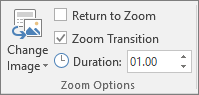
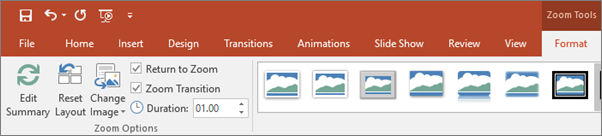
- If you want to return to the zoom slide after viewing sections or slides in your summary, slide, or section zoom, make sure the Return to Zoom check box is selected. If you want to move on to the next slide after viewing part of your zoom, uncheck it.
(If you're working with a summary zoom or a section zoom, you'll return to the zoom slide by default when you're presenting after going to the section. If you're using a slide zoom, you'll move on to the next slide by default after viewing your slide zoom.)
Make the background of your zoom transparent
Another way you can change the look of your zoom is by choosing to adopt the background of the slide where your zoom lives to make the zoom almost indistinguishable from the main canvas while you present. Select Zoom Background to make your summary, section, or slide zooms blend in to their home slide.
- Select your zoom, and then select the Zoom tab on the ribbon.
- In the Zoom Styles group, select Zoom Background. The zoom will adopt the background of the home slide.
Change the transition options of your zoom
By default, your zooms will use the zoom transition when you present, which is what helps make the zooms feel so lively. However, if you don't want to use the zoom transition, or if you want to change the duration of the transition, you can do so.
- Select your zoom, and then select the Zoom tab on the ribbon.
- In the Zoom Options group, if you want to use the zoom transition when presenting your zoom, make sure the box next to Zoom Transition is checked.
If you don't want to use the zoom transition when presenting, clear the check box next to Zoom Transition. - To change the timing of the zoom transition, use the up and down arrows next to the Duration indicator to change how long the zoom transition lasts.


Requirements
See the following table for details on the minimum version numbers required in PowerPoint to create or play zoom links.
| PowerPoint version | What you can do with Zoom |
|---|---|
| PowerPoint for Microsoft 365, version 1607 or newer PowerPoint 2024 PowerPoint 2021 PowerPoint 2019 |
Create and play zoom |
| PowerPoint for Microsoft 365 for Mac, version 16.19 or newer PowerPoint 2024 for Mac PowerPoint 2021 for Mac |
Create and play zoom |
| PowerPoint 2016 | Play zoom as hyperlinks with no zooming transition. |
| PowerPoint for the web PowerPoint Live in Teams |
None None |
| PowerPoint for Android PowerPoint for iOS PowerPoint Mobile for Windows |
Play zoom |