
Make your tasks easier to track by adding steps, importance, notes, tags, and categories to them.
Add steps
Use steps to break your larger tasks down in to smaller, more actionable pieces.
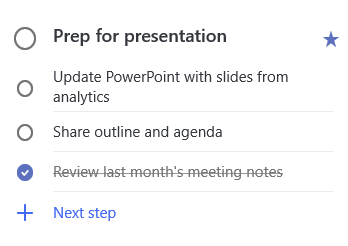
To add a step:
- Click or tap the task to open detail view, select + Add step, and begin typing your next step.
- When you've finished, select Enter on your keyboard to save and close.
To help keep you on track, a counter beneath each task's name displays the total number of steps the task contains and how many have been completed so far.
Add importance
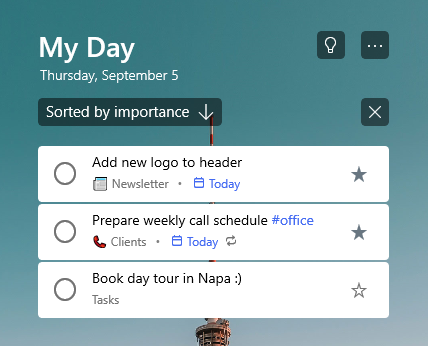
Add priority to your tasks by starring your important tasks in each list. Once starred, you can view all of your prioritized tasks in the important smart list. You can also sort each list by importance to have your starred tasks automatically move to the top of the list.
Add notes
If you have any extra information you'd like to add to your task, you can Add a note. Select the task to open detail view and tap or click within the note to select it. Once selected, you can enter any extra information. When you've finished, select Save or Done.
Add tags
Keep your tasks organized across different lists by adding hashtags (like #work or #school) to your tasks' names. You can add tags when creating tasks or when editing them.
You can quickly see all the tasks, notes, and steps that share a tag by selecting that tag or searching for it in the search bar.



