
When you create a new database, you usually start by creating database objects such as tables, forms, and reports. At some point, you might need to add programming to automate processes and connect those objects. This article introduces the programming tools in Access.
In this article
- What is programming?
- Should I use macros or should I use VBA code?
- Use the Command Button Wizard to perform common programming tasks
- Understand macros
- Understand VBA code
- Convert macros to VBA code
What is programming?
In Access, programming means adding functionality to your database by using Access macros or Visual Basic for Applications (VBA) code. For example, you might create a form and a report, and then add a command button to the form that opens the report when you select it. In that case, you create a macro or VBA procedure and then set the command button's OnClick event property so the command button runs the macro or procedure. For a simple operation, such as opening a report, you can use the Command Button Wizard to do the work, or you can turn off the wizard and program it yourself.
Note
Many Microsoft Office programs use the term "macro" to refer to VBA code. That can confuse Access users because, in Access, the term "macro" refers to a named collection of macro actions that you assemble by using the Macro Builder. Access macro actions represent only a subset of the commands available in VBA. The Macro Builder gives you a more structured interface than the Visual Basic Editor, so you can add programming to controls and objects without learning VBA code. In Access Help articles, Access macros are called macros. VBA code is called VBA code, a function, or a procedure. VBA code is stored in class modules, which are part of individual forms or reports and usually contain code only for those objects, and in modules, which aren't tied to specific objects and usually contain global code that you can use throughout the database.
Objects such as forms and reports, and controls such as command buttons and text boxes, have event properties to which you can attach macros or procedures. Each event property is associated with a specific event, such as clicking the mouse, opening a form, or changing data in a text box. Events can also be triggered by factors outside Access, such as system events, or by macros or procedures that are attached to other events. Your database can become complex if you add many macros or procedures to many event properties on many objects. In most cases, though, you can get the results that you want by using very little programming.
Should I use macros or should I use VBA code?
The decision to use macros, VBA, or both depends mainly on how you plan to deploy or distribute the database. For example, if the database is stored on your computer, you're the only user, and you're comfortable using VBA code, you might decide to use VBA for most programming tasks. However, if you plan to share your database with other people from a file server, you might want to avoid using VBA because of security concerns.
Base your decision to use macros or VBA code on two concerns: security and the functionality that you want. Security matters because VBA can be used to create code that compromises your data or harms files on your computer. When you use a database that someone else created, enable VBA code only if you know that the database comes from a trustworthy source. When you create a database that other people will use, try to avoid including programming tools that require the user to explicitly trust the database. General techniques for avoiding that requirement appear later in this section.
To help secure your database, try to use macros when you can and use VBA only for operations that can't be performed by using macro actions. Also, try to use only macro actions that don't require the database to be trusted before they can run. Limiting macro actions in this way helps users feel confident that the database has no programming that could harm data or other files on their computers.
Macro considerations
Access contains many macro actions that let you build more powerful macros than earlier versions of Access allowed. For example, you can now create and use global temporary variables by using macro actions, and you can handle errors more gracefully by using new error-handling macro actions. In earlier versions of Access, these features were available only in VBA. You can also embed a macro directly into the event property of an object or control. An embedded macro becomes part of the object or control and stays with it if the object or control is moved or copied.
Macros provide an easy way to handle many programming tasks, such as opening and closing forms and running reports. You can quickly tie together the database objects, such as forms and reports, that you created because there is little syntax to remember. The arguments for each action are displayed in the Macro Builder.
In addition to the increased security and ease of use that macros provide, you must use macros to perform the following tasks:
Assign an action or set of actions to a key. This requires creating a macro group named
AutoKeys.Carry out an action or a series of actions when a database first opens. This requires creating a macro named
AutoExec.Note
The
AutoExecmacro runs before any other macros orVBAcode, even if you designated a startup form in the Access Options dialog box and attached a macro orVBAcode to that form'sOnOpenorOnLoadevent.
For more information about how to build macros, see Understand macros.
VBA considerations
Use VBA instead of macros if you want to do any of the following:
- Use built-in functions or create your own. Access includes many built-in functions, such as
IPmt, which calculates an interest payment. You can use these functions to perform calculations without creating complicated expressions. By usingVBA, you can also create your own functions to perform calculations that go beyond the capability of an expression or to replace complex expressions. In addition, you can use the functions that you create in expressions to apply a common operation to more than one object. - Create or manipulate objects. In most cases, it's easiest to create and modify an object in that object's Design view. In some situations, though, you might want to manipulate the definition of an object in code. By using
VBA, you can manipulate all the objects in a database, as well as the database itself. - Perform system-level actions. You can carry out the
RunAppaction in a macro to run another program, such as Microsoft Excel, from within Access, but you can't use a macro to do much else outside Access. By usingVBA, you can check whether a file exists on the computer, use Automation or Dynamic Data Exchange (DDE) to communicate with other Microsoft Windows-based programs such as Excel, and call functions in Windows dynamic-link libraries (DLLs). - Manipulate records one at a time. You can use
VBAto step through a set of records one record at a time and perform an operation on each record. By contrast, macros work with entire sets of records at one time.
Use the Command Button Wizard to perform common programming tasks
If you are adding a command button to a form, the Command Button Wizard can help you get started with programming. The wizard helps you create a command button that performs a specific task. In an Access (.accdb) file, the wizard creates a macro that is embedded in the OnClick property of the command button. In an .mdb or .adp file, the wizard creates VBA code because embedded macros aren't available in those file formats. In either case, you can then modify or enhance the macro or VBA code to better suit your needs.
In the Navigation Pane, right-click the form to which you want to add the command button, and then click Design View.
On the Form Design tab, click the down arrow to display the Controls gallery, and then make sure that Use Control Wizards is selected.
On the Form Design tab, in the Controls gallery, click Button.
In the form design grid, click where you want the command button to be placed. The Command Button Wizard starts.
On the first page of the wizard, click each category in the Categories list to see which actions the wizard can program the command button to perform. In the Actions list, select the action that you want, and then click Next.
Click either the Text option or the Picture option, depending on whether you want text or a picture to be displayed on the command button.
- If you want text to be displayed, you can edit the text in the box next to the Text option.
- If you want a picture to be displayed, the wizard suggests a picture in the list. If you want to select a different picture, select the Show All Pictures check box to display a list of all the command button pictures that Access provides, or click Browse to select a picture that is stored elsewhere. Click Next.
Enter a meaningful name for the command button. This step is optional, and this name isn't displayed on the command button. However, it's a good idea to enter a meaningful name so that when you need to refer to the command button later, such as when you're setting the tab order for controls on your form, it will be much easier to tell the command buttons apart. If the command button closes the form, for example, you might name it
cmdCloseorCommandClose.Click Finish. Access places the command button on the form.
If you want to see what the wizard programmed for you, follow these optional steps:
If the property sheet isn't already displayed, press F4 to display it.
Click the Event tab in the property sheet.
In the On Click property box, click the Build button.

Access starts the Macro Builder and displays the macro that the wizard created. You can edit the macro if you want. For more information, see Understand macros. When you are finished, on the Macro Design tab, in the Close group, click Close to close the Macro Builder. If Access prompts you to save the changes and update the property, click Yes to save the changes or No to reject the changes.
On the Form Design tab, in the Views group, click View, and then click Form View. Click the new command button to confirm that it works as you expected.
Understand macros
A macro is a tool that lets you automate tasks and add functionality to your forms, reports, and controls. For example, if you add a command button to a form, you can associate the button's OnClick event property with a macro that contains the commands that you want the button to perform each time that it's selected.
It is helpful to think of Access macros as a simplified programming language in which you create code by building a list of actions to perform. When you build a macro, you select each action from a drop-down list and then fill in the required information for each action. Macros let you add functionality to forms, reports, and controls without writing code in a VBA module. Macros provide a subset of the commands that are available in VBA, and most people find it easier to build a macro than to write VBA code.
You create a macro by using the Macro Builder, which is shown in the following illustration.
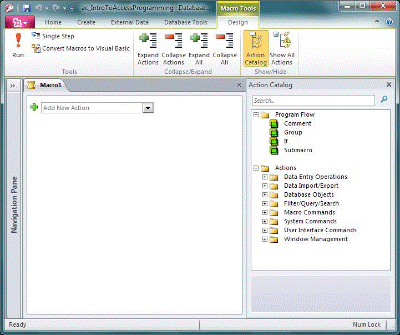
To display the Macro Builder:
- On the Create tab, in the Macros & Code group, click Macro.
Understand VBA code
Like macros, VBA lets you add automation and other functionality to your Access application. You can extend VBA by using third-party controls, and you can write your own functions and procedures for specific needs.
A quick way to get started with VBA is to first build an Access macro and then convert it to VBA code. Instructions for doing this are included in Convert macros to VBA code. This feature creates a new VBA module that performs the equivalent operations in the macro. It also opens the Visual Basic Editor so that you can start modifying the procedure. When you're working in the Visual Basic Editor, you can click keywords and press F1 to start Access Developer Help and learn more about each keyword. You can then explore Access Developer Help and discover new commands to help you perform the programming tasks that you want.
Convert macros to VBA code
You can use Access to automatically convert macros to VBA modules or class modules. You can convert macros that are attached to a form or report, whether they exist as separate objects or as embedded macros. You can also convert global macros that aren't attached to a specific form or report.
Convert macros that are attached to a form or report
This process converts to VBA any macros that are referred to by, or embedded in, a form or report, or any of its controls, and adds the VBA code to the form or report's class module. The class module becomes part of the form or report and moves with the form or report if it is moved or copied.
In the Navigation Pane, right-click the form or report, and then click Design View.
On the Form Design tab, in the Tools group, click either Convert Form's Macros To Visual Basic or Convert Report's Macros To Visual Basic.
In the Convert form macros or Convert report macros dialog box, select whether you want Access to add error handling code to the functions that it generates. If your macros include comments, also select whether you want those comments included in the functions. Click Convert to continue. If no class module exists for the form or report, Access creates one and adds a procedure to the module for each macro that was associated with the form or report. Access also changes the event properties of the form or report so that they run the new
VBAprocedures instead of the macros.To view and edit the
VBAcode:While the form or report is still open in Design view, if the property sheet isn't already displayed, press F4 to display it.
On the Event tab of the property sheet, click in any property box that displays
[Event Procedure], and then click the Build button. To view the event properties for a specific control, click the control to select it. To view the event properties for the entire form or report, select Form or Report from the drop-down list at the top of the property sheet.
Access opens the Visual Basic Editor and displays the event procedure in its class module. You can scroll up or down to view any other procedures that are in the same class module.
Convert global macros
In the Navigation Pane, right-click the macro that you want to convert, and then click Design View.
On the Macro Design tab, in the Tools group, click Convert Macros To Visual Basic.
In the Convert Macro dialog box, select the options that you want, and then click Convert. Access converts the macro and opens the Visual Basic Editor.
To view and edit the
VBAcode:- In the Visual Basic Editor, if the Project Explorer pane is not displayed, on the View menu, click Project Explorer.
- Expand the tree under the name of the database in which you are working.
- Under Modules, double-click the
Converted Macro-<macro name>module. The Visual Basic Editor opens the module.
Attach a VBA function to an event property
When you convert a global macro to VBA, the VBA code is placed in a standard module. Unlike a class module, a standard module is not part of a form or report. You will most likely want to associate the function with an event property on a form, report, or control so that the code runs exactly when and where you want. To do this, you can copy the VBA code into a class module and then associate it with an event property, or you can make a special call from the event property to the standard module by using the following procedure.
- In the Visual Basic Editor, make a note of the function name. For example, if you converted a macro named
MyMacro, the function name will beMyMacro(). - Close the Visual Basic Editor.
- In the Navigation Pane, right-click the form or report with which you want to associate the function, and then click Design View.
- Click the control or section with which you want to associate the function.
- If the property sheet isn't already displayed, press F4 to display it.
- On the Event tab of the property sheet, click the event property box with which you want to associate the function.
- In the property box, type an equal sign (
=) followed by the name of the function—for example,=MyMacro(). Be sure to include the parentheses. - Save the form or report by clicking Save on the Quick Access Toolbar.
- In the Navigation Pane, double-click the form or report, and test it to see that the code runs as it should.
You now know the basic steps to add VBA code to your database. This article describes only the basics of how to get started. Many excellent reference books and online resources can help you build your programming skills.
See also
Create a user interface (UI) macro
Run an Access macro by using a keyboard shortcut
Automate startup events with a macro
Create a macro that runs when you open a database