

Tip
Learn more about Microsoft Forms or get started right away and create a survey, quiz, or poll. Want more advanced branding, question types, and data analysis? Try Dynamics 365 Customer Voice.
As a meeting organizer or presenter, you can use Microsoft Forms to create polls before your Microsoft Teams meeting, then launch them during it so attendees from any endpoint (mobile, web, desktop) can view and answer. You can even poll attendees before your meeting and collect information ahead of it.
When you launch your poll, it will pop up as a notification on the meeting screen and also appear in the meeting chat window. Attendees can also create ad-hoc polls during a meeting to get quick feedback on the spot.
Create a poll and then launch it before, during, or after your meeting
In Teams, select Calendar.
Find the meeting you've scheduled for which you want to add polls and click or tap it.
Select Chat with participants.
Select
 Add a tab, search for and select Polls, and then click or tap Add.
Select Save. A new Polls tab will be added to your meeting.
Select
Create New Poll, and then choose one of the following:Multiple Choice Poll - Create your question or statement, and then provide answer options (up to 12) from which your audience can choose.
Multiple Choice Quiz - Mark a correct answer for your multiple-choice quiz. You can have a single option as a correct answer, or more than one if you select Multiple answers.
Note
Multiple Choice Poll and Multiple Choice Quiz options are not yet available for GCC High and DoD environments.
Word Cloud Poll - Ask an open-ended question and see responses reflected in a word cloud.
Note
Word Cloud Poll option is slowly rolling out and will be available soon for Microsoft 365 subscribers. It won't yet be available for GCC High and DoD environments.
Rating Poll - Let your respondents rate a statement. You can customize the ratings scale up to 5 and display those ratings by stars or numbers.
Ranking Poll - Let your respondents rank items from first to fifth by dragging the item to its ranked position or by using the arrow up/down icons.
Note
You can also specify whether the options are randomized when they are initially displayed to respondents by using the Shuffle Options settings.
Add your question options and your answer options.
If the meeting hasn't started, you can select
 to:
to:- Record names of respondents (Only visible to meeting organizer and presenters in the app)
- Share aggregated results with respondents
- Allow co-presenters to edit your poll while it's a draft
Select Save as draft. This will save your poll as a draft until you're ready to launch it during your meeting. Select Launch now to collect answers before the meeting starts.

Note
You'll see DRAFT marked in green in the upper left corner of your poll to indicate it hasn't been launched yet.
To create more polls for your meeting, select
Create New.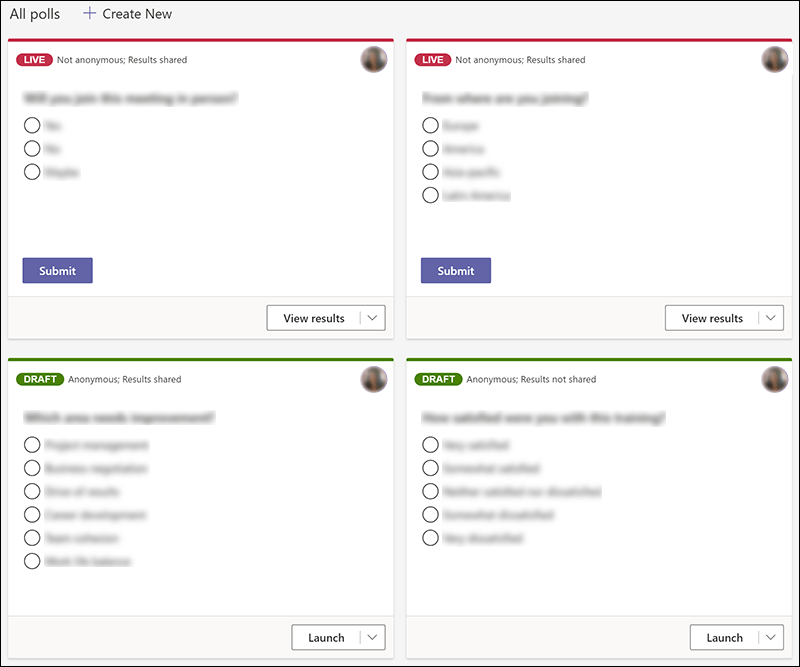
Note
To change the order of the polls, click or tap and hold a poll, and then drag it into the position you want.
You can launch a poll using either of these methods:
In the Polls tab, select Launch on the poll for which you want responses. You can do this before, during, or after your meeting.
Select the Polls icon in your meeting window, which will open a Polls pane. Select Launch on the poll for which you want responses.
Meeting attendees will see your question and answer options in a poll notification that appears in the middle of their meeting screen.
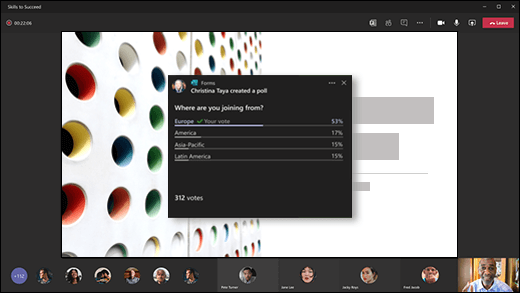
Once attendees pick their answer, they'll select Submit and you'll be able to see their responses immediately. Meeting attendees also have the option of not participating in the poll by closing the poll notification that appears in the middle of their meeting screen without picking an answer nor selecting Submit.
Note
Only meeting owners and presenters can create, manage, and launch polls. Meeting attendees have the ability to respond to polls but can't edit them.
Note
Anyone (whether internally within your organization or those external to your organization) that has been forwarded your meeting invitation and is logged into Teams on the web can vote using either the poll notification pop up during the meeting or in the Chat window.
We're slowly rolling out the poll notification pop up for all meeting guests. Polls can always be accessed in the Chat window during a meeting.
Go to your Polls tab or Polls pane to see real time results of polls that are collecting responses.
Tip
- Polls that have been launched and are accepting responses will be marked in red with LIVE in the upper left corner of the poll.
- Polls that have been closed and are no longer accepting responses will be marked in dark gray with CLOSED in the upper left corner of the poll.
- If you want to reopen the poll, select the drop-down list next to Export results and choose Reopen poll.
If you want to close a poll, export poll results, or a delete a poll, select the drop-down list next to View results and select Close poll, Export results, or Delete poll, respectively.
Feedback for Microsoft Forms
We want to hear from you! To send feedback about Microsoft Forms, go to the upper right corner of your form and select More form settings
 > Feedback.
See Also
Add a poll to your Teams channel or chat
Delete a group form created in Teams
Survey your team to check in and stay connected
Work with colleagues to create, edit, and review forms in Microsoft Teams