
In PowerPoint, you can add sounds to animations or hyperlinks, described here. You can also play sounds automatically when a slide appears.
Add a sound to an animation
You must have previously added an animation effect to the text or object before adding a sound to the animation.
Select the slide that contains the animation effect to which you want to add a sound.
On the Animations tab, in the Advanced Animation group, select Animation Pane.
Select the effect in the Animation pane, select the drop-down arrow to the right of the effect, and then select Effect Options.

On the Effect tab, under Enhancements, select the drop-down arrow in the Sound list, and then do one of the following:
- To add a sound from the list, select a sound.
- To add a sound from a file, select Other Sound..., and then locate the sound file that you want to use.
Emphasize a hyperlink with a sound
Select the hyperlink.
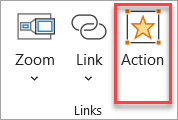
On the Insert tab, in the Links group, select Action.
Do one of the following:
- To apply the action settings after the hyperlink is clicked, select the Mouse Click tab.
- To apply the action settings when the pointer is resting on the hyperlink, select the Mouse Over tab.
Select the Play sound: check box, and then select the sound that you want to play.
See also
Play music or other sounds automatically when a slide appears