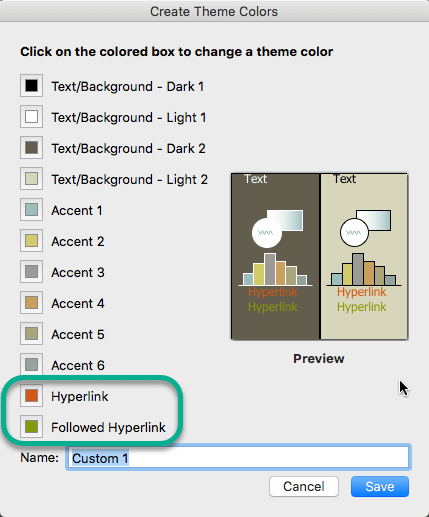
You can systematically change the color of all hyperlink text in your PowerPoint presentation.
On the Design tab, in the Variants group, select the down arrow that opens the gallery of color variants:

Select Colors from the drop-down menu, and then click Customize Colors at the bottom of the menu.
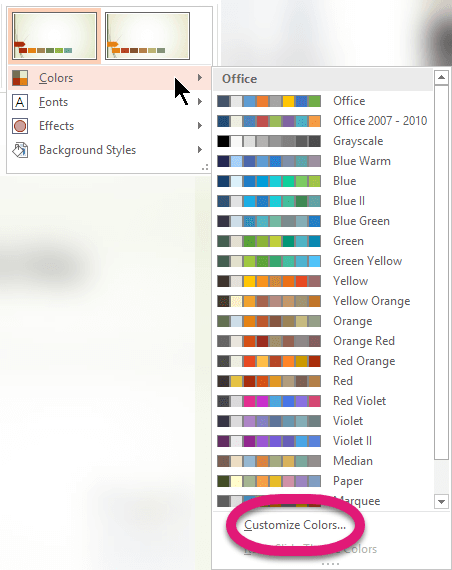
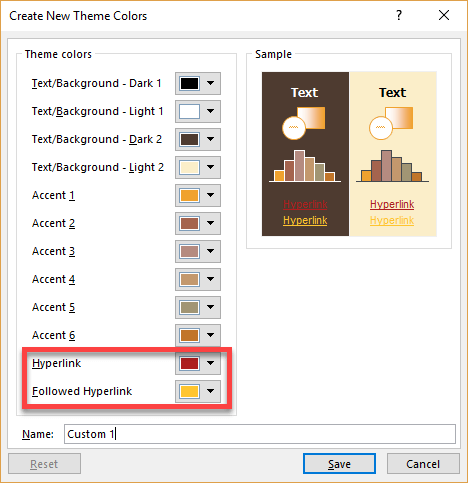
The Create New Theme Colors dialog box opens.
In the Create New Theme Colors dialog box, under Theme colors, do one of the following:
To change the color of hyperlink text, click the arrow next to Hyperlink, and then select a color.
To change the color of followed hyperlink text, click the arrow next to Followed Hyperlink, and then select a color.
Tip
For additional color choices, click More Colors.
Click Save.
Beginning with PowerPoint 2016, you can also change the color of an individual hyperlink by directly using the text color control. See Add a hyperlink to a slide for more information.