Use the page tabs below the drawing canvas to change the order of pages in a Visio drawing file.
Reorder pages quickly
- To change the order of pages, drag a page tab
 into the position that you want.
Reorder and rename pages at the same time
If you have used default page names (such as Page-1, Page-2, and so on), Visio can rename the pages to keep the same logical numbering while you re-order them
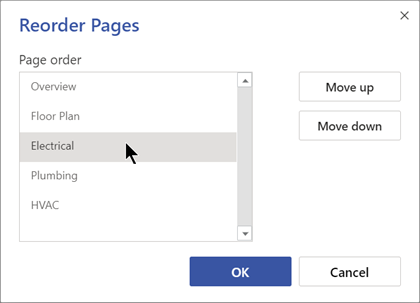
- Right-click a page tab, and select Reorder.
- Select Update page numbers to have Visio renumber the page names to reflect the new order.
- Select the page you want to move. Use an arrow button to move the page to the position you want.
Foreground and background pages
- In the page tab area, foreground pages always appear to the left and background pages to the right.
- Background pages can't be reordered. They always appear at the right side of the page tab area in the order in which they were created.
Rename a page
By default, page names have numbers to ensure each name is unique, but you can rename any page:
- Right-click the page tab, then select Rename.
The name is highlighted. - Enter the name you want to assign to the page.
- Press Enter when you're done.