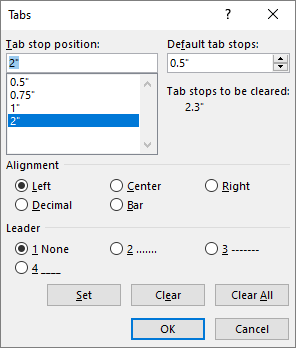
To set a tab stop
- Go to Home and select the Paragraph dialog launcher
 .
.
- Select Tabs.
- Type a measurement in the Tab stop position field.
- Select an Alignment.
- Select a Leader if you want one.
- Select Set.
- Select OK.
To clear a tab stop
Go to Home and select the Paragraph dialog launcher
.
Select Tabs.
Do one of the following:
- Select a tab stop and select Clear.
- Select Clear All to remove all tab stops.
Select OK.
To use the ruler to set and remove tab stops, see Using the ruler in Word.
To set a tab stop
- Go to Format > Tabs.
- In the Tabs dialog, type the measurement that you want under Tab stops.
- Select the Alignment.
- Select a Leader if you want one.
- Select
 to set the tab.
- Select OK.
To clear a tab stop
Go to Format > Tabs.
Do one of the following:
- To clear a single tab stop, select the tab stop and then select
 .
.
- To clear all tabs, select Clear All
Select OK.
To use the ruler to set and remove tab stops, see Using the ruler in Word.
While Word for the web recognizes tabs in a document, it does not support setting or removing tabs. Open the document in the desktop app to set and remove tabs.