
Turn on the Teacher-Only section group in your Class Notebook to keep lesson plans, behavior charts, or other materials private to you and other educators. This is also a good place for answer keys, grading rubrics, or resources you want to share only with co-teachers. Once you create a Teacher-Only section group, it becomes a permanent part of your notebook.
Sign in to microsoft365.com with the log-in provided by your school.
Note
If you don't see the Class Notebook app right away, navigate to Apps > All apps or go straight to aka.ms/classnotebook. If your Class Notebook is in Teams, manage your Class Notebook directly in Teams.
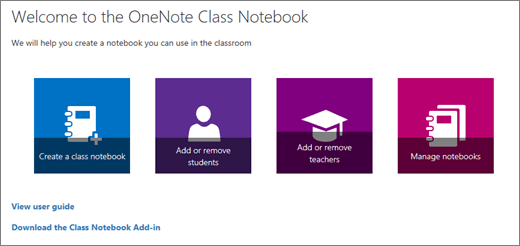
Select Class Notebook, then Manage notebooks in the Class Notebook Wizard.
Select the notebook you’d like to modify, then select Enable Teacher-Only section group.
Return to your notebook in OneNote. You're all set to add content that only educators in your class can see.
Learn more
Distribute pages and sections to all students in a Class Notebook
Additional resources for educators
OneNote Class Notebook training