
Overview
This is an update to the functionality regarding the Immediate Information Supply in the Spanish version of Dynamics NAV. It contains format changes to the XML that is exported to the Spanish Tax authorities as well as functionality improvements.
Reference Information
| Reference No. | 263060 |
|---|---|
| Product Area | Financial Management |
| Discovered in | Microsoft Dynamics NAV 2015, 2016, 2017 and 2018 |
| Title | [ES] – SII format changes v1.1 |
| Released on | June 2018 |
Important Notice to Customers
We recommend that you contact your Microsoft Dynamics Partner before installing service packs or hotfixes. It is important to verify that your environment is compatible with the service pack(s), hotfix(es), or download(s) being installed. A service pack, hotfix, or download may cause interoperability issues with customizations, and third-party products that work with your Microsoft Dynamics solutions.
Important Notice to Partners
As per the SPA, it is non-compliant for partners to redistribute tax and regulatory updates to ERP customers not enrolled in the Business Ready Enhancement Plan. Partners can verify their customer’s status in VOICE. If they're not enrolled, Partners will need to get them current before they can distribute.
Installation
Before this update can be installed, the following prerequisites are required:
- Microsoft Dynamics NAV 2018 Spain
- Microsoft Dynamics NAV 2017 Spain
- Microsoft Dynamics NAV 2016 Spain
- Microsoft Dynamics NAV 2015 Spain
This update is available through:
Microsoft Dynamics ® NAV 2018 Spain, Cumulative Update CU 6
Microsoft Dynamics ® NAV 2017 Spain, Cumulative Update CU 19
Microsoft Dynamics ® NAV 2016 Spain, Cumulative Update CU 32
Microsoft Dynamics ® NAV 2015 Spain, Cumulative Update CU 44
Installation Steps:
For more information about how to install an update rollup, click the following article number to view the article in the Microsoft Knowledge Base:
- 3021418 - How to Install a Microsoft Dynamics NAV 2015 Cumulative Update
- 3109325 - How to install a Microsoft Dynamics NAV 2016 Cumulative Update
- 3204818 - How to install a Microsoft Dynamics NAV 2017 Cumulative Update
- 4072484 - How to install a Microsoft Dynamics NAV 2018 Cumulative Update
Note:
- Existing customizations in objects that are included in this update file may break when you import the regulatory feature.
- No data upgrade is required before you can use this feature.
Licensing
Refresh your license to access the new objects that are added with this release.
Objects
The following object have been added/modified through this release:
| Type | No. | Name | Added/Modified |
|---|---|---|---|
| Codeunit | 10750 | SII XML Creator | Modified |
| Codeunit | 10752 | SII Doc. Upload Management | Modified |
| Codeunit | 5987 | Serv-Posting Journals Mgt. | Modified |
| Codeunit | 80 | Sales-Post | Modified |
| Codeunit | 90 | Purch.-Post | Modified |
| Page | 10751 | SII Setup | Modified |
| Page | 10752 | SII History | Modified |
| Page | 132 | Posted Sales Invoice | Modified |
| Page | 138 | Posted Purchase Invoice | Modified |
| Page | 253 | Sales Journal | Modified |
| Page | 254 | Purchase Journal | Modified |
| Page | 255 | Cash Receipt Journal | Modified |
| Page | 256 | Payment Journal | Modified |
| Page | 39 | General Journal | Modified |
| Page | 42 | Sales Order | Modified |
| Page | 43 | Sales Invoice | Modified |
| Page | 50 | Purchase Order | Modified |
| Page | 51 | Purchase Invoice | Modified |
| Page | 52 | Purchase Credit Memo | Modified |
| Page | 5900 | Service Order | Modified |
| Page | 5933 | Service Invoice | Modified |
| Page | 5978 | Posted Service Invoice | Modified |
| Page | 6630 | Sales Return Order | Modified |
| Page | 6640 | Purchase Return Order | Modified |
| Table | 10751 | SII Setup | Modified |
| Table | 10752 | SII Doc. Upload State | Modified |
| Table | 112 | Sales Invoice Header | Modified |
| Table | 114 | Sales Cr.Memo Header | Modified |
| Table | 122 | Purch. Inv. Header | Modified |
| Table | 124 | Purch. Cr. Memo Hdr. | Modified |
| Table | 21 | Cust. Ledger Entry | Modified |
| Table | 25 | Vendor Ledger Entry | Modified |
| Table | 289 | Payment Method | Modified |
| Table | 36 | Sales Header | Modified |
| Table | 38 | Purchase Header | Modified |
| Table | 5900 | Service Header | Modified |
| Table | 5992 | Service Invoice Header | Modified |
| Table | 5994 | Service Cr.Memo Header | Modified |
| Table | 81 | Gen. Journal Line | Modified |
Setup and functionality
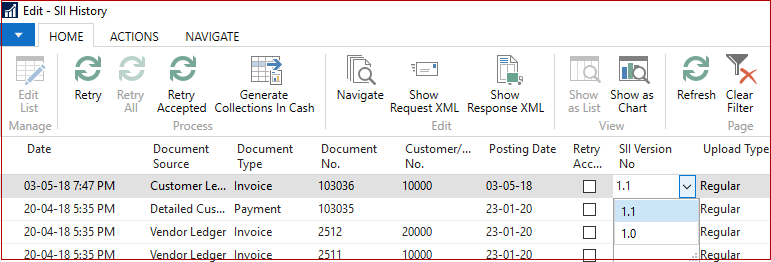
SII Version No
After you post any document a new entry will be added to SII History with version 1.1.
You can change the version if you need to do so. This is done from the SII History.
- Open SII History.
- Right click on any column, select option Choose Columns.
- Select column "SII Version No."
- Press action "Edit List."
- Change version to 1.0 in field "SII Version No."
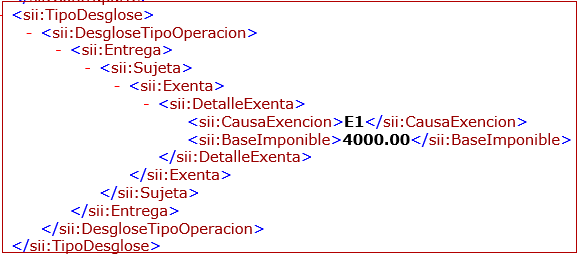
XML change: New parent node DetalleExenta for VAT exemption entries
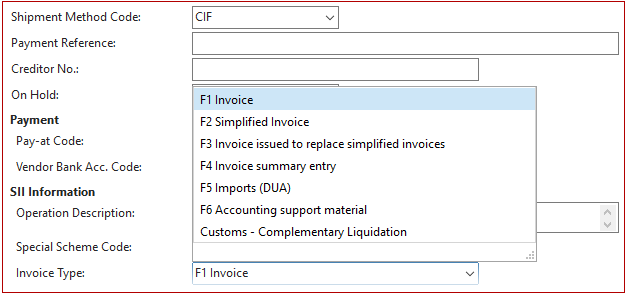
New purchase invoice type "Customs – Completementary Liquidation"
Create a purchase invoice.
Set "Invoice Type" = "Customs – Complementary Liquidation" on the "Invoice Details" tab.
Post invoice and send it to the Spanish Tax authorities using the SII functionality.
Press "Show Request XML" action on the SII History page.
See a new value "LC" in the TipoFactura node.

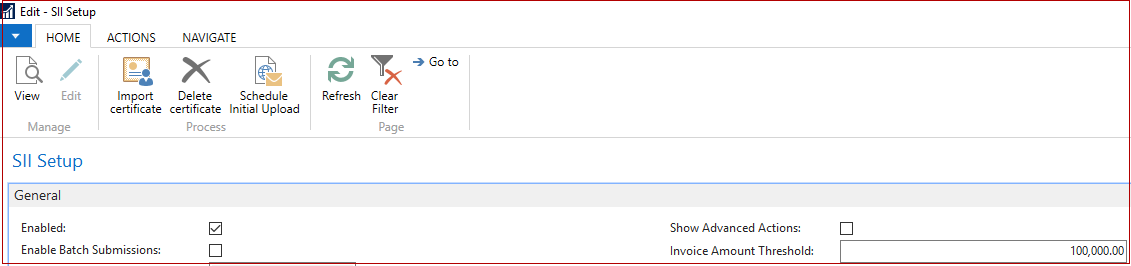
New node Macrodato to identify if an invoice amount is greater than a threshold of 100,000 euros
New field "Invoice Amount Threshold" is added to SII Setup:
Post purchase invoice with amount less than threshold and send to SII. The value of Macrodato node is "N."
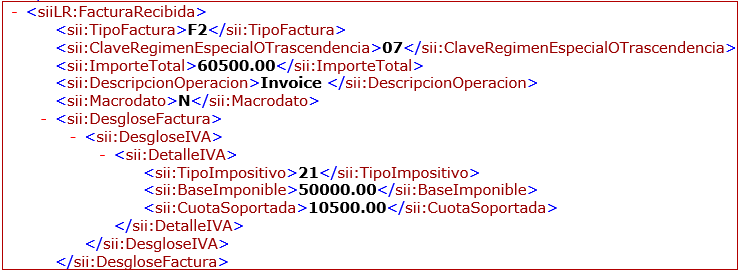
Then post purchase invoice with an amount greater than the threshold and send it to SII.
The value of Macrodato node is "Y."

NOTE: Macrodato node will not be added to XML if there is no ImporteTotal node. ImporteTotal node will be added to XML only if TipoFactura is F2 or F4 OR ClaveRegimenEspecialOTrascendencia is 03 or 05.
New node RefExterna with Entry No. of associated entry
Post a purchase invoice and send it to SII. The XML file contains RefExterna with Entry No. of the associated Vendor Ledger entry as illustrated below:
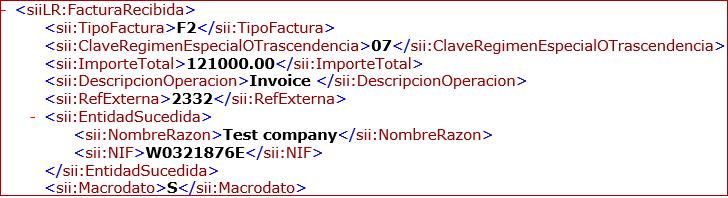
New node EntidadSucedida to identify a company-successor on operation of corporate restructuring
Create invoice and specify Succeeded Company Name and Succeeded VAT Registration No. on the "Invoice Details" tab or in the Journal.
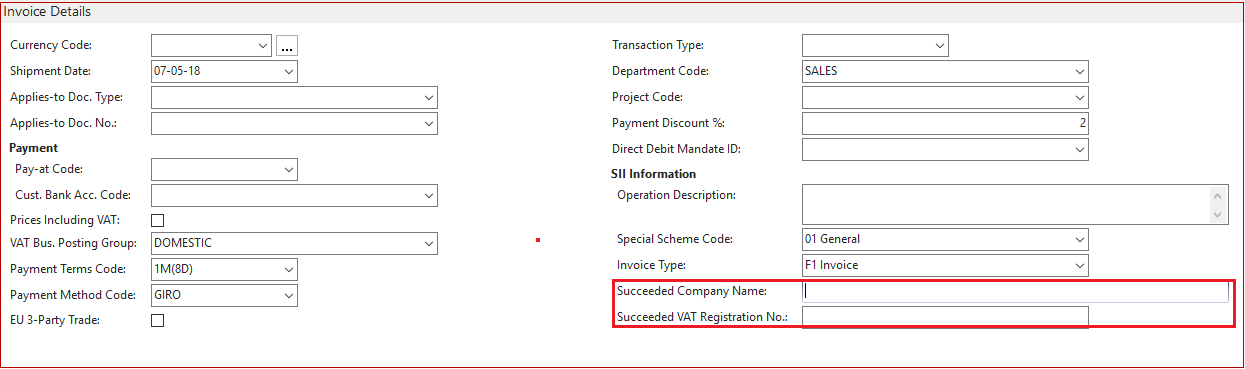
If you forgot to specify these fields, open SII History page and press Choose Columns
Select fields Succeeded Company Name and Succeeded VAT Registration No.
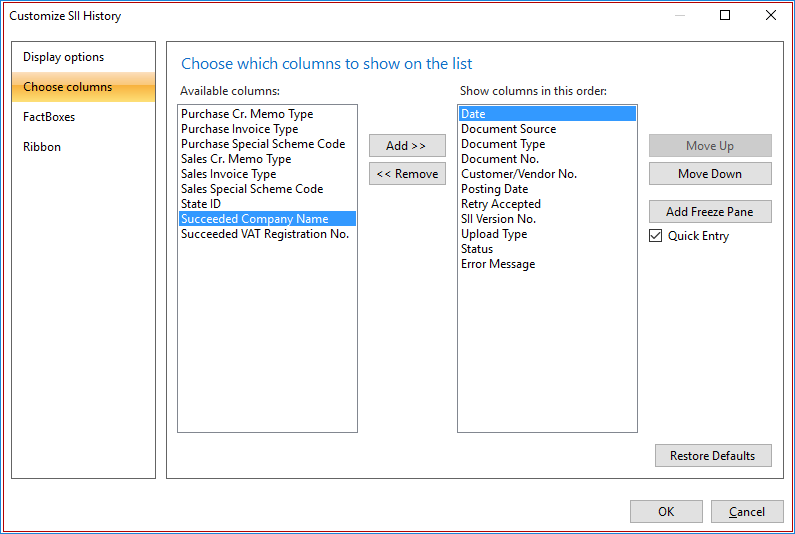
Press "Edit List" and specify values into these new fields.

Press "Retry Accepted."
The successor information will be included in the exported XML as illustrated below:
Support Information
If you are experiencing issues downloading the install file or documentation, please contact ITMBSSUP@microsoft.com.
For technical support questions, contact your partner or, if enrolled in a support plan directly with Microsoft, you can enter a new support request to Microsoft Dynamics® Technical Support from Customer Source or Partner Source under Support >> New Support Request.
You can also contact Microsoft Dynamics® Technical Support by phone using these links for country specific phone numbers.
- Partners - Global Support Contacts
(requires Partner Source login) - Customers - Global Support Contacts (requires Customer Source login)
Linguistic Quality Feedback
Thank you for taking the time to give us your feedback. It will be used to evaluate the linguistic quality of the translated Dynamics NAV user interface and make improvements if needed.
Please use this feedback link to provide your feedback to the below questions.
Q1: Which language and version of the product are you working on?
Q2: What is your role in your organization / company?
Q3: Is the used terminology correct for your market/locale?
Q4: Please include any other feedback you may have on the linguistic quality of the product.
Privacy Statement: Microsoft is committed to protecting your privacy, while delivering software that brings you the performance, power, and convenience you desire in your personal computing. This privacy statement explains the data collection and use practices. It does not apply to other online or offline Microsoft sites, products, or services.
If you choose to provide feedback about the linguistic quality of this regulatory feature, then your email address and any additional information that you choose to provide will be included. We will only use your feedback data to help improve the linguistic quality. Microsoft will not contact you to further investigate your feedback or to ask you for more information. Your email address will be removed from our systems after 90 days.