
How to use Backup & Sync in Microsoft SwiftKey Keyboard?
- What is Backup and Sync
- How to enable/disable Backup & Sync
- How can I ensure Backup & Sync doesn’t use up my Internet Data
- Sync your language data
- Removing your language data
1 - What is Backup and Sync
If you are signed in to your Microsoft SwiftKey Account and have enabled Backup & Sync then the words and phrases that matter to you are backed up securely and seamlessly synced across all of your devices. If your mobile or tablet is upgraded, lost or stolen, your personal profile is kept safe in the cloud, giving you the personalized Microsoft SwiftKey experience within seconds of installing the keyboard on a new device.
Backup:
Never again lose your learned language and words! Even if you update or uninstall your Microsoft SwiftKey Keyboard, or lose/upgrade a device, with Backup & Sync enabled, your Microsoft SwiftKey Account will retain all your personal language data. The next time you use Microsoft SwiftKey, all you need do is sign into your same Microsoft SwiftKey Account and get typing!
Sync:
Your most current words and phrases will be available on all devices signed into your Microsoft SwiftKey Account. Entering a new word or phrase on one device will automatically sync up to all of your other connected devices.
2 - How to enable/disable Backup & Sync
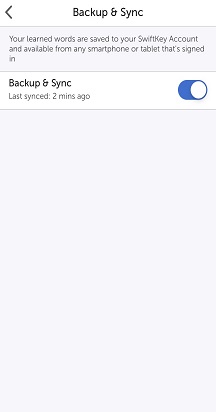
To enable/disable Backup & Sync:
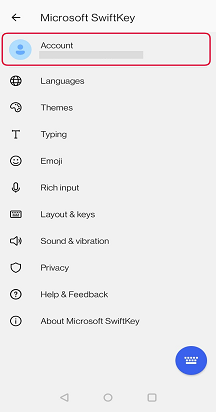
- Open the Microsoft SwiftKey app from your device.
- Tap ‘Account’.
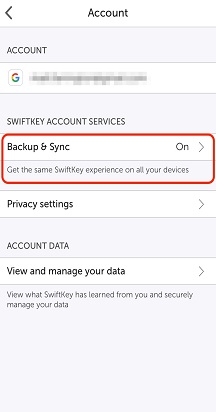
- Next tap ‘Backup & Sync’.
- Check/uncheck ‘Backup & Sync.


3 - How can I ensure Backup & Sync doesn’t use up my Internet Data?
There is an option for SwiftKey to sync only when connected to wifi. To select this option, please:
- Open the SwiftKey app from your device
- Tap 'Account'
- Tap 'Backup & Sync'
- Check ‘Wi-Fi only’

4 - How to sync your language data
The Backup & Sync screen will tell you when your data was last saved to the Cloud.
To manually perform a sync just tap the circular arrow icon.

5 - Removing your language data
Please note that disabling Backup & Sync will not automatically remove your Microsoft SwiftKey Account data.
If you would like to clear your data, you will need to do this separately. For information on how to do so,
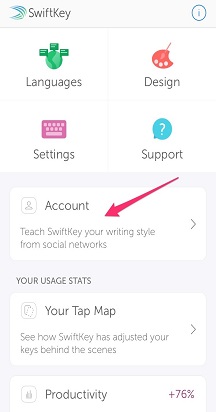
- Open the Microsoft SwiftKey app from your device.
- Tap ‘Account’.
- From the Account menu tap 'Delete personalized dictionary backup' (this will remove any data already associated with your account).
- Tap ‘Delete’ to confirm.


Contact Us
For more help, Contact Support at Microsoft SwiftKey Support - Contact us