You can create new contacts from scratch on the People page or add someone as a contact from their profile card. A contact can be as basic as a name and email address, or include more information like a street address, multiple phone numbers, and a profile picture.
Note
If the steps under this New Outlook tab don't work, you might not be using new Outlook for Windows yet. Select Classic Outlook and follow those steps instead.
In new Outlook, you can:
Add a contact | Find a contact | Edit a contact | Delete a contact
You can add a contact from scratch or from someone's profile card.
Add a contact from scratch
- From the new Outlook navigation pane, select
 People.
- On the Home tab, select New contact.
- Enter any of the following information: First Name, Last Name, Company, Phone number, or Email, then select Save.
Tip
You can enter more contact information anytime. Select the contact from the list, then select Edit contact, and start adding more information.
Add a contact from a profile card for someone in your organization
If you're using Outlook in an organization and you select someone's name or picture in Outlook or other Office apps and services, you might get their profile card with more information. From their profile card, you can select Add to contacts, then you can add more information like address, personal phone, or notes. The information you add is only visible to you.
To add a contact from an email message:
- In Mail, open an email message in the reading pane, and then select the name of the sender or recipient you want to add to your contacts.
- On the profile card that opens, select
 More options > Add to contacts, or select the Contact tab and select Add to contacts.
- Select Edit contact to enter the details you want to add for this contact.
- Select Save.
Note
Updating default information might not be reflected on a profile card because organizational data takes priority.
Learn more about profile cards in Profile cards in Microsoft 365.
- On the side panel, select
People.
- Select the search box at the top of the window.
- Type any detail for the contact you're searching for, such as a phone number, name, company, website, or anything in their profile card.
Note
Search results return partial matches for your contacts that contain the same combination of characters.
- Choose the person you want from the search results.
You can add or update a contact's information or photo.
Add or update contact information
- From the navigation pane, select
People.
- Select the contact you want to edit, and then select Edit contact.
- Add or update the information for your contact.
- When you're finished, select Save.
Add or update a contact's photo
- From the navigation pane, select
People.
- Select the contact that you want to add or update the photo for and select Edit contact.
- Select the Contact picture button.
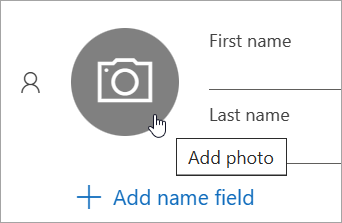
- Select Upload a new photo, choose the file you want to use, and then select Open to upload.
- If you want to reposition the photo, select the circle and drag the pointer. To zoom in or out, use the slider below the photo.
- Select Apply, and then select Done.
- From the navigation pane, select
People.
- Select the contact you want to delete. Then, select Delete from the ribbon or right-click the contact and select Delete.
- Select Delete again to confirm.
Tip
You can select up to 100 contacts at a time and select Delete from the ribbon. If you select more than 100 contacts, the Delete option is disabled.
In classic Outlook, you can:
Add a contact | Find a contact | Edit a contact | Delete a contact
You can add a contact from scratch or from someone's profile card.
Add a contact from scratch
- From the navigation bar, select
People.
- On the People page, select New contact from the ribbon.
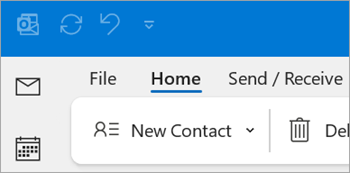
- Add any details you want.
- Select Save & Close.
Add a contact from someone's profile card
- In Mail, open an email message in the reading pane, and then select the name of the sender or recipient you want to add to your contacts.
- On the profile card that opens, select
View more options for interacting with this person, and then select Add to Outlook Contacts.
- Enter details for the contact, and then select Save & Close.
- From the navigation bar, select
People.
- Select the search box at the top of the window.
- Type the name of the contact you're searching for.
- Choose the person you want from the search results.
You can add or update a contact's information or photo.
Add or update contact information
- On the side navigation bar, select
 People.
- Select the contact you want to edit.
- Add or update the information for your contact.
- When you're finished, select Save & Close.
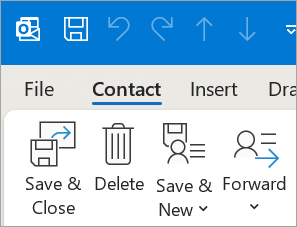
Add or update a contact's photo
From the navigation bar, select
People.
Select the contact that you want to add or update the photo for.
Select their existing photo or select the
 Add Contact Picture button.
Tip
For a contact that you previously added a photo for, you can right-click the existing photo, and select either Change Picture or Remove Picture.
Choose the file you want to use, and then select Open to upload.
- From the navigation bar, select
People.
- Go to the contact you want to delete. You can either right-click the contact and select Delete, or select the contact and select Delete from the ribbon.
In Outlook on the web or Outlook.com, you can:
Add a contact | Find a contact | Edit a contact | Delete a contact
You can add a contact from scratch or from someone's profile card.
Add a contact from scratch
- On the side panel, select
People.
- On the Home tab, select New contact.
- Enter any of the following information: First Name, Last Name, Company, Phone number, or Email, then select Save.
Tip
You can enter more contact information at any time. Select the contact from the list, select Edit contact, and start adding more information.
Add a contact from someone's profile card (for Outlook on the web only)
If you're using Outlook in an organization and you select someone's name or picture in Outlook or other Office apps and services, you might get their profile card with more information. From their profile card, you can select Add to contacts, and then you can add more information like address, personal phone, or notes. The information you add is only visible to you.
- In Mail, open an email message in the reading pane, and then select the name of the sender or recipient you want to add to your contacts.
- On the profile card that opens, select
More options > Add to contacts, (or select the Contact tab and select Add to contacts).
- Select Edit contact to enter the details you want to add for this contact.
- Select Save.
Note
Updating default information might not be reflected on a profile card because organizational data takes priority.
- On the side panel, select
People.
- Select the search box at the top of the window.
- Type any of the details for the contact you're searching for, such as a phone number, name, company, website, or anything in their profile card.
Note
Search results return partial matches for your contacts that contain the same combination of characters.
- Choose the person you want from the search results.
You can add or update a contact's information or photo.
Add or update contact information
- On the side panel, select
People.
- Select the contact you want, and then select Edit contact.
- Add or update the information for your contact.
- When you're finished, select Save.
Add or update a contact's photo
- On the side panel, select
People.
- Select the contact that you want to add or update the photo for.
- Select Edit contact, and then select the camera button.
- Select Upload a new photo, choose the file you want to use, and then select Open to upload.
- If you want to reposition the photo, select the circle and drag the pointer. To zoom in or out, use the slider below the photo.
- Select Apply, and then select Done.
- On the side panel, select
People.
- Select the contact you want to delete. Then, select Delete from the ribbon or right-click the contact and select Delete.
- Select Delete again to confirm.
Tip
You can select up to 100 contacts at a time and select Delete from the ribbon. If you select more than 100 contacts, the Delete option is disabled.

