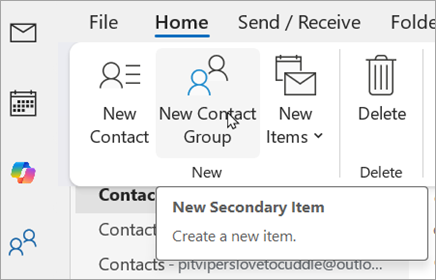
A contact list is a collection of email addresses and is useful for sending email to a group of people.
If you want more robust functionality with your contact list, consider creating a Group in Outlook. Check out Learn about Groups in Outlook to see how you can share an inbox, calendar, and files.
Select a tab option below for the version of Outlook you're using. What version of Outlook do I have?
Note
If the steps under this New Outlook tab don't work, you might not be using new Outlook for Windows yet. Select Classic Outlook and follow those steps instead.
In new Outlook, 'Contact Lists' are formerly referred to as 'Contact Groups' in classic Outlook. You can:
Create a contact list | Add more contacts to a list | Remove contacts from a list | Edit a contact list | Delete a contact list
Create a contact list in new Outlook
- In new Outlook, on the side panel, select
 People.
 - Select the dropdown chevron v button next to New contact, and then select New contact list.
- In the New contact list window, enter a Contact list name and then Add recipients by entering their names or email addresses. You can also add a description for the list.
- Select Create.
Add more contacts to a list in new Outlook
- In new Outlook, on the side panel, select
People.
- Select Your contact lists, find the list you want to add contacts to, hover over it, and then select the Edit
 button.
 - Enter names or email addresses in the Add recipients field and, if prompted, select Add.
- When you're finished adding contacts, select Save.
Remove contacts from a list in new Outlook
- In new Outlook, on the side panel, select
People.
- Select Your contact lists, find the list you want to remove contacts from, hover over it, and then select the Edit
button.
- Select the X next to the contact to remove them.
- When you're finished removing contacts, select Save.
Edit a contact list in new Outlook
- In new Outlook, on the side panel, select
People.
- Select Your contact lists, find the list you want to update, hover over it, and then select the Edit
button.
- You can rename the contact list, add more contacts to the list, or add a Description to the list.
- When you're finished, select Save.
Delete a contact list in new Outlook
- In new Outlook, on the side panel, select
People.
- Select Your contact lists, find the list you want to delete, hover over it, and then select the Delete
 button. You can also delete multiple lists by selecting the check box next to each list, then selecting Delete from the ribbon.
 - Select Delete again to confirm. When you delete a contact list, you only delete the list itself. Contacts aren't deleted.