
Sessions are the building blocks of your clinical documentation in Dragon Copilot. Create and manage your sessions to keep your patient encounters organized.
Use the session list
The session list panel appears when you launch Dragon Copilot. It helps you find and organize information for your patient encounters.
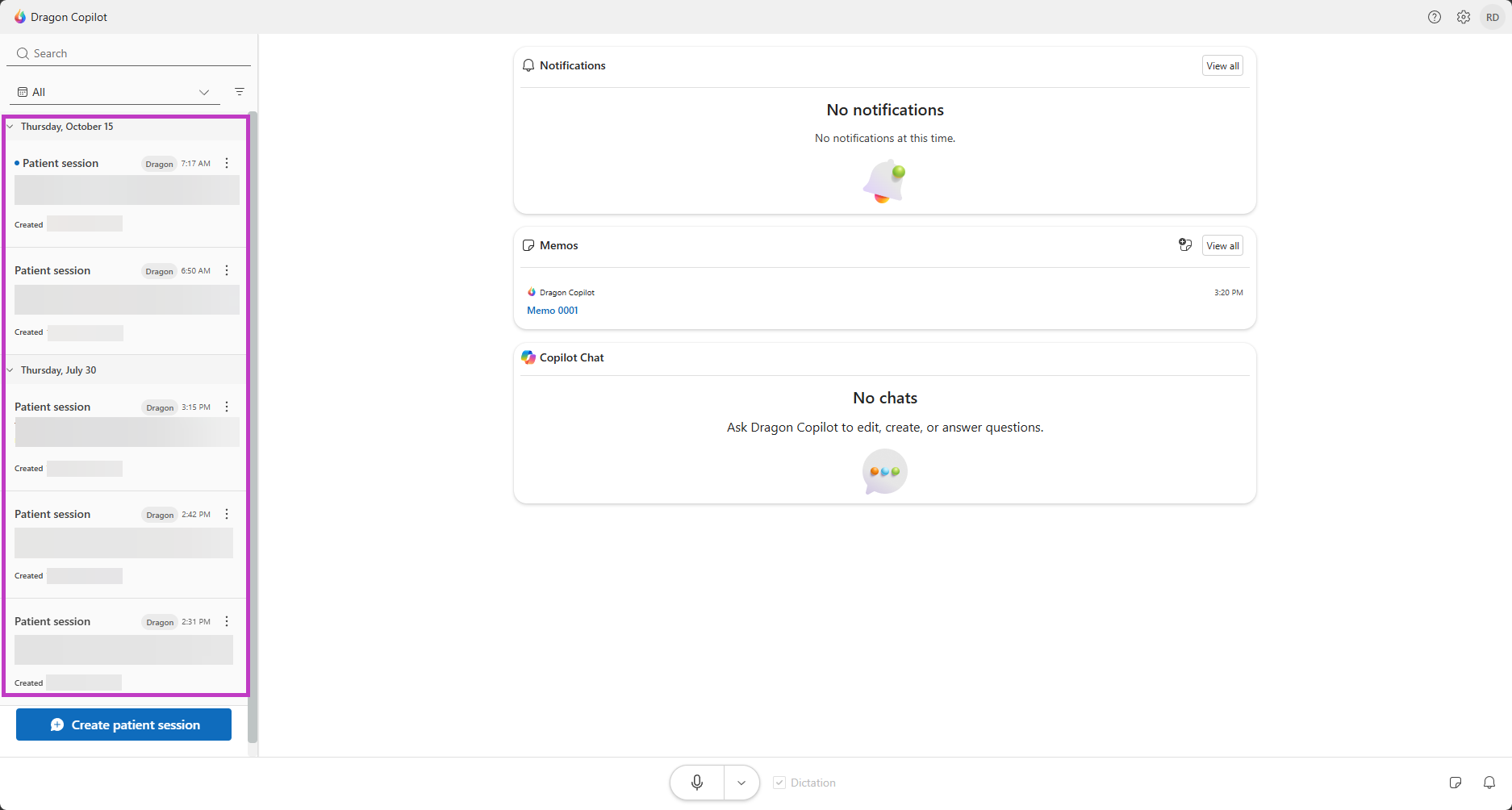
Note
- You can access individual sessions for 30 days from their creation date. After 30 days, they aren't available in the application.
- If your administrator enables the feature, your session list also includes Dragon Copilot sessions that you initiated in your EHR.
Session list options
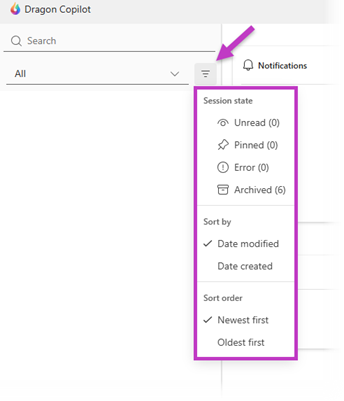
Sort and filter options:
Sort and filter the session list to make it easier to find the sessions you want.
- Sort by date or order.
- Filter by session state.
Rename the session:
In the patient session, place your cursor in the session name to rename the session. The name automatically saves.
Use any naming convention that helps you organize your notes, such as:
- Examination room number.
- Appointment time.
- Patient's last name.
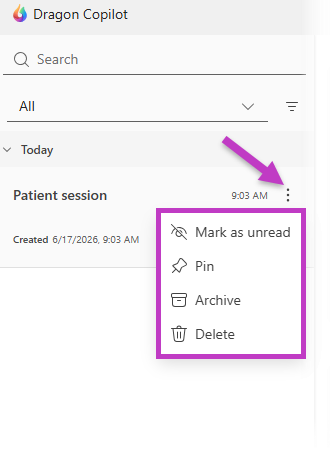
Session actions menu:
The menu beside each session  allows you to mark the session as read or unread, pin, archive, or delete the session.
Tip
In the Dragon Copilot mobile app, partially swipe a session left in the session list to quickly access actions, such as archive, pin, mark as unread, and delete.
Create a new session
Select Create patient session to create the placeholder where you document your patient encounter. You can create sessions at any time, whether you prefer to organize your day in advance or create a session at the time of the encounter.
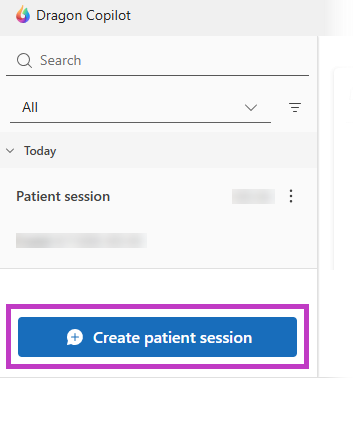
Tip
In compact view, select the Create patient session icon  to create a new patient session.