
This article applies to: All Copilot experiences — personal accounts, work or school accounts (Microsoft Entra), and free Copilot Chat.
Microsoft Copilot combines the power of AI with your data and apps to help you unleash creativity, unlock productivity, and get answers fast in a chat experience. When you are signed in with a work or school account, Copilot Chat uses your organization's data, such as chats, email, and files, as well as the web. When you are signed in with a personal Microsoft account, Copilot draws on your own content and the web instead.
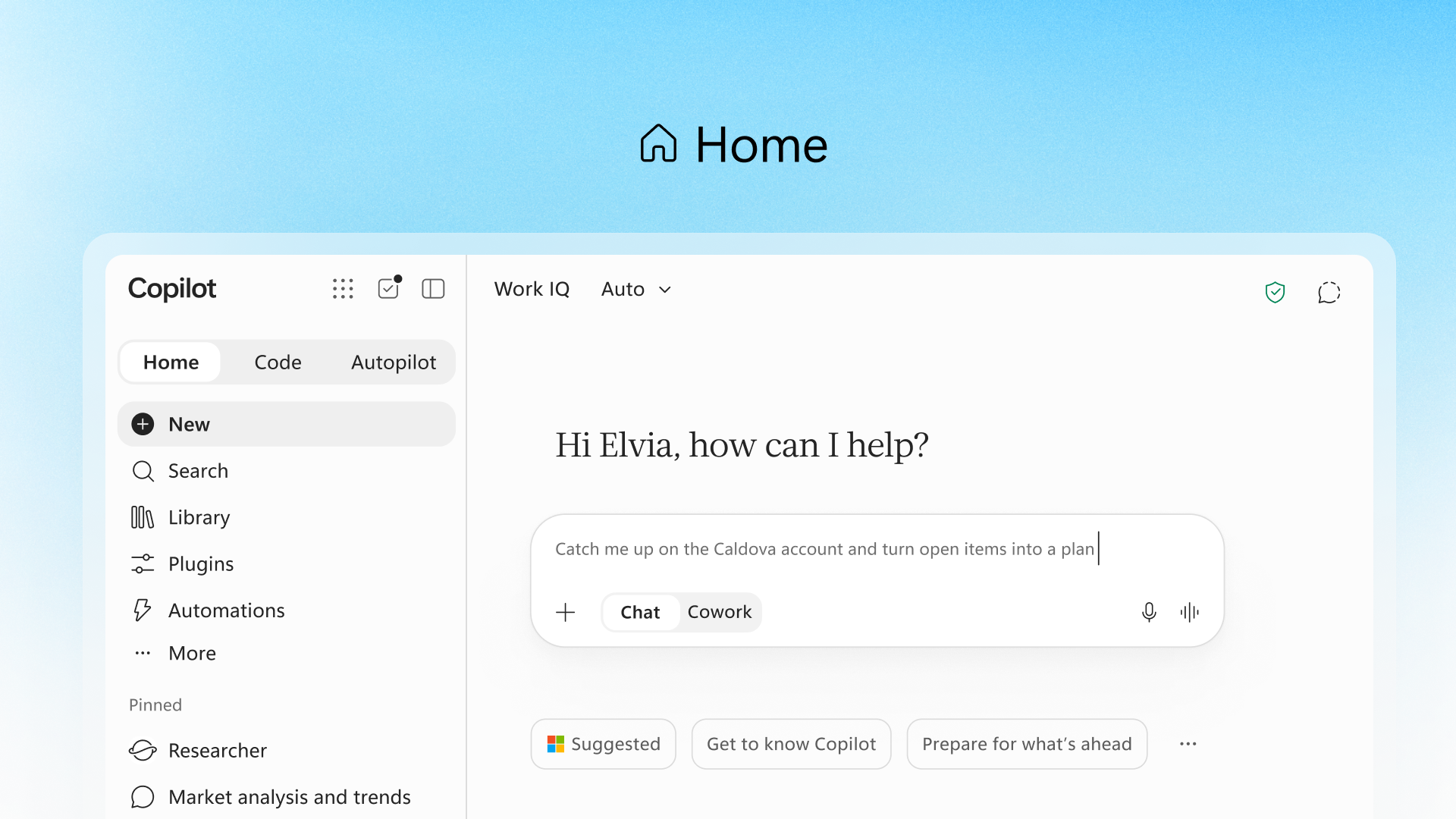
Get Copilot at work
- Go to Copilot in a web browser and sign in with your work or school account.
- You can also use Copilot inside the apps you already work in, including the Microsoft 365 app on web, desktop, and mobile, Microsoft Teams, Outlook, and more.
- On mobile, you can install the Microsoft Copilot mobile app for iOS or Android.
Once you are in, you'll see three experiences in the left navigation, along with New chat, Search, Library, Agents and Skills, and Notebooks:
- Chat for conversational questions and answers, summaries, and drafting.
- Cowork for longer, multistep work you hand off to Copilot to complete on its own. To learn more, see Get started with Cowork.
- Code for coding-assistant tasks.
Work IQ: how Copilot uses your organizational data
At the top of Chat, you'll see a Work IQ control next to an Auto model picker. Select Work IQ to turn it on or off:
- Work IQ on (the default): Copilot uses your organization's data, such as files, email, Teams meetings, and information from the web to answer your prompt.
- Work IQ off: Copilot answers using only the web and the AI model's training data, not any of your Microsoft 365 data. Prompt suggestions and the references menu are limited to web-based sources while it is off.
Tip
Both settings offer enterprise-grade security, privacy, and compliance. Copilot only uses work content that you are already authorized to access when responding to your prompts. See What information does Copilot use to answer my prompt? to learn more about how Copilot accesses and uses organizational data.
The Auto picker next to Work IQ controls which AI model responds to your prompt, similar to the conversation modes available in the personal Copilot experience.
What can you do with Copilot Chat?
- Create content and brainstorm. Draft new content based on anything from a storyboard or script to an agenda or executive summary. See Create content using Copilot Chat.
- Get quick answers. Ask questions about specific files and messages, or find information you know exists but cannot remember where it is stored. See Ask questions and get answers using Copilot Chat.
- Catch up on things. Summarize large amounts of data into simple, easy-to-digest updates. See Catch up on what you missed using Microsoft Copilot Chat.
- Use voice commands. Select the microphone button to talk to Copilot Chat. You can interrupt an audio response, and Copilot will respond to your new input.
- Hand off multistep work. Use the Cowork tab for longer tasks you want Copilot to work through and complete with less back-and-forth. See Get started with Cowork.
- Get coding help. Use the Code tab for coding-assistant tasks.
Write great prompts
A well-crafted prompt leads to better results.
- Be clear, concise, and specific about what you want. See Prompts to try.
- Embrace iteration. Do not settle for the first result. Refine and experiment to get closer to what you need.
- Reference specific content. Type a forward slash (
/) and then the name of a file, person, or meeting to point Copilot to the source you mean. If you do not reference anything specific, Copilot picks the best source of data for its response.
A good prompt usually includes:
| Part | What it does | Example |
|---|---|---|
| Goal | What you want to achieve |
 Schedule a meeting...:::
 |
| Context | Relevant background |
...with /(person’s name) to discuss the project update... ::: |
| Details | Specific instructions |
...for 30 minutes at the next time we are both available...::: |
| Data | The input to use |
...using our work calendars.::: |
Copilot is conversational, so if the first response is not quite right, follow up. Ask it to narrow the time period, change the format, or go deeper on one point.
Help shape the future of AI
AI is an exciting technology, but it is still early in development. Sometimes Copilot gets things wrong, so it is important to review what it generates. Use the thumbs-up and thumbs-down buttons on any response to tell us what is working, what is not, and what we can do better.
If you are using a personal account
If you are signed in with a personal Microsoft account instead of a work or school account, Copilot works largely the same way, with a few differences:
- Access it from more places. Copilot is available as a dedicated app on Windows, macOS, iOS/iPadOS, and Android, in addition to the web at Microsoft Copilot.
- Sign in with more account types. On the web, mobile, and macOS, you can sign in with a Microsoft account, Apple ID, or Google Account. The Windows app requires a Microsoft account.
- There is no Work IQ toggle. Copilot uses your own content, such as OneDrive files and Outlook.com email, plus the web, rather than an organization's data, so there is no work-versus-web setting to manage.