
Last updated: October 2026
Brand Kits in the Microsoft Copilot app help organizations create consistent, on-brand content. Brand managers can bring approved templates, assets, identity elements, and guidance together so people can find and apply them in supported Microsoft 365 creation experiences.
Before you begin
Important
Before creating a Brand Kit, confirm that you have the permissions required to create and manage Brand Kits. For more information, see Configure Brand Kit access and governance.
Note
This feature requires a Microsoft Copilot Premium license.
What is a Brand Kit?
A Brand Kit is a reusable collection of approved brand resources and guidance that Copilot can use in supported Microsoft 365 creation experiences.
A Brand Kit can include:
- PowerPoint templates
- Colors and fonts
- Logos
- Images and icons
- Brand voice and terminology
- Fonts
A Brand Kit allows your organization to configure its brand foundation once and make it available for recurring work. Eligible users can then apply approved templates, assets, visual identity, and brand voice without finding and adding each resource to every presentation or design.
Benefits of using Brand Kits
Use a Brand Kit when your organization needs reusable, centrally managed brand resources across teams or recurring workflows.
Brand Kits can help your organization:
- Make approved templates and brand resources easier to find.
- Improve consistency across presentations and other content created with Copilot.
- Apply approved images, icons, and template layouts.
- Maintain shared brand voice, tone, and terminology guidance.
- Manage how Brand Kits are distributed, published, and governed.
- Support multiple brands, sub-brands, product lines, or acquired organizations.
- Review presentations for brand adherence and receive suggested fixes.
Types of Brand Kits
The following types of Brand Kits are available:
- Official Brand Kit: An organization-approved Brand Kit owned and governed by the organization. Official Brand Kits are managed by designated brand managers and appear on the Official tab, where eligible users can access approved brand resources and guidance.
- User Brand Kit: A Brand Kit created and owned by an individual for personal or shared use. User Brand Kits appear on the User tab, and access is determined by the creator's sharing and publishing settings. They do not represent formal organization approval.
Plan your Brand Kit
A Brand Kit should be configured and maintained by people who understand your organization's identity, resources, and governance requirements.
Before you begin, identify the people responsible for:
- Brand approval
- Brand Kit configuration
- PowerPoint template design
- Microsoft 365 permissions and policies
- Approved brand assets
- Testing generated content
You should also have:
- At least one approved, Copilot-ready PowerPoint template.
- Access to approved colors, fonts, logo variations, imagery, and brand voice guidance.
- A designated brand manager and, if Brand Kit creation is restricted, an approved Brand Kit creator.
- An IT administrator who can confirm licensing, policies, permissions, and supported connectors.
- A brand or creative approver who can review the configuration and generated results.
- A representative use case and a manageable group of pilot users.
Create and build a Brand Kit
Open Brand Kits
You can also access Brand Kits directly by using office.com/create/brandkit.
Access the Create experience by using one of the following methods:
- In Copilot on the web, select Apps and more in the upper-left corner, and then select Create.
- In the Copilot app, select Apps and more in the upper-left corner, and then select Create.
If prompted, sign in with an account that has an eligible Microsoft Copilot subscription.
- Select More.
- Under Manage Brand Kits, select Brand Kits.
- Select Create Brand Kit.
- Enter a name for the Brand Kit.
- Create the Brand Kit.
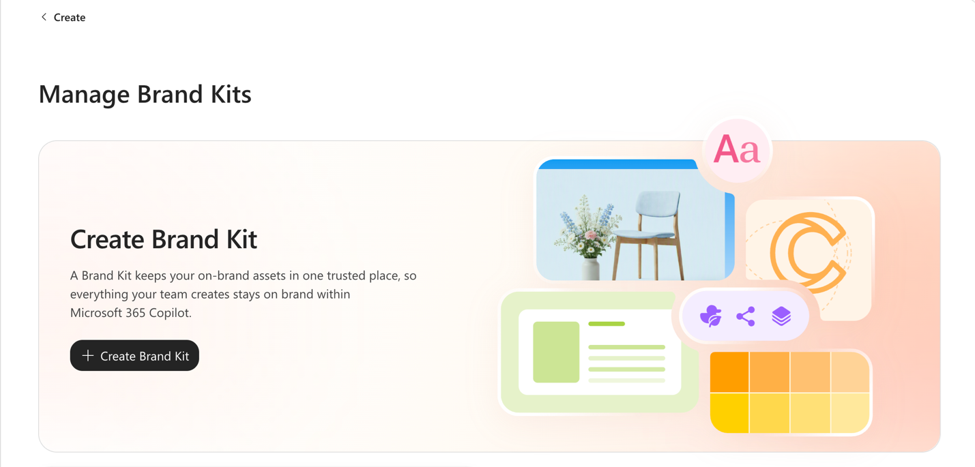
A new Brand Kit begins as an unpublished draft. Only editors can access it until it is shared and published.
Build your Brand Kit
Use the Build section to add and organize the resources that define your brand.
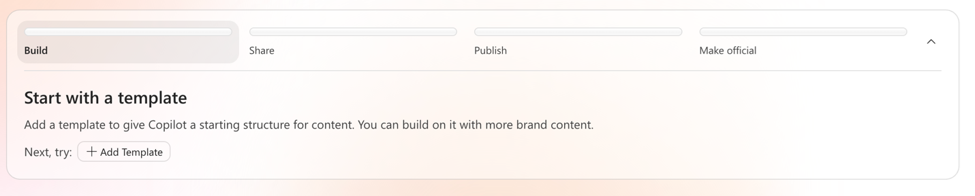
Configure any of the following resources that apply to your organization.
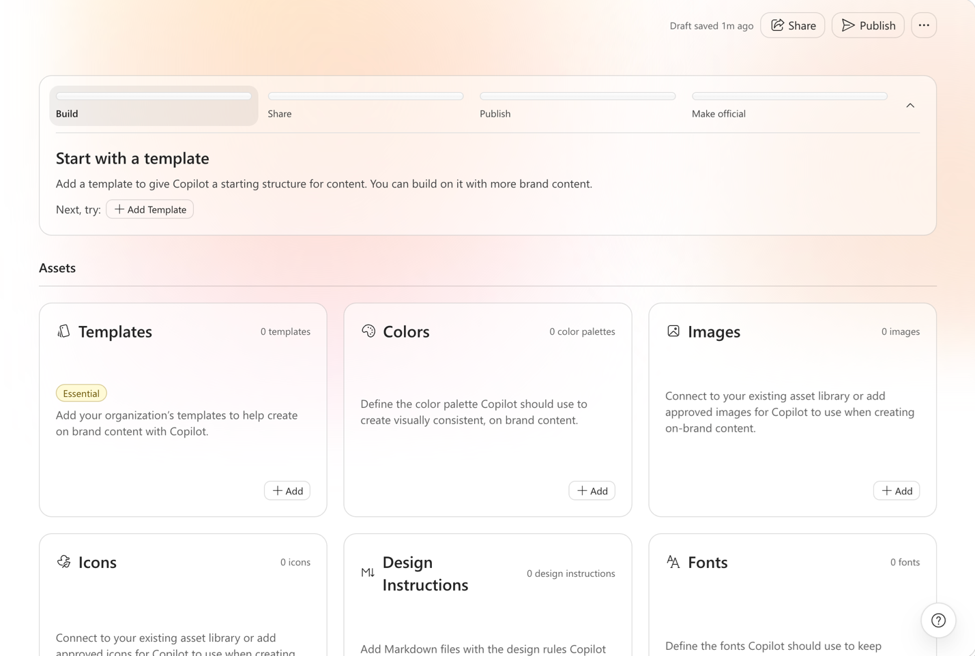
Templates
Upload approved templates for presentations and other supported content. Properly configured PowerPoint templates help Copilot generate presentations that follow your intended layouts and styles.
For more information, see Keep your presentation on-brand with Copilot and Manage template settings in your Brand Kit for Copilot in PowerPoint.
Images and icons
Add approved photography, graphics, illustrations, and icons that align with your brand's visual style and messaging.
Logos
Upload your primary logo, secondary logos, and approved variations. Include versions intended for different backgrounds, formats, or use cases.
Colors
Define your approved brand colors. Provide precise values, such as hexadecimal codes, to help maintain consistent color usage.
Fonts
Add your approved typefaces, including primary and secondary fonts for headings, body text, and specialized uses.
Brand voice
Describe the personality, tone, terminology, and writing conventions that should guide content created for your brand.
Share your Brand Kit
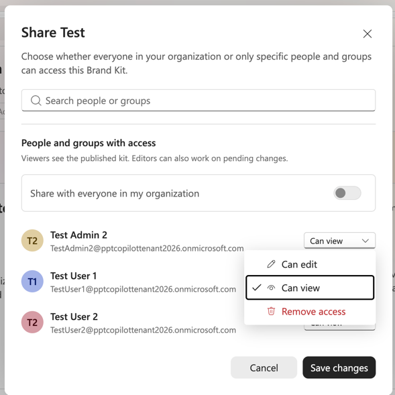
Sharing controls who can access the Brand Kit and what they can do with it.
- Editors can access and modify the Brand Kit, whether it is published or unpublished.
- Viewers can access the published version of the Brand Kit.
Sharing a Brand Kit does not publish draft changes.
Publish a Brand Kit
Publishing moves a reviewed draft into the published state, making it available to people with viewer access.
A Brand Kit can have one of the following statuses:
- Published: Editors and viewers can access the Brand Kit.
- Unpublished: Only editors can access the Brand Kit.
Coming soon: When an editor changes a published Brand Kit, the changes are saved to its draft. Viewers continue to use the current published version until an editor publishes the latest changes.
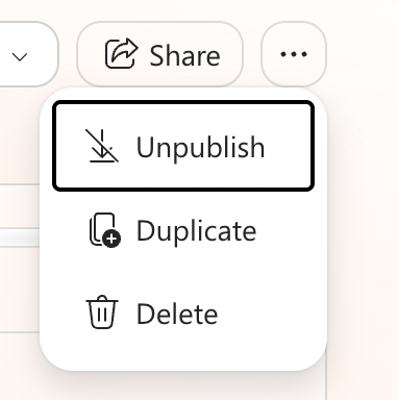
Unpublishing a Brand Kit hides it from viewers without deleting the kit or removing editor access.
Make a Brand Kit official
Making a Brand Kit official is a separate brand manager action. It:
- Marks the Brand Kit as approved by the organization.
- Transfers ownership of the kit to the organization.
- Allows it to be distributed across the organization.
- Places it under brand manager governance.
- Makes it available through the Official tab.
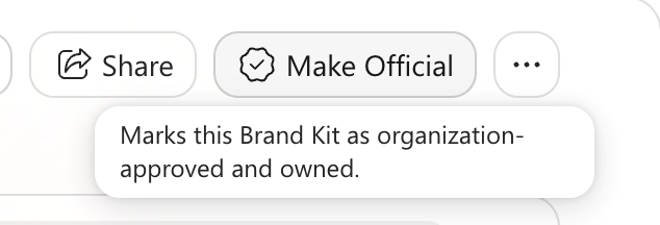
If a creator wants a Brand Kit to become official, they must share it with a designated brand manager and coordinate the review directly. Once a Brand Kit has been made official, only brand managers can make edits and changes to the Brand Kit.
There is no formal submission, routing, notification, or approval workflow. The creator and brand manager should agree on how the review will be conducted. For more information, see Configure Brand Kit access and governance.
Use a Brand Kit in PowerPoint
After a Brand Kit is configured and published, you can select it in PowerPoint and use Copilot to generate on-brand content.
- Open a presentation in PowerPoint.
- Open the Copilot pane.
- Select the + button.
- Select Select brand.
- Choose the Brand Kit you want to use.
- Enter your prompt and ask Copilot to generate your content.
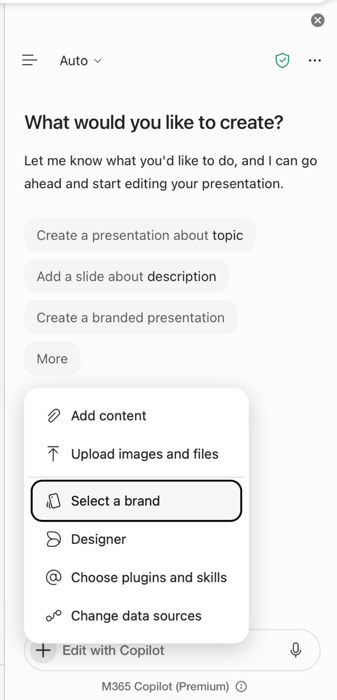
Copilot uses the selected Brand Kit's approved templates, colors, fonts, assets, and guidance to help align the generated presentation with your organization's brand.
Manage a Brand Kit
To manage an existing Brand Kit, open Brand Kits and select the kit you want to update.
Depending on your permissions, you can:
- Rename the Brand Kit.
- Change its sharing permissions.
- Publish its latest changes.
- Unpublish it.
- Delete it.
You can also select More options (...) on the Brand Kit tile to access available management actions.
Changes are saved to the draft automatically. If the Brand Kit is already published, viewers continue to see the current published version until the latest changes are published.
Manage multiple Brand Kits
If your organization manages several brands, sub-brands, product lines, or acquired companies, you can create and maintain a separate Brand Kit for each identity.
Using multiple Brand Kits allows your organization to:
- Maintain separate templates and assets.
- Assign different colors, fonts, logos, and imagery to each brand.
- Switch Brand Kits based on the content being created.
- Define brand-specific defaults and guidance.
- Manage each brand independently.
- Help teams working across multiple identities use the correct brand resources.
Frequently asked questions
What is a Brand Kit?
A Brand Kit is a reusable brand reference that gives Copilot the approved context it needs to help create on-brand content. For more information, see Create and manage official Brand kits in the Microsoft Copilot app.
What can I include in a Brand Kit?
A Brand Kit can bring together the core elements that define your brand, including PowerPoint templates, logos, colors, fonts, approved images and icons, and brand voice, along with skills and connectors for how those elements should be used.
Where can I use my Brand Kit?
You can use your Brand Kit in PowerPoint Copilot and Excel Copilot.
How do I use a Brand Kit in PowerPoint?
After you create a Brand Kit, open PowerPoint Copilot, select + > Select brand, choose your Brand Kit, and tell Copilot what you want to create. Copilot uses your Brand Kit to help create an on-brand presentation or slide.
Learn more about Edit with Copilot in PowerPoint.
Who can create a Brand Kit?
Any user with a Premium Copilot license can create Brand Kits, but your organization can restrict Brand Kit creation to a designated group of users.
Learn more about restricting Brand Kit creation.
What is an Official Brand Kit?
Official Brand Kits are organization-owned kits governed by brand managers. Only brand managers can edit Official Brand Kits.
Should I upload all of my organization's assets into a Brand Kit?
No. We recommend uploading only the essential assets you want Copilot to use. For larger asset libraries, keep your digital asset management system as the source of truth. We are working on allowing you to connect approved DAM collections to your Brand Kit.
Can my organization manage more than one Brand Kit?
Yes. Create separate Brand Kits for different brands, product lines, or sub-brands. Each kit can have its own templates, assets, colors, fonts, imagery, and defaults, so you can switch kits while keeping each brand consistent.
What is a Brand Kit skill?
Brand Kit skills allow you to share skills with anyone who has access to the Brand Kit.
Learn more about Brand Kit skill support in Copilot for PowerPoint.