

Summary
The OneDrive sync app can show Unable to sync shortcut when you move a folder with a OneDrive shortcut inside another folder that also has a shortcut.
To fix this error on Windows, remove the shortcut to the subfolder, not the folder or its files. If you can't locate the shortcut, search on the OneDrive website or use Windows PowerShell.
"Already syncing as a shortcut" error
The Unable to sync shortcut message includes these details:
The folder <folder name> can't be synced under <folder name> because it's already syncing as a shortcut.
You see this error message in the OneDrive sync app if you have shortcuts to two separate folders, and then you move one folder into the other. You can still access both folders on your PC and the files continue to sync as expected, but you don't see one folder inside the other as they show in OneDrive on the web.
To resolve this issue, remove the shortcut to the subfolder (the folder that you moved into the parent folder). When you remove the shortcut, OneDrive syncs the new folder and subfolder structure.
How to remove a shortcut
Remove the shortcut to the folder that was moved inside the parent folder. Keep the shortcut to the parent folder.
Important
Use Remove shortcut, not Delete. Removing the shortcut doesn't delete the shared folder or its files.
In your OneDrive folder in Windows File Explorer, right-click the shortcut to the subfolder and select Remove shortcut. If the command isn't shown directly, select OneDrive > Remove shortcut.
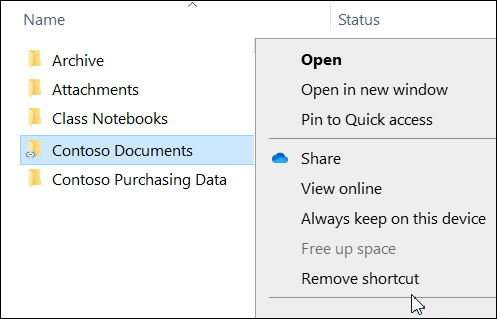
Check that the subfolder now appears inside the parent folder in File Explorer and that the shortcut-related sync error no longer appears.
If you found the shortcut on the OneDrive website, follow the web removal steps in Add shortcuts to shared folders in OneDrive. Remove only the shortcut to the subfolder, and then check the folder structure and sync status in File Explorer.
Tip
If OneDrive instead says Sorry, we can't sync this folder. You're already syncing a shortcut to a folder from this shared library, see You can't sync a shared folder that's set as a shortcut in OneDrive sync app. That message concerns a conflict between syncing a SharePoint library and adding a shortcut to it.
Can't find a shortcut to a OneDrive folder
If you can't find the shortcut in your folders, start by searching for shortcuts on the OneDrive website. This search works for both personal Microsoft accounts and work or school accounts.
Go to the OneDrive website at onedrive.com and sign in with the personal Microsoft account or work or school account that has the shortcut-related sync error.
In the search box, enter
ProgID:"AddToOneDrive.MountPoint"and press Enter.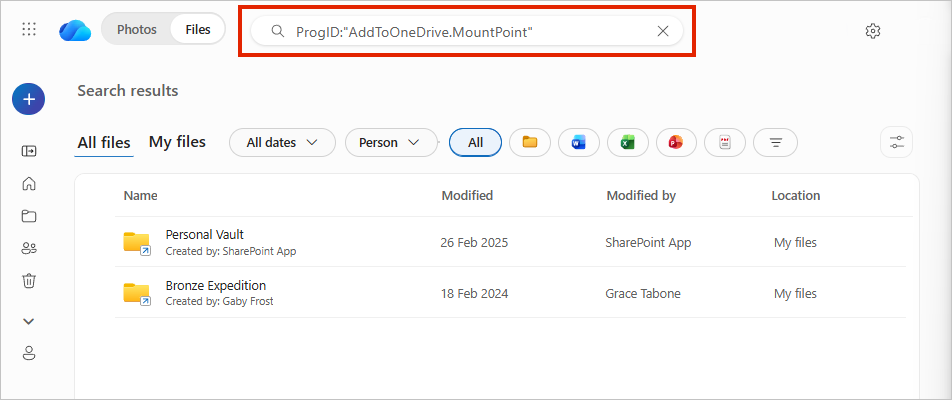
Review the folder names and the Location column to find the shortcut to the subfolder named in the sync error.
After you identify the shortcut, follow How to remove a shortcut.
Tip
To look for the shortcut in your local OneDrive folder instead, use Windows PowerShell.
Find the shortcut by using Windows PowerShell
If you use the OneDrive sync app on Windows, use the following command to list folders to review in your local OneDrive folder.
Caution
Don't remove a folder just because it appears in the output. The results can include your PC's Desktop, Documents, Downloads, Music, Pictures, Videos, Camera Roll, and Screenshots folders. Identify the shortcut named in the sync error before using Remove shortcut. The command only lists matching items; it doesn't remove them.
Open Windows PowerShell.
Replace
C:\Users\JDOE\OneDrivein the following command with the path to the local OneDrive folder for the account that has the sync error, and then run the command.Get-ChildItem "C:\Users\JDOE\OneDrive" -Recurse | Where-Object {$_.Mode -match "d-r--l"}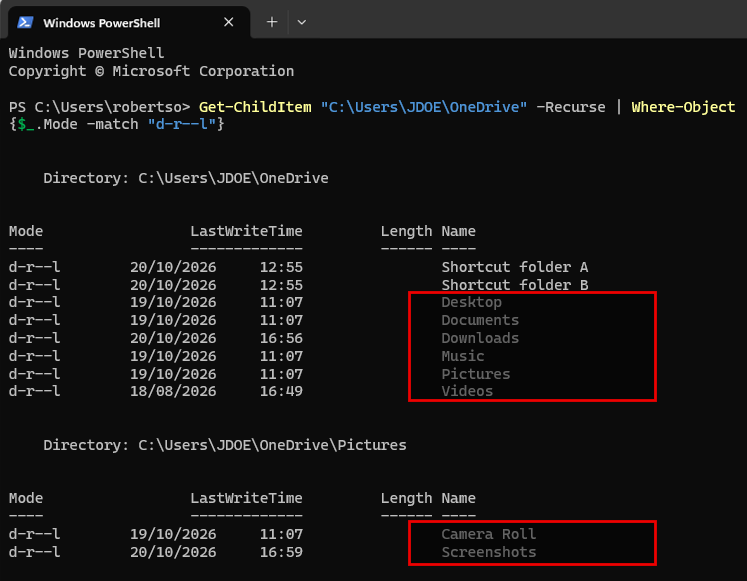
Review the Directory paths and folder names in the output to locate the shortcut to the subfolder named in the sync error.
After you identify the shortcut, follow How to remove a shortcut.
If neither the website search nor the PowerShell procedure finds a shortcut in the affected account, there are no shortcuts to remove.
Need more help?
Account support. For help with your Microsoft account and subscriptions, visit Account & Billing Help.
Technical support. For technical support, select Contact Microsoft Support below, enter your problem and select Get Help.
Mobile users can contact Support by opening the OneDrive app and gently shaking your device.
Community support. Communities help you ask questions, give feedback, and hear from experts with rich knowledge. Ask the Microsoft Community. Do not disclose personal or sensitive information in public forums.