
The updated Photos app on Windows 11 helps you browse, organize, and edit photos and videos from your PC, OneDrive, and iCloud. You can use Photos with pictures stored on your PC without signing in to OneDrive.
In Photos, you can:
- Browse photos and videos from your PC, OneDrive, and iCloud in Gallery.
- Search by what's in your personal OneDrive photos, not only by file name. On a Copilot+ PC, search also covers indexed photos stored locally.
- With a personal Microsoft account, find photos of friends or family in People, filter Gallery by people you name, revisit highlights in Moments, and create Albums.
- Mark Favorites.
- Crop and adjust photos with the updated editor.
- Browse photos available on your device when you're not connected to the internet.
- Add local folders and use Windows actions with a photo: set it as your desktop background or lock screen, print it, or open it in File Explorer.
With a work or school account, you can browse Gallery, search for a photo by file name or tags, mark Favorites, and add local folders. Albums, Moments, and People aren't available for work or school accounts.
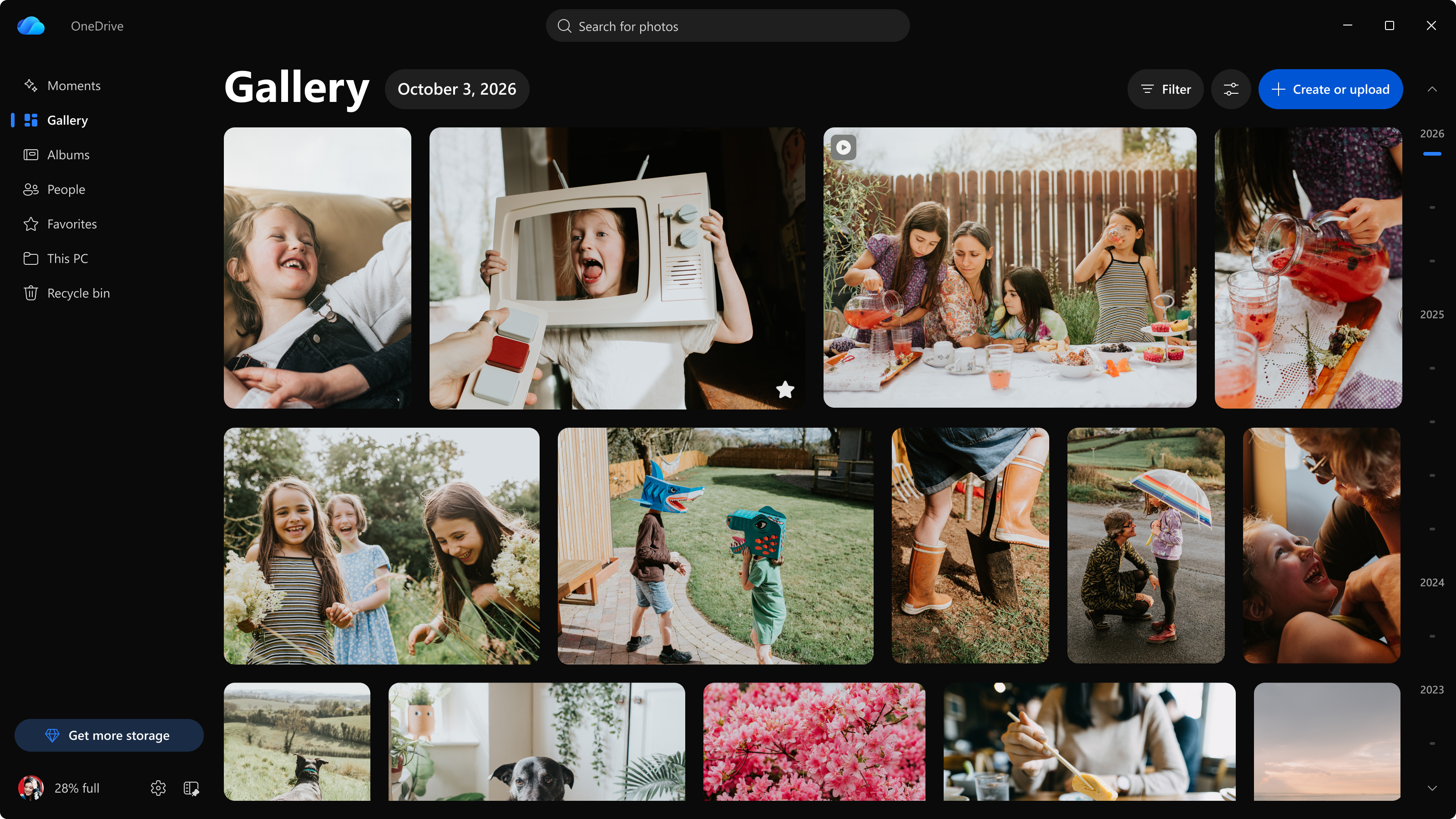
What's changing on Windows 11
An updated Photos experience is rolling out on Windows 11, starting with Windows Insiders and expanding to other Windows 11 users later this year. The experience includes an updated gallery and editor.
When the updated experience is available on your device, Photos will have an updated icon. Follow the steps in View photos on Windows to open the app.
View photos on Windows
- Select Start.
- Enter Photos, and then open Photos.
You don't need to sign in to OneDrive to browse photos stored on your PC. Sign in with a personal Microsoft account or a work or school account to access your OneDrive photos.
You can also open Photos from the OneDrive activity center: select the OneDrive cloud icon in the notification area at the far right of the taskbar, then select View photos. This button is available when you're signed in to OneDrive with a personal Microsoft account.
Choose which photos appear in the gallery
The Gallery shows photos from the sources you add in one timeline, with the newest photos first. These sources can include OneDrive and your PC. Your Pictures library appears automatically, including photos stored only on your PC.
To add another local folder stored on your PC:
- Select This PC in the left navigation.
- Select Add a folder, and then choose the folder you want to see.
Note
Showing a folder in This PC doesn't upload its photos to OneDrive. Photos stored in a folder synced with OneDrive are uploaded through OneDrive sync.
To narrow the photos currently shown, select Filter at the top of Gallery. You can filter by media type, favorites, source, orientation, and resolution. With a personal account, you can also filter by people you name.
If you want to choose which OneDrive folders appear in Gallery, or to hide screenshots and GIFs:
- Select the Options button next to Filter.
- Under Photos from OneDrive, select All OneDrive folders or Only the Pictures folder.
- Under Declutter, select Hide screenshots and GIFs.
Include your iCloud photos
You can access all the media files on iCloud from the Photos app. Here's how:
- Select This PC in the left navigation.
- Select iCloud Photos. You're prompted to go to the Microsoft Store and download the iCloud for Windows app.
- Open iCloud for Windows, sign in to your Apple Account, and then choose Photos in the iCloud app to view your iCloud media in the Photos app.
- Open or go back to Photos. You can see all your iCloud content.
Search your photos
In Photos, select the search bar at the top. The search options depend on your account and device:
- Personal OneDrive photos: Describe what you're looking for, like "beach" or "birthday cake." Search can find pictures by what's in them, not just file names or dates.
- Work or school OneDrive photos: Search by file name or tags.
- Local photos on a Copilot+ PC: Describe what you're looking for to search indexed photos stored on your PC. For supported languages, file types, and indexing requirements, see Search photos.
Turn off face grouping
The People feature is available for personal Microsoft accounts and groups photos of the same person so you can find their photos faster. Face grouping runs in the cloud and only on the photos in your OneDrive. Photos that are only on your PC aren't processed.
Note
Face grouping is rolling out gradually and might not be available for your account or region yet. Some regions require your consent before photo processing can begin.
To turn off face grouping from the desktop app:
- In Photos, select Settings.
- Select More settings. OneDrive settings opens in your browser.
- Select Photos, then turn off the setting in the People section.
All face grouping data is permanently removed within 30 days.
To learn how face grouping works, how your data is used, and how to find and name people, see Group photos by people in OneDrive. To learn how Microsoft approaches AI features like this one, see Responsible AI.
Photos and OneDrive sync
OneDrive policies in Photos control access to OneDrive photos. You can still use Photos with pictures stored on your PC without signing in to OneDrive.
To stop OneDrive file sync on your device, see Turn off, disable, or uninstall OneDrive.
Manage photos on devices in your organization
Existing OneDrive policies apply to OneDrive functionality in Photos:
- DisablePersonalSync prevents personal OneDrive account sign-in.
- DisableNucleusSync prevents the use of any OneDrive account in Photos.
These policies don't prevent users from using Photos with local content.
For organizations using AppLocker packaged-app rules to block Microsoft Photos, update the rules to include Microsoft.OneDrive.Photos if you intend to continue blocking it.
If your organization disables Store-originated apps by using DisableStoreApps, the update won't be installed on affected devices.
For most organizations, no new or immediate configuration is required. Review existing Windows app-management and OneDrive policies, especially rules that intentionally block or remove Photos.
For OneDrive policy guidance, see Use OneDrive policies to control sync settings.
Frequently asked questions
Is an updated Photos experience rolling out on Windows 11?
Yes. An updated Photos experience includes an updated gallery and editor. To open the experience available on your device, follow the steps in View photos on Windows.
Is the updated Photos experience rolling out to Windows Insiders first?
Yes. The updated experience is rolling out to Windows Insiders first, with availability expanding to other Windows 11 users later this year.
Do I need to sign in to use Photos?
No. You can browse pictures stored on your PC without signing in to OneDrive. Sign in with a personal Microsoft account or a work or school account to access your OneDrive photos.
Can I use Photos with a work or school account?
Yes. You can browse Gallery, search by file name or tags, mark Favorites, and add local folders. Albums, Moments, and People are available for personal accounts, not work or school accounts.
Does showing local photos in Photos upload them to OneDrive?
No. Showing photos stored on your PC in Photos doesn't upload them. Photos stored in a folder synced with OneDrive are uploaded through OneDrive sync.
Does face grouping scan the photos on my PC?
No. Face grouping runs in the cloud and only on the photos in your OneDrive. Photos that are only on your PC aren't processed for face grouping. For details, see Turn off face grouping.
Can I turn off face grouping?
Yes. Follow the steps in Turn off face grouping. All face grouping data is permanently removed within 30 days.