
Capacity View helps you review your plan's work by assignee and time. Use it to see scheduled and unscheduled tasks together, understand who has work planned, and adjust work across weeks when your team's plan changes.
Note
Capacity View is for basic plans in Microsoft Planner and requires a Plan 3 license. If you don't see Capacity View, you may be in a premium plan, the feature might not be available to your organization yet, or you might not have the required license.
Open Capacity View
Open the premium plan you want to review.
In the plan views, select Capacity View.
Capacity View shows work in assignee rows and uses a timeline header to organize work by time. Tasks that aren't scheduled appear in an unscheduled work pane.
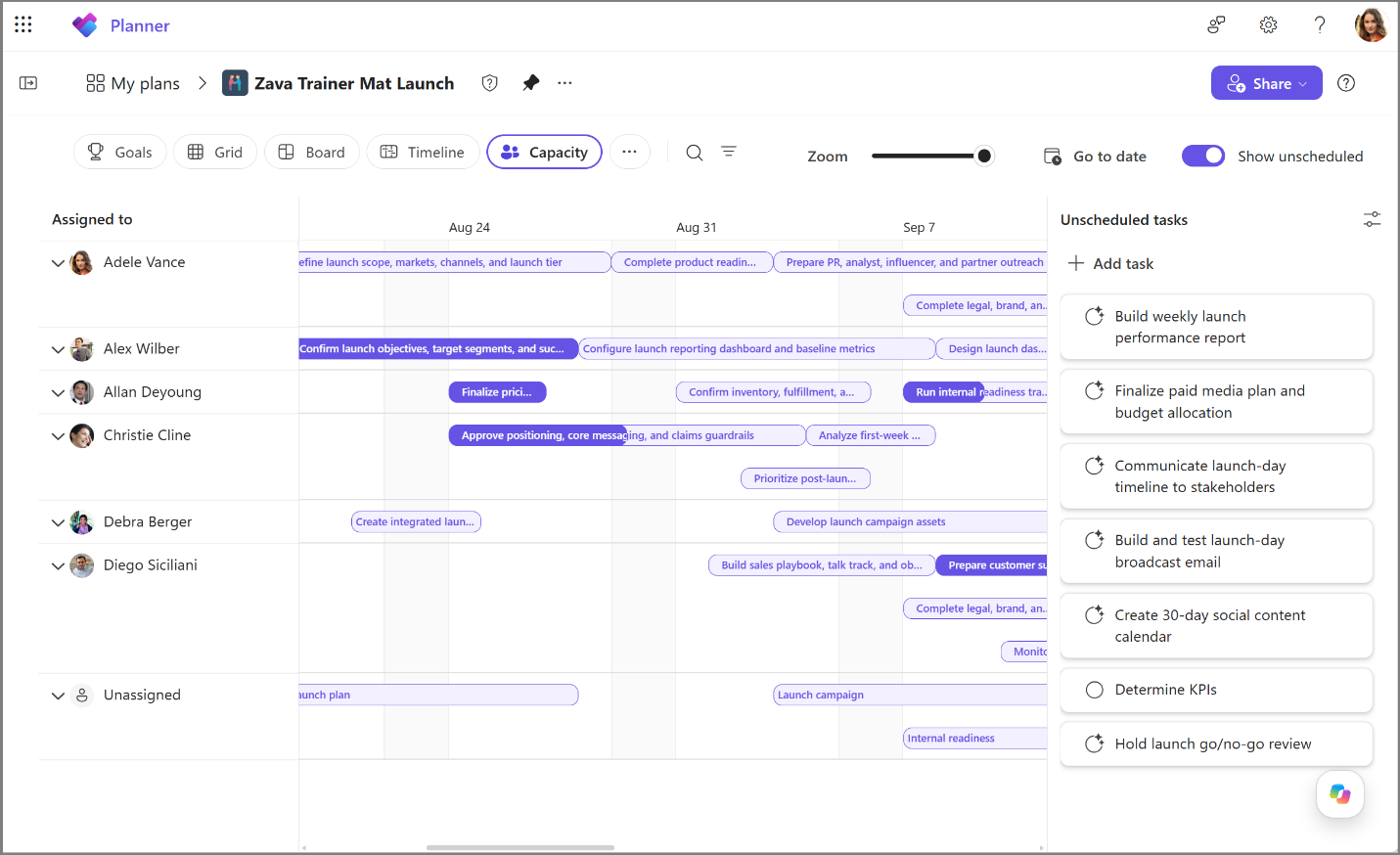
Review work by assignee and time
Use Capacity View to understand how work is distributed across your team.
In Capacity View, you can:
Review tasks by assignee
Compare scheduled work across weeks
See unscheduled work in the same view
Collapse or expand assignee rows to focus the view
Use timeline controls to move through the schedule
If an assignee row is collapsed, expand it to see the tasks assigned to that person.
Schedule unscheduled work
Tasks without scheduled dates appear in the unscheduled work pane. You can use this pane to find work that still needs time on the plan.
To schedule unscheduled work:
In Capacity View, find the task in the unscheduled work pane.
Move the task to the week where you want the work to appear.
Review the assignee row and timeline to confirm the task appears in the right place.
Scheduling unscheduled work helps your team see when planned work is expected to happen.
Move work between weeks
When timing changes, you can move work to another week in Capacity View.
Find the task in the assignee row.
Move the task to the week where the work should happen.
Review the timeline to confirm the task appears in the new week.
Moving work between weeks helps you keep the plan current without leaving the view.
Focus the view
Use filters and row controls to focus on the work that matters most.
You can:
Filter by assignee to review one person's work
Collapse assignee rows that you don't need to review
Expand assignee rows when you need more detail
Use zoom and go-to-date controls to change the timeline range
Notes and limitations
Tasks without start or finish dates stay in the unscheduled work pane until they're scheduled.
If you filter by assignee, tasks for other assignees are hidden until you change or clear the filter.
If Capacity View isn't available, check whether you're working in a basic plan, have a Plan 3 license, and whether the feature is available in your organization.