
After you schedule an event, chat privately with other organizers, co-organizers, and presenters in the event group chat. This chat is separate from the group chat that includes all event participants and is not accessible to attendees.
Note
Event group chat isn't supported on CVI devices.
Event group chat members
When you schedule an event in Teams, the event group chat will be created automatically. The organizer, co-organizers and presenters for the event are all included in the chat.
If you add more co-organizers and presenters later, they'll be added to the event group chat automatically. New event group members won't have access to chat history and will only see the messages sent after they were added.
Chat before an event
Use the event group chat any time before an event, including before the event is published, to coordinate event logistics, inform each other of related statuses and activities, and more.
Note
Only event organizers and co-organizers can start an event group chat before an event.
To start an event chat before an event:
Add presenters and co-organizers to the event.
Select Events
 on the left side of Teams. If you don't see Events
, select View more apps
on the left side of Teams. If you don't see Events
, select View more apps  . Then, search and select Events
.
. Then, search and select Events
.Select Manage.
On an event card, select More options
> Chat with event group  .
.Send an initial chat to begin the conversation.
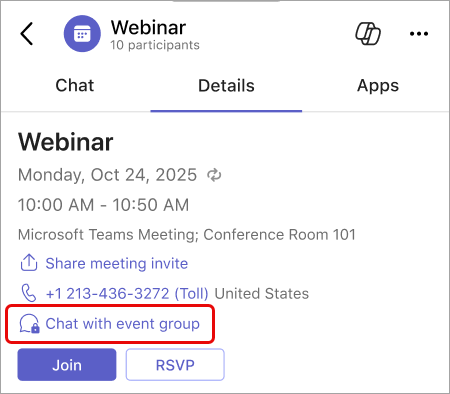
Event group members will only see the event group chat in their chat list after the first message is sent.
You can also start an event group chat by selecting Calendar  in Teams, double-clicking the event, and selecting Chat with event group
.
in Teams, double-clicking the event, and selecting Chat with event group
.
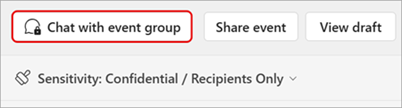
To return to the event group chat, select Chat  in Teams and find the conversation. If your meeting chats are shown in their own section, the event group chat will appear there.
Note
Event group chat names and icons aren't customizable.
Chat during an event
Chat privately during an event to keep your event running smoothly. Cue upcoming presenters, manage technical issues, and coordinate moderation, without disrupting the event experience.
Note
External, anonymous presenters won't have access to the event group chat during the event.
To chat with an event group during an event:
Note
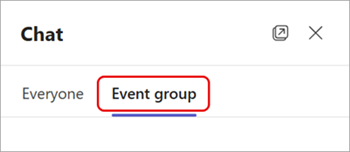
Want to see both the event and event group chats side-by-side? In the Chat
pane, select Open in new window  and select Event group to show the event group chat in a separate window.
Chat after an event
Continue the conversation with the event group after an event ends to recap important moments, assign follow up items, or plan for upcoming recurring events. For recurring events, there will be a single event group chat that persists throughout all the event occurrences.
To chat with an event group after an event, select Chat
in Teams. If your chat list has a meeting chat section, your event group chat will be located there.