
Keep your presentation on-brand with Copilot
Applies To
Important: Agent Mode (including Brand kit) is available in PowerPoint for Windows (within the Insiders Beta Channel.
Your PowerPoint template is the foundation Agent Mode learns from. A well-structured template helps Agent Mode in PowerPoint generate on-brand, visually consistent presentations.
When you give Agent Mode in PowerPoint a prompt, it analyzes several sources to generate brand-consistent output:
-
Layouts – The slide types and their layouts defined in your brand template
-
Objects – Design elements like text boxes, shapes, images and data visualizations in those layouts, provided via templates, OAL, and Brand kits
-
Your prompt – The specific instructions you provided
Agent Mode synthesizes all this information to create slides that look like your organization created them. This is not just applying a theme – it's understanding and replicating your brand's presentation approach.
This document provides step-by-step guidance for creating and customizing a PowerPoint template optimized for Agent Mode in PowerPoint. Following these guidelines will help Agent Mode in PowerPoint generate polished, brand-consistent presentations that align with your organization’s design standards.
1. Provide Representative Example Slides
Agent Mode learns from the example slides in your template. Therefore, your template should include representative slides that reflect how your organization typically presents content, so Agent Mode can extract and replicate those patterns to match your brand's style. The more realistic and varied your examples, the better Agent Mode can understand and apply your brand’s presentation approach.
What to include in your example slides
Ensure there are multiple slide types and layouts in your template. This helps Agent Mode recognize and reuse the right layouts.
We recommend adding the following generic layouts:
-
Title
-
Agenda
-
Section Header / Section Divider
-
Content (text, bullets, icons, focus areas, image layouts)
-
Data Visualization (tables, charts, statistics, dashboards)
-
Timelines
-
Process Diagrams (circular/block) / Flow Charts / Lists
-
Quotes / Statements / Testimonials
-
Questions and Answers (Q&A)
-
Summary / Key Takeaways
-
Conclusion
-
Thank You / Next Steps
Scenario‑dependent or specialized slide types that also can be added are:
-
Introductions / Biographies
-
Team Slides / Meet the Team
-
Contacts
-
Maps
-
Calendar
-
Case Studies
-
Any other specific use case slide
Note: These slide types are representative recommendations only and are not required. You may add any slide types based on your brand definitions and use cases; however, ensuring good coverage across layouts, slide types, and object styles will help produce better results.
Within those slides, show examples that demonstrate how your brand handles these concepts:
Content Density
Demonstrate how your brand handles varying amounts of information:
-
Light density: Titles/subtitles only, generous whitespace

-
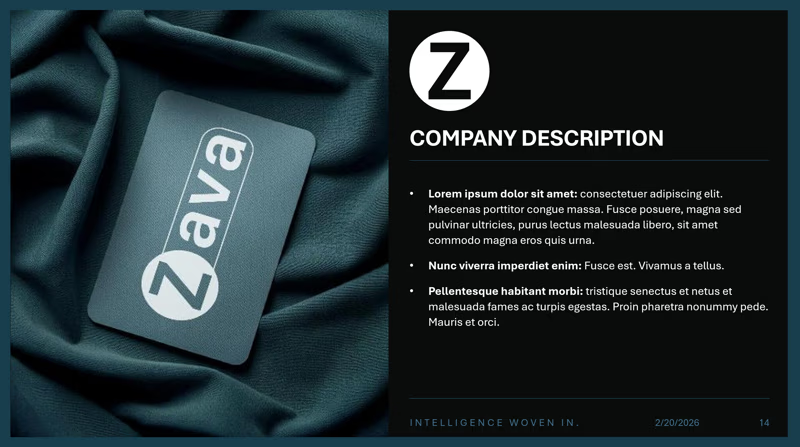
Medium density: Balanced layouts (e.g. text on one side and a large image on the other)
-
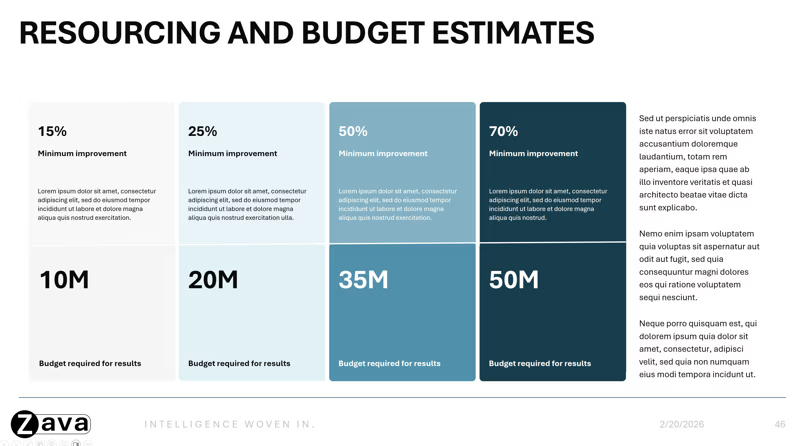
Heavy density: Content rich slides with minimal whitespace, including dense text, multicolumn layouts, and detailed charts or tables rich slides with minimal whitespace, including dense text, multicolumn layouts, and detailed charts or tables rich slides with minimal whitespace, including dense text, multicolumn layouts, and detailed charts or tables

Visual Style
Show how visual elements are consistently applied:
-
Color usage across different slide types
-
Color usage across different elements within graphs, charts, diagrams, etc
-
Typography hierarchy, with examples of headings, subheadings, and body text in use
-
Icon styles and how icons are incorporated into layouts
-
Multicolor variants of slide types, where appropriate (e.g. various section header slides in different colors) color variants of slide types, where appropriate.


Photography/Image styles
Include examples that reflect how your brand uses images:
-
Representative product or service imagery
-
Multiple slide examples to demonstrate:
-
Preferred composition and layout styles
-
Image usage patterns (e.g. full bleed background images on title slides or inset images on content slides)
-



Data Visualization
Show how data is presented for your brand:
-
Layouts for highlighted statistics and key takeaways
-
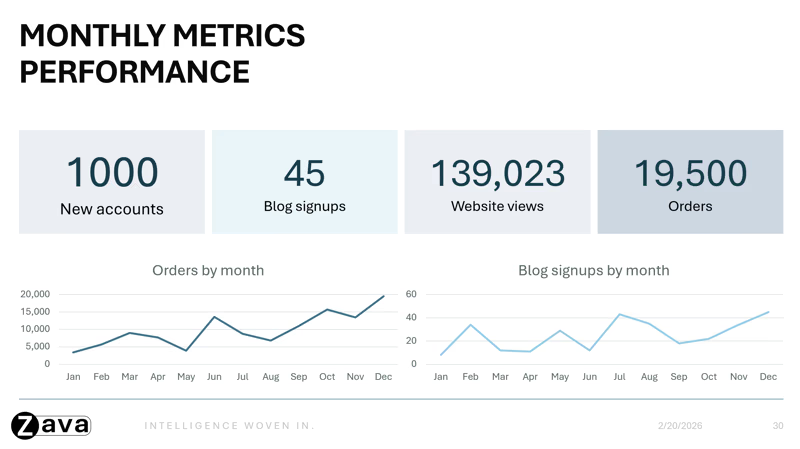
Examples of charts, tables, processes, timelines, diagrams, and infographics as they appear on slides for your brand


Tips for best results
-
Design slide types with a clear, recognizable purpose. When each slide intent is obvious, Agent Mode can more effectively choose and use the right layout.

-
Create complete, end-to-end slide layouts that demonstrate a single, clear use case. Cohesive example slides — rather than collections of individual elements like icon libraries or charts libraries — help Agent Mode better understand how the full slide layout is intended to be used, resulting in more consistent and polished presentations.
-
Keep your template focused on reusable layouts and place any instructional or guidance content outside the template.
-
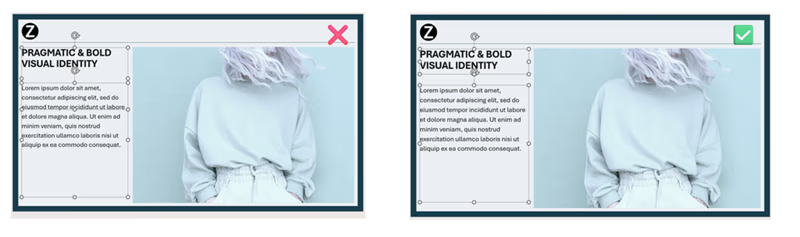
Ensuring that negative spaces of objects, especially text boxes, do not overlap with other objects – this will help improve how Agent Mode reads and generates the output.
Tips:
-
Choose layouts that reflect how you actually work day-to-day.
-
Use images and icons to improve readability and visual flow.
2. Set Up Your Template in Slide Master
Customize your template in Slide Master to ensure consistent branding across all AI generated slides.
To learn more about working in Slide Master view, see What is a slide master?
How to access Slide Master:
-
PowerPoint Desktop → View tab → Slide Master (in Master Views section)

Hierarchy:
There is a hierarchy of slides. The topmost slide is the Slide Master. Any elements or slide level definitions on the Slide Master will be inherited by the slides below it, known as Slide Layouts.
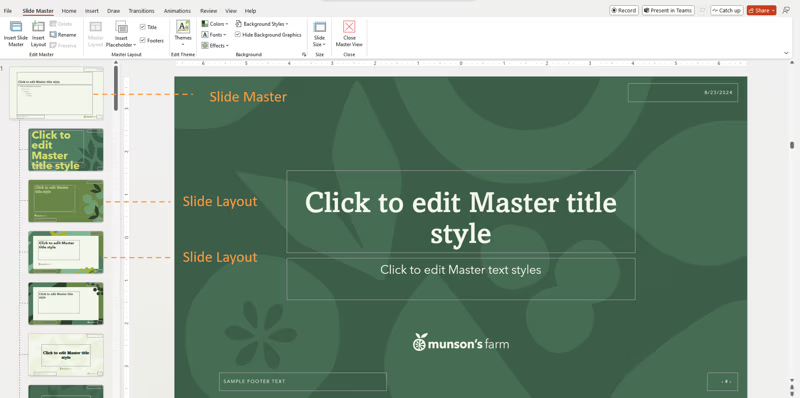
Important: You can use a PowerPoint template to create a presentation on any platform, but templates must be created in PowerPoint for Windows or Mac (not Web).
3. Use Theme Settings (Not Manual Styling)
Agent Mode learns from theme definitions, not one-off formatting.
Define Theme Colors
-
Go to Slide Master > Colors > Create New Theme Colors
Set Theme Fonts
-
Define heading and body fonts in the theme
-
Use consistent font sizes and hierarchy
Standardize Visual Styles
Apply consistent styles across all layouts:
-
Color schemes for charts and data visuals
-
Icon styles
-
Shape styles (rounded corners, borders, etc.)
-
Image placeholder styles
4. Use Placeholders Correctly
Placeholders help Agent Mode understand content structure.
Best practices
-
Use text placeholders instead of text boxes
-
Insert placeholders by going to Slide Master > Insert Placeholder
-
Keep placeholders readable and nonoverlapping with other objects
-
Avoid placing decorative elements on top of text or image areas
5. Upload your templates
Once your template is optimized, upload it to your Brand kit or your Organizational Asset Library (OAL) for Agent Mode to use. To upload to Brand kit, please below are the steps:
-
Open the Microsoft 365 Copilot app
-
Select Create in the left navigation menu > More… > Brand kits
-
Open your Brand kit
-
Go to Templates
-
Click Upload Template or select an existing template from your Organization Asset Library
-
Select your .potx file or .pptx file
-
Add metatags (optional)
-
Select Add to Brand kit
Learn more
Create a new presentation with Copilot in PowerPoint
Create and manage official Brand kits in the Microsoft 365 Copilot app


Need more help?
Want more options?
Explore subscription benefits, browse training courses, learn how to secure your device, and more.




Communities help you ask and answer questions, give feedback, and hear from experts with rich knowledge.


