

If a worksheet spans more than one page, you can print row and column headers or labels (also called print titles) on every page. For example, you can repeat the first row of column headers on all pages when you have large, complex worksheets.
Select the worksheet that you want to print.
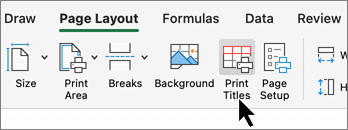
On the Page Layout tab, in the Page Setup group, select
 Print Titles.

Note
The Print Titles command appears dimmed if you're working in cell editing mode, if a chart is selected on the same worksheet, or if you don't have a printer installed.
On the Sheet tab, under Print titles, enter one or both of the following values:
In the Rows to repeat at top box, type the reference of the rows that contain the column labels.
In the Columns to repeat at left box, type the reference of the columns that contain the row labels.
For example, if you want to print column labels at the top of every printed page, type $1:$1 in the Rows to repeat at top box.Tip
You can also choose
 Collapse Dialog at the right end of the Rows to repeat at top and Columns to repeat at left boxes, and then select the title rows or columns to repeat in the worksheet. After you finish choosing the title rows or columns, select
Collapse Dialog again to return to the dialog box.
Collapse Dialog at the right end of the Rows to repeat at top and Columns to repeat at left boxes, and then select the title rows or columns to repeat in the worksheet. After you finish choosing the title rows or columns, select
Collapse Dialog again to return to the dialog box.Note
If you select more than one worksheet, the Rows to repeat at top and Columns to repeat at left boxes aren't available in the Page Setup dialog box. To cancel a selection of multiple worksheets, select any unselected worksheet. If no unselected sheet is visible, right-click the tab of a selected sheet, and then choose Ungroup Sheets.
Next Steps
When you finish setting up your worksheet to include row and column headings or labels (also named print titles) on every page, print your worksheet.


See Also
- Print row and column headings
- Repeat specific rows or columns on every printed page
- Print a worksheet or workbook
- Printing in Excel
Need more help?
You can always ask an expert in the Excel Tech Community or get support in Communities.