
Download this template
Or in Word, go to File > New, and search for cover page numbering bottom (choose single-sided, not double-sided)..

This template gives you a document that's laid out so that the cover page has no page number. Numbering begins at 1 on the next page. The template works best when used with single-sided printing, or for documents that are meant to be viewed online.
Replace the text in the document with your own, and follow these tips for customizing the page numbers or footer:
Align the page number to the left or center
- Double-click the page number to edit the footer.
- Press Ctrl+L to put the page number on the left, or press Ctrl+E to center the page number.
Include the total number of pages, like "2 of 10"
- On the Insert tab, in the Header & Footer group, go to Page Number > Bottom of Page.
- Scroll down until you come to the Page X of Y page numbers, and then select Bold Numbers 3.
Add text, like "p." or "Page" to the page number
- Double-click the page number to edit the footer.
- Enter the text you want, such as p. or Page.
Add content, like the author name or current date, to the footer
On the Insert tab, in the Header & Footer group, go to Footer > Blank (Three Columns).
Replace the placeholders with your content. To insert content that comes from the document (like author and file name), use Document Info on the Header & Footer Tools > Design tab.
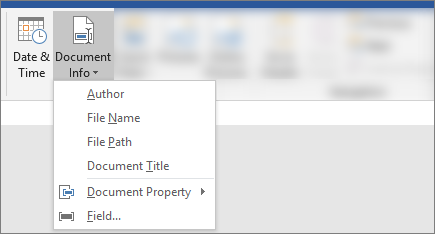
To add the current date, pick Date & Time on that same tab.Tip
If you want the printed document to always show the date it's printed, select Update Automatically.
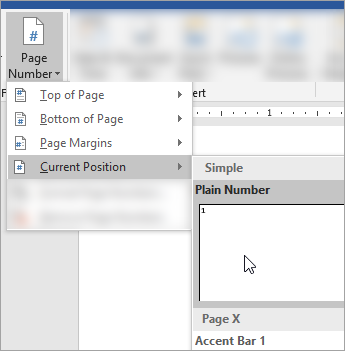
Use one of the placeholders for the page number. On the Header & Footer Tools > Design tab, go to Page Number > Current Position, and choose Plain Number.
If you don't use all the placeholders, delete the ones you don't use.
