This article describes the sign in, sign out, lock, and switch user account actions in Windows. Expand the following sections to learn more.
Sign in
Signing in to Windows refers to the process of verifying your identity to gain access to your Windows device. This process helps protect your personal information and settings from unauthorized access.
When you sign in, you may use a password, PIN, or biometric data like a fingerprint or facial recognition if you have Windows Hello set up.
- Power on your device. If it's already on, make sure you're at the sign-in screen.
- Choose your account if prompted. If you're the only user, your account should be selected by default.
- Enter your password or PIN if you have one set up. If you're using a Microsoft account, make sure you're using the password for that account.
If you have Windows Hello set up, you can use facial recognition, fingerprint, or a PIN instead of your password for a quicker and more secure sign-in.
Once you've entered your credentials, press Enter or click the sign-in arrow to access your Windows desktop.
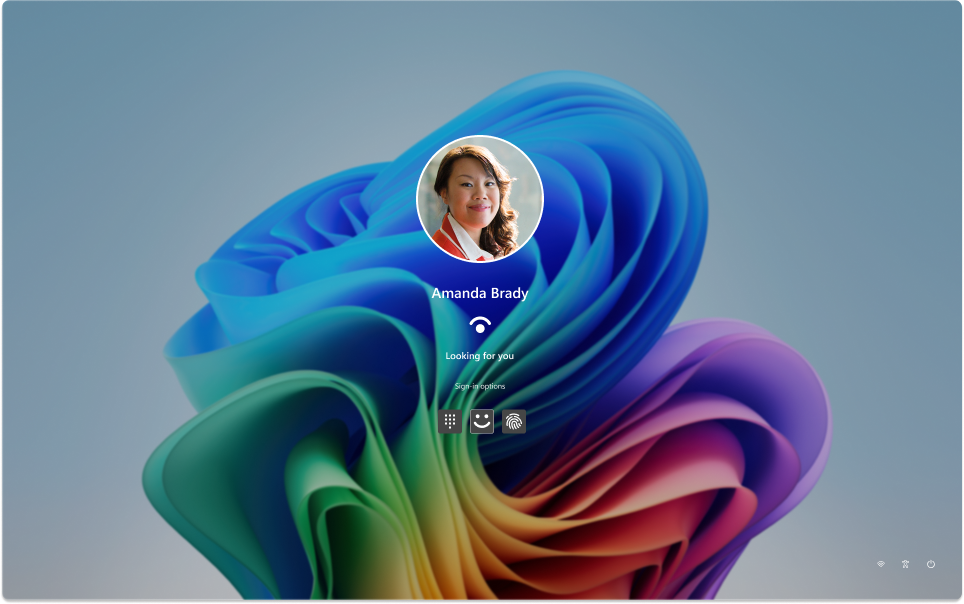
If you're having trouble signing in, you can reset your password or PIN from the sign-in screen. Look for the I forgot my password or I forgot my PIN links to start the reset process.
- For problems with Windows Hello, see Troubleshoot problems with Windows Hello
- For a local account, follow the instructions in Reset your Windows local account password
- For help with your PIN, see Reset your PIN when you aren't signed in to Windows
Sign out
Signing out of Windows is the process of closing your session and ensuring that your account is no longer active on the device. This helps maintain the security and privacy of your account, as it prevents others from accessing your personal files, applications, and settings.
When you sign out, any open applications are closed, and unsaved work may be lost. It's always a good practice to save your work before signing out.
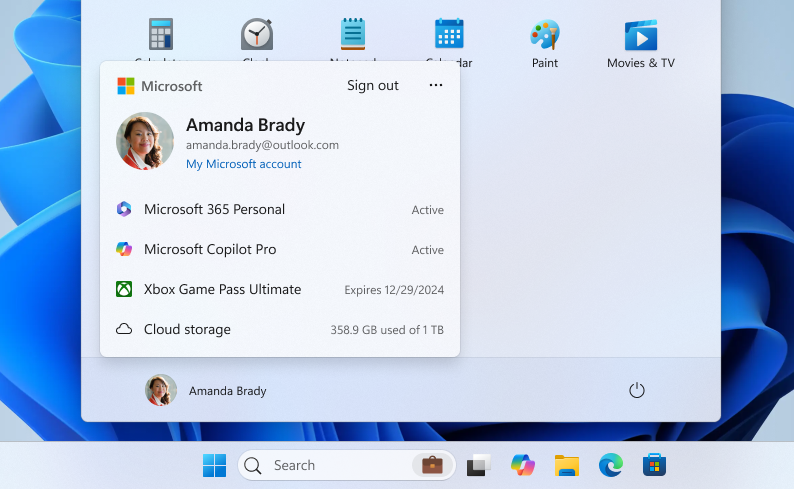
To sign out of Windows, select Start
 , select your user picture or the Accounts
 icon, and select Sign out.
Lock
Locking your Windows device allows you to quickly secure your device while keeping your applications and files open in the background. When you lock your device, anyone trying to access it must enter your password, PIN, or use biometric authentication if you have Windows Hello set up. This is useful if you need to step away from your device but don't want to close everything you're working on.
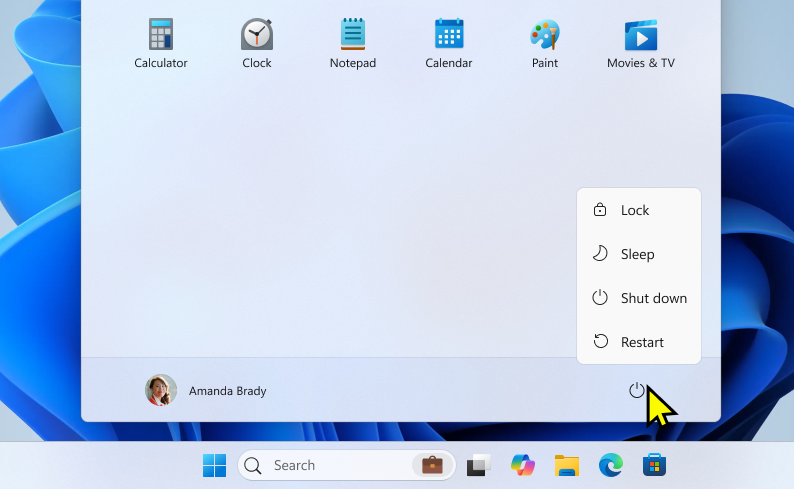
To lock your Windows device, you can:
- Press Windows key
+ L on your keyboard
- Alternatively, select Start
, select the power
 icon, and select Lock
Note
in earlier versions of Windows 11, the Lock action appeared under the Accounts
menu.
Switch user
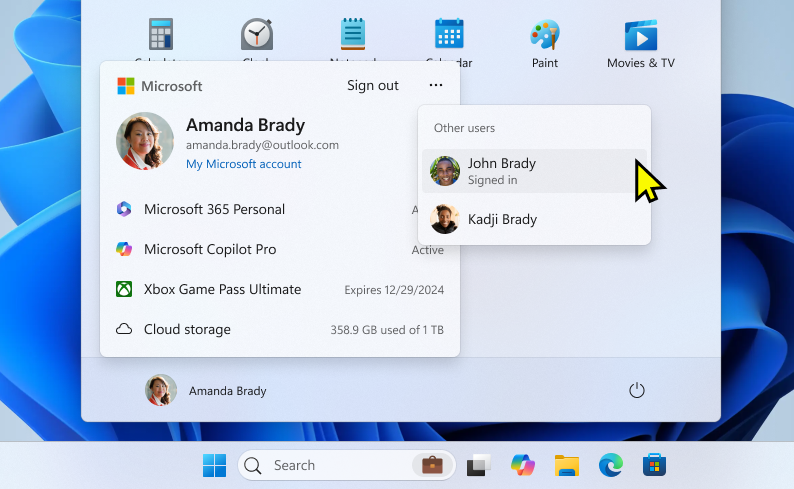
When you switch user accounts in Windows, you move between different user accounts on the same device without closing any applications or ending the current session. This allows multiple users to access their own accounts and workspaces quickly, without disrupting the flow of work. It’s particularly useful if a device is shared among several people.
To switch user, select Start
, select your user picture or the Accounts
icon, and select
 . Then, select the user account you want to switch to.
Note
on devices managed by an organization, you have the additional Switch user option.