
Sign into Microsoft365.com.
Select Word or OneNote.
Open a document or notebook page and select View > Immersive Reader
 .
.- For Outlook Online, log into Microsoft365.com, select Mail, and open an email. Select More Options
 , then Show in Immersive Reader.
- For Outlook Online, log into Microsoft365.com, select Mail, and open an email. Select More Options
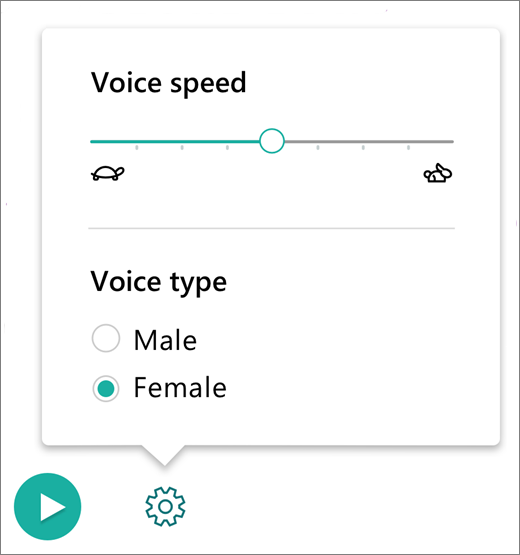
Select Settings
 to open Voice Settings:
Change voice type
Voice type controls the playback voice of the reader.
- Select Male or Female to change which voice is used for playback.
- Press Play to hear the voice.


Learn more
Use Immersive Reader for Office Online and OneNote
Transform speech to text in Learning Tools for Office Online and OneNote
Use lines focus in Immersive Reader for Office Online
Learning Tools for a variety of needs
Fix text-to-speech reading in wrong language