Keeping students safe while using Teams for distance learning
Applies To
Online learning can present unique student safety challenges. We've gathered Teams for Education best practices for both administrators and educators to establish safety policies and administer meetings and channels with recommended controls. Working together, these settings help ensure a safer and more productive environment for your students while using Teams.
Note
This guide is designed to serve as a foundation for your educational institution's safety plan. We will update these recommendations regularly.
Other resources you might be looking for:
IT Admins play a crucial role in setting up safe policies for students and educators in Teams for Education. We've broken down the best practices in this guide with explanations for different policies and configurations.
In this article
- See our policy quick guide for quick reference.
- Set up safe identities for students and educators
- Limit personal usage of Teams in a school environment
- What are Teams policies and admin settings?
- Meetings: Set up safe calls, meetings, and meeting chats
- Conversations: Set up safe chats and channels
Set up safe identities for your students and educators
We strongly recommend that you create student identities in your tenant for distance learning. Requiring students and educators to sign in to Teams before they join meetings is the safest meeting environment for remote learning. Doing so can help educators keep unauthorized users from gaining access to their online meetings.
For more information on how you can set up identities and licenses for your organization, visit our Get started with Microsoft Teams for remote learning guide.
Limiting personal usage of Teams in a school environment
The Microsoft Teams experience supports school, work, and personal accounts. If you would like to restrict the ability for students to sign in with their personal accounts, you can set up restrictions using Devices Policies.
Learn more about Microsoft Teams for your personal life.
What are Teams policies and admin settings?
Important
- IT Admins can run the Teams for Education Policy Wizard to easily apply the majority of the policies recommended in this article to your tenant. The wizard adjusts the Global defaults of a core set of policies with settings that we recommend for student safety and applies it to students. Running it also creates and assigns a set of custom policies to a group of educators and staff.
- If you already used the Policy Wizard to apply policies for your students, educators, and staff, use this article as a reference for additional safety measures, or if you prefer to manually create and manage policies for your tenant.
Teams policies and admin settings allow you to control how Teams behaves in your environment and what level of access individual users have to certain features. To maintain student safety, you should use administrative policies to control who can use private chat and private calling, who can schedule meetings, and what content types can be shared. Policies must be adjusted for both students and educators to keep the environment safe.
We recommend that you use your Global (organization-wide default) policy definition for students. This will ensure that any new users get the most conservative policy set and reduces the risk that a student will receive inappropriate levels of access.
View our Teams policies and policy package for Education guide for more details about Teams policies and the best way to deploy them within your environment.
Meetings: Set up safe calls, meetings, and meeting chats
Control who joins meetings as presenters by default
There are two roles available within Teams meetings: presenter and attendee. Presenters can manage meeting participants and share content, while the role of an attendee is more controlled. In many cases it is safest if students join meetings as attendees. This will ensure that they cannot remove other participants, mute others, or have other elevated meeting controls.
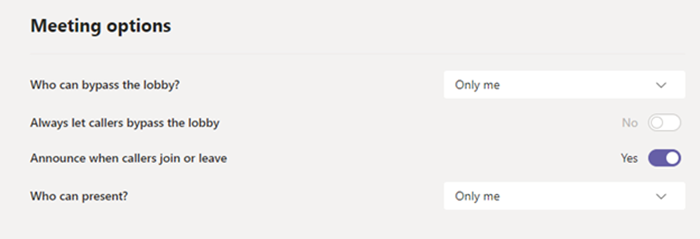
Educators can use the Who can present setting within Meeting options to control who joins their meetings as attendees, but administrators can also use the following policy to set the default value of this setting so that only the meeting organizer joins as a presenter and students join as attendees.
Apply this meeting policy to educators:
- Who can present: Only organizers and co-organizers
Prevent anonymous users from joining
Requiring participants to sign in to Teams before they join a meeting is the first step to keeping unauthorized users from gaining access to a meeting. When a meeting participant is signed in, an educator can more easily identify the participant, which makes it easier to determine if they should be allowed into the meeting.
If you have provided your students and educators with Teams licenses and do not plan to allow participants to join meetings without signing in to Teams, ensure that the following meeting setting is set:
Anonymous users can join a meeting: Off
There may be cases where you want to allow anonymous users to join a meeting within your school or district. For example, you may be using Teams meetings for parent discussions, external consultations, or other cases.
If you choose to enable anonymous meetings, make sure your meeting organizers are using the proper meeting lobby settings and following meeting lobby best practices. Configure the following settings to ensure that anonymous participants are not automatically admitted into meetings.
Apply these meeting policy settings to meeting organizers:
- Let anonymous people and dial-in callers start a meeting: Off
- People dialing in can bypass the lobby: Off
- Who can bypass the lobby: Only organizers and co-organizers
Prevent students from scheduling meetings and live events
Use these meeting policy settings to remove a student's ability to schedule meetings, create live events, and participate in private calls with faculty and other students.
Apply these meeting policy settings to students:
- Allow Meet now in channels: Off
- Allow the Outlook add-in: Off
- Allow channel meeting scheduling: Off
- Allow scheduling private meetings: Off
- Allow Meet now in private meetings: Off
Apply this live events policy to students:
- Allow scheduling: Off
Prevent students from meeting unattended
Educators can use the meeting lobby bypass options to control who can enter meetings directly without needing to be admitted from the meeting lobby first. Limiting who has this capability will help educators keep unauthorized users from gaining access to their meetings.
Educators should set Who can bypass the lobby to Only me to ensure that only they, as meeting organizers, can join the meeting directly. This will ensure that students and any other participants will need to wait in the lobby until they are admitted to the meeting. This setting will also prevent students from joining the meeting unattended.
In addition to enabling the meeting lobby, educators should take steps to help prevent students from joining meetings unattended by following meeting lobby best practices. Ensure that the educators in your school or district are aware of the additional measures they can take to support student safety.
Important
There are some situations where the original educator who scheduled a meeting is not present to start the meeting, such as a day when a substitute is teaching instead. If an educator has set Who can bypass the lobby to Only me for a meeting and they are unable to start the meeting to admit others, we recommend that the original teacher cancels their meeting for the class. Then, the educator who is in charge of the class for the day should create a new meeting. That way, they are the meeting organizer and will have full control of the meeting.
Use this meeting policy to set Who can bypass the lobby to Only me by default for educators.
Apply this meeting policy to educators:
- Automatically admit people: Organizer only
Disable meeting chat for all meetings
Apply this meeting policy to disable all meeting chats for students:
- Allow chat in meetings: Disabled
Prevent students from sending chats in channel meetings
Ensure that the educators in your environment are aware of the additional measures they can take to control student chat within channel meetings.
Limit the custom backgrounds that can be used during video calls
Use this meeting policy if you would like to stop students from uploading custom video backgrounds but would still like to allow students to blur their video background or choose a default Team image to use as their background.
UsePowerShell to assign this meeting policy to students:
- VideoFiltersMode: BlurandDefaultBackgrounds
Disable private calling for students
Use this calling policy to disable all private calls and group calls for students.
Apply this calling policy to students:
- Make private calls: Off
Disable the Call me feature for students
In Microsoft Teams, the Call me feature gives users a way to join the audio portion of a meeting by phone. Users get the audio portion of the meeting through their cell phone or land line and the content portion of the meeting—such as when another meeting participant shares their screen or plays a video—through their computer.
This feature is controlled at the organizer level. To prevent students from using this feature in class meetings, turn this Audio Conferencing setting off for educators organizing class meetings:
- Dial-out from meetings: Off
Disable Walkie Talkie for students
Note
This is a preview or early release feature.
The Walkie Talkie app within Teams can provide educators with instant push-to-talk communication capabilities. Educators can use the app to connect quickly across campus without making voice calls or sending messages. Walkie Talkie also works anywhere with WiFi or cellular internet connectivity. While Walkie Talkie is a powerful tool for educators, it could be a distraction for students. Use this policy to disable Walkie Talkie access for students:
Apply this Teams app permission policy to students:
- Microsoft apps: Block specific apps and allow all others.
- Select Walkie Talkie from the application list.
Conversations: Set up safe chats and channels
Prevent students from creating a team
Each team within Microsoft Teams is associated with a Microsoft 365 group. To prevent students from creating teams, you must remove their ability to create a Microsoft 365 group by following these instructions.
Allow educators to delete channel messages
Use this messaging policy to allow educators to delete any message sent within channel meetings and channel conversation that they own.
Tip
This will allow educators to remove inappropriate content that may be posted within a channel.
Apply this messaging policy to educators:
- Owners can delete sent messages: On
Allow educators to delete chat and private meeting messages
Enable supervised chat and assign educators to chat supervisor roles so they can delete messages in chats or private meetings.
Deleted messages are still available for data loss prevention and other auditing purposes after they are deleted.
Enable monitoring for chat and channel content
Educational institutions can use third party services such as Gaggle,Senso, or LightSpeed Systems to enable content monitoring within Teams.
Schools and universities can also use communication compliance, which is a solution in Microsoft 365 that helps minimize communication risks by helping you detect, capture, and act on inappropriate messages in your organization.
Use Supervised Chat if you would like educators to be present for all student chat conversations.
Control Giphy content rating
Use this policy if you would like to block students from sending Giphy content.
Apply this messaging policy to students:
- Use Giphys in conversations: Off
Use this policy to set the appropriate Giphy content rating for students. Setting this policy with the following value will mean that students can insert Giphys in chats but will be strictly restricted from adult content.
Apply this messaging policy to students:
- Giphy content rating: Strict
Disable student ability to remove others from group chats
Use this policy to control if students can remove other users from group chats.
Apply this messaging policy to students:
- Remove users from group chats: Off
Disable student ability to remove or edit their own messages
Giving students the ability to remove and edit their own messages provides them with useful self-moderation tools, but if you are concerned about students abusing this capability, enable these settings to prevent students from removing or editing their sent messages.
Apply these messaging policy settings to students:
- Delete sent messages: Off
- Edit sent messages: Off
Disable private chat for students
Use this policy to disable private chat for students. If this policy is disabled, students will be unable to chat privately with educators and other students. Students can still use channels for communication, even when this is disabled.
Apply this messaging policy to students:
- Chat: Off
Disable private channel creation for students
Use this policy to disable private channel creation for students.
Apply this Teams policy to students:
- Create private channels: Off
How to prevent external access (federation) of students
External access is a way for Teams users from an external domain to find, call, chat, and set up meetings with you in Teams. You can also use external access to communicate with external users who are still using Skype for Business (online and on-premises) and Skype (in preview).
You may want to enable external access for educators in your institution so they can collaborate with colleagues outside of your tenant. Although you have enabled external access for your tenant, you can still disable this feature for students so they cannot be contacted by participants outside of your tenant boundaries.
Apply this policy to students:
- EnableFederationAccess: False
Note
You will need to use PowerShell to change the value of this policy setting.