
You can insert a table in your Outlook on the web email messages or calendars to help you organize your data.
Insert a table
- Create a new message or reply to an existing message.
- At the bottom of the compose pane, select
 >
>
 .
.
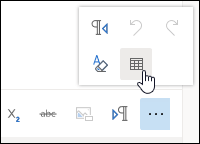
- Drag the pointer to choose the number of columns and rows you want in your table.
Change a table
To insert or delete rows or columns, merge or split cells, add a style, or delete a table:
- Right-click a cell in the table.
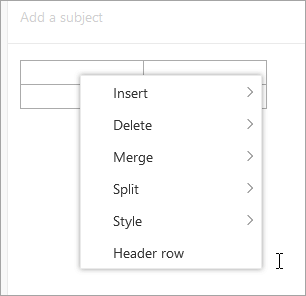
- Select an option.