
Add-ins in Outlook.com are programs or utilities that help you automate tasks when you view or create messages. Microsoft has partnered with leading companies to build add-ins that help you get things done right from your inbox.
How do the add-ins work?
You can install an add-in by opening the Office Store from within Outlook.com or by going to Microsoft AppSource. When you install an add-in in Outlook.com, it will appear in other versions of Outlook as well. For example, if you install an add-in in Outlook.com, you will see the add-in when you open Outlook.
Add-ins have access only to the data in the email message that you're working in.
All add-ins are validated by Microsoft, including those that you install from the Office Store. For more information, see the privacy statement and the terms and conditions section in the add-in’s consent form.

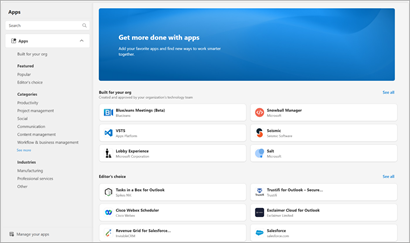
How do I get add-ins?
To get an add-in, do the following:
- Click the drop-down menu on any email message in Outlook.com, and then select Get Add-ins or select More apps in the app bar and select Add apps.


- On the Add-ins for Outlook page, select the add-in.
- For free add-ins, click Add.

For paid add-ins and free trials, select Get it to finish your purchase.
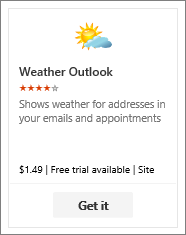
You can also install more add-ins from the Office Store or Microsoft AppSource.
To remove an add-in, select the add-in, right-click it and then click Remove.
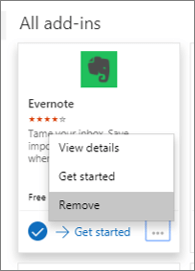
Pin an add-in
You can pin an add-in so it's easily available when you're composing an email message.
- Select Settings
 > Mail > Customize actions.
 - Select the check box for the add-in that you want to see when you’re composing a message.
Frequently asked questions
What are the requirements to use add-ins?
Your Outlook.com account supports add-ins.
How do contextual add-ins work?
Outlook detects if add-in requested keywords or entities, such as meeting suggestions or addresses, are in your message, and it underlines them. Please note that Microsoft always safeguards your privacy and doesn't attempt to read or comprehend your message. Even though you might see underlined text, no information is sent to the add-in.
Remember, the add-in can run only after you have given your consent to activate it and you selected the underlined text.
Does the add-in send my data to third-party service? If so, why?
An add-in might send data to its own service, but only to complete the task you've requested. For example, the Bing maps add-in might send information to the Bing online service in order to find the location you've requested. All add-ins are required to comply by their privacy policies and Microsoft standards. See the add-in's privacy statement for more details.
Where can I get more information about an add-in, its ratings, and reviews?
Go to the Office Store, and search for the add-in you're looking for. Then, select the add-in to find information such as its overview, requirements, ratings, and reviews.
Still need help?

|
To get support in Outlook.com, tap or click here or select Help on the menu bar and enter your query. If the self-help doesn't solve your problem, scroll down to Still need help? and select Yes. If the above steps don't work or if you can't sign in, tap or click here. |
|---|---|

|
For other help with your Microsoft account and subscriptions, visit Account & Billing Help. |

|
To get help and troubleshoot other Microsoft products and services, enter your problem here. |

|
Post questions, follow discussions and share your knowledge in the Outlook.com Community. |