
If you’re new to touch devices, learning a few gestures will help you take maximum advantage of the touch capabilities.
Moving around in a presentation
| To… | Do this… | Gestures |
|---|---|---|
| Change slides | Tap the slides in the navigation pane. |
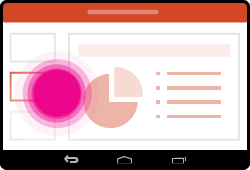
|
| Zoom in | Stretch two fingers apart. |
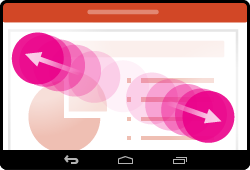
|
| Zoom out | Pinch two fingers together. |
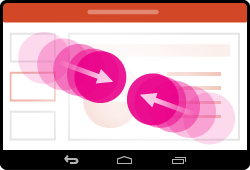
|
Making a selection
| To… | Do this… | Gestures |
|---|---|---|
| Activate the onscreen keyboard | Double-tap on the text box. |
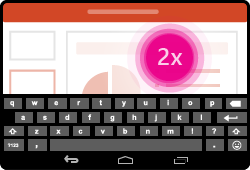
|
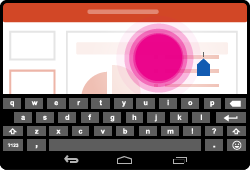
| Place a cursor | With the onscreen keyboard activated, tap anywhere in the text box to position the cursor. |
|
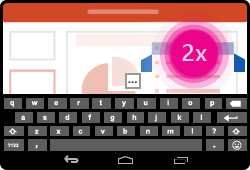
| Select and edit a word | Double-tap the word. This also activates the Edit menu. |
|
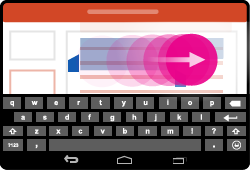
| Select a paragraph | Double-tap to select a word and then drag the indicators across multiple words to select them. |
|
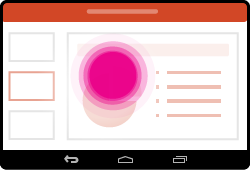
| Clear text selection | Tap anywhere on the screen. |
|
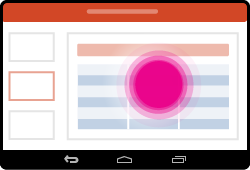
| Select table | Tap anywhere on the table. |
|
Working with shapes and objects
| To… | Do this… | Gestures |
|---|---|---|
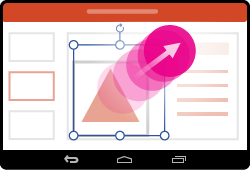
| Move | Tap the object, then hold and drag to the desired location. |

|
| Resize | Tap the object, then hold and drag any of the resize handles. |
|
| Rotate | Tap the object, then hold and drag the rotation handle. |

|