
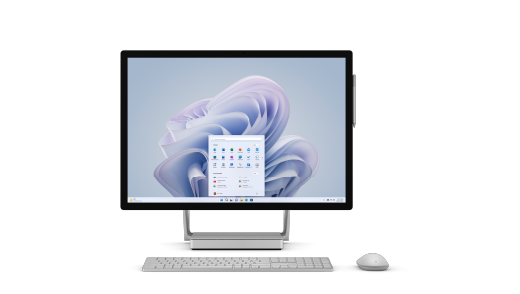
Surface Keyboard, Surface Mouse, and Surface Pen are included in the box with Microsoft Surface Studio 2+ in some countries/regions. When they’re included in the box, the keyboard, mouse, and pen are already paired and connect automatically. If your Surface Studio 2+ includes these accessories but they’re not connecting, follow the steps below to pair them again and get connected.
Pair Surface Keyboard
- Press and hold the Bluetooth button on the left side of the keyboard kickstand for about 5 seconds, until the LED above the Up arrow key flashes white.
- On your Surface Studio 2+, select Start
 > Bluetooth & devices > Add device > Bluetooth, then select Surface Keyboard from the list.
 - Using your keyboard, enter the PIN that appears on your screen, then press Enter.
Pair Surface Mouse
- Press and hold the Bluetooth button on the bottom of the mouse for about 5 seconds, until the LED flashes blue.
- On your Surface Studio 2+, select Start
> Bluetooth & devices > Add device > Bluetooth, then select Surface Mouse from the list.
Pair Surface Pen
- Press and hold the top button of your Surface Pen for 5-7 seconds, until the LED flashes white.
- Select Start
> Bluetooth & devices > Add device > Bluetooth, then select Surface Pen from the list.