

One of the most commonly sought after features on Microsoft SwiftKey is when to learn – or not learn – when typing certain words or phrases. There are a variety of cases where you'd prefer that common or rare words don't appear in your candidate predictions. This may be the case while working on a specific short term project at work or school, when chatting in a game or forum app, and even when shopping online. Incognito mode addresses these scenarios.
To switch on Incognito mode:
- Open up a messaging or SMS app, and tap into the text entry field.
- In your Toolbar tap the three dots ...
- Tag 'Incognito'. This will initiate Incognito mode (your keyboard will turn black) and switch learning off.
- To switch learning back on, tap the three dots ... and press 'Incognito' once more.
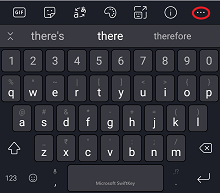
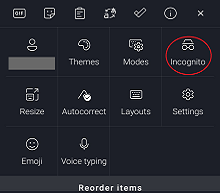
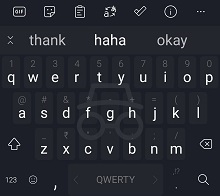
Note: There is a specific theme during Incognito mode and this theme cannot be changed while the incognito mode is enabled.
Your Microsoft SwiftKey Keyboard will automatically switch to Incognito mode when it detects either of the following:
- A private browsing session in your browser.
- A text field marked as private or sensitive (e.g. when using Telegram's "Secret Chat").
Contact Us
For more help, Contact Support at Microsoft SwiftKey Support - Contact us