
Ask and respond to questions in Viva Engage communities to share knowledge with other members of the community.
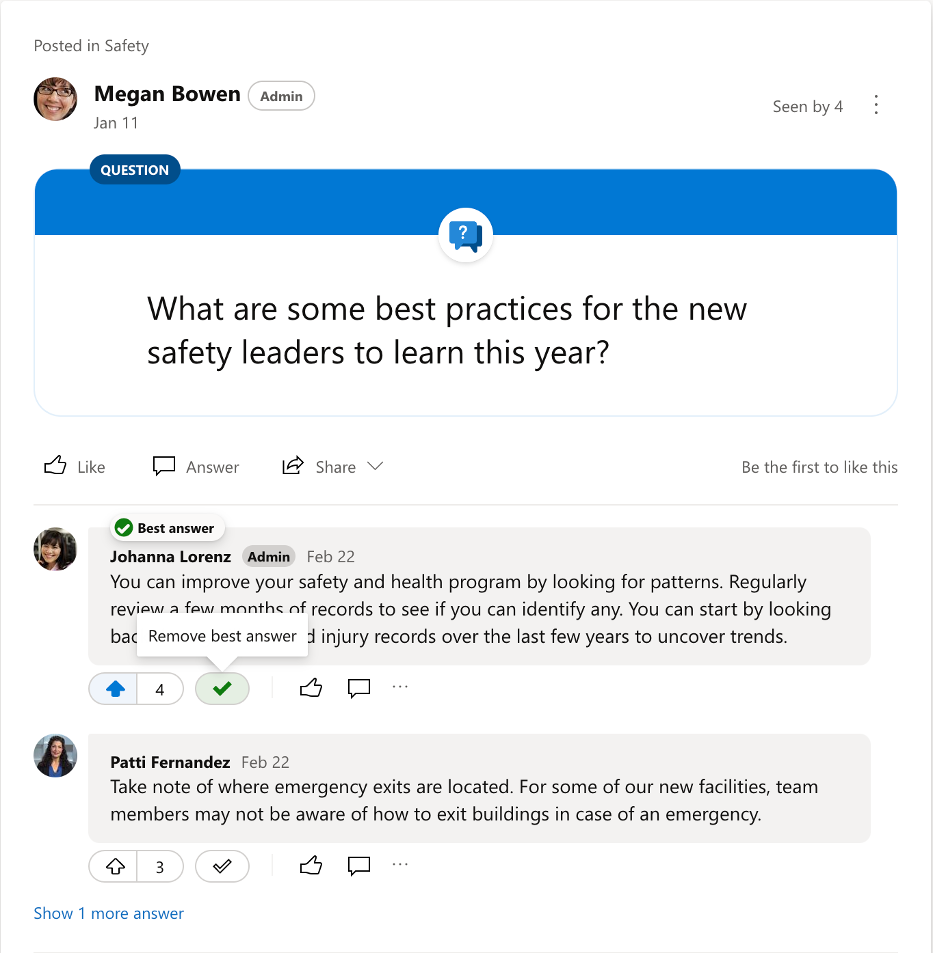
When you post a question in a community, members can upvote their favorite answers to highlight them for others. An answer can be marked Best Answer by the member who posted the question or by a community admin. The marked Best Answer appears at the top of the conversation, under the original question.
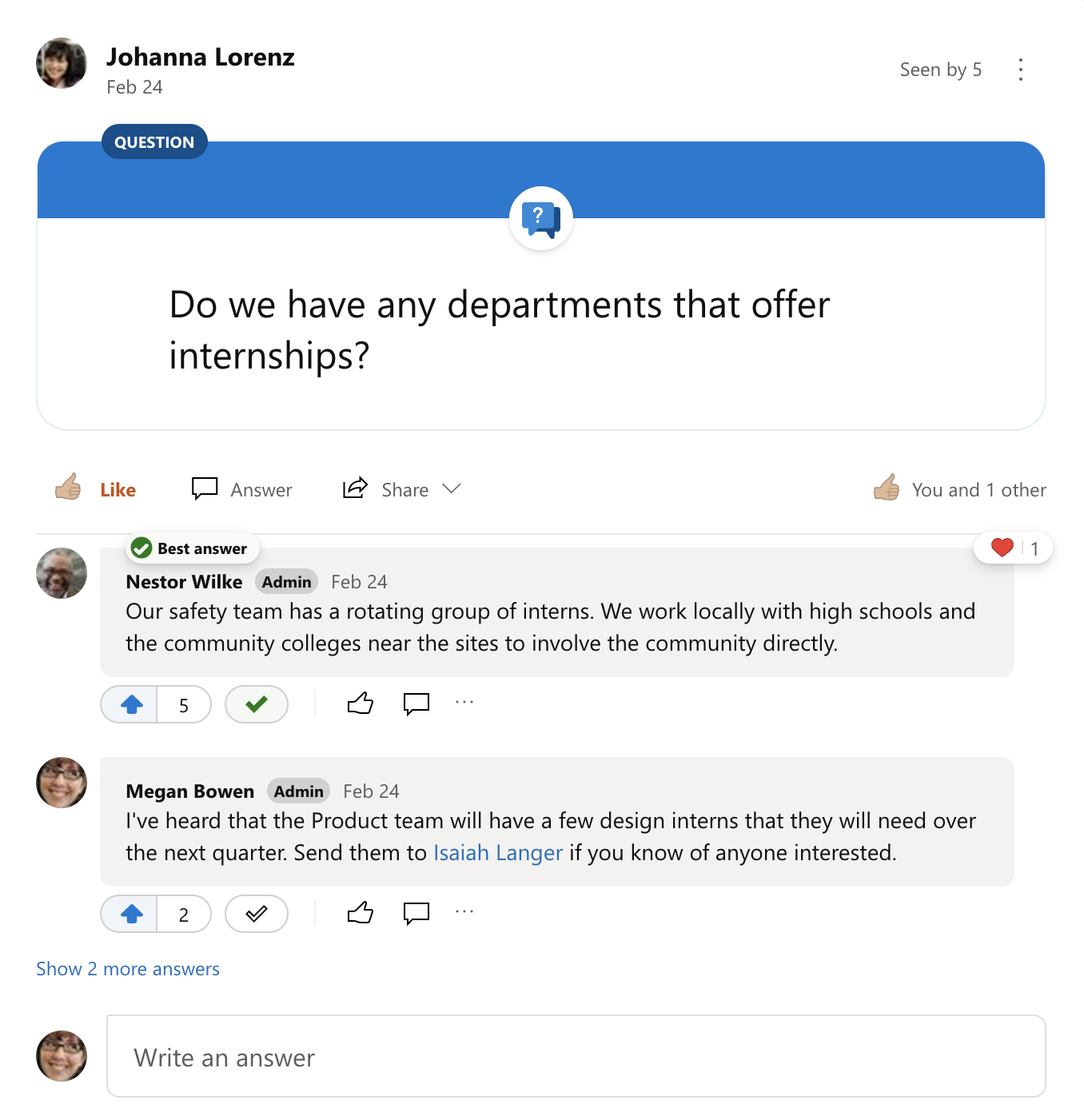
Ask a question
All community members can ask questions.
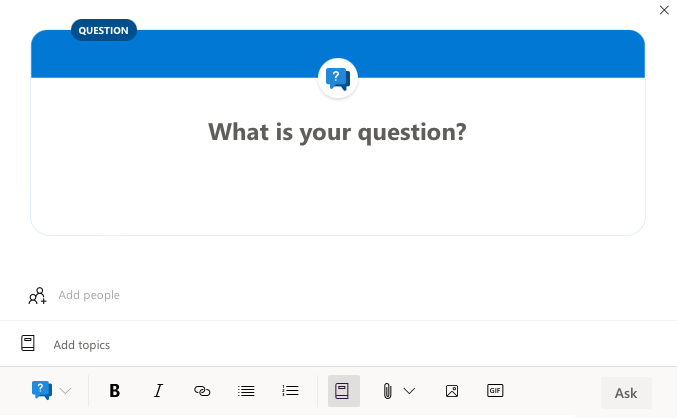
- Select Question as the conversation type.
- Type your question, and then select Ask.
On a mobile device:
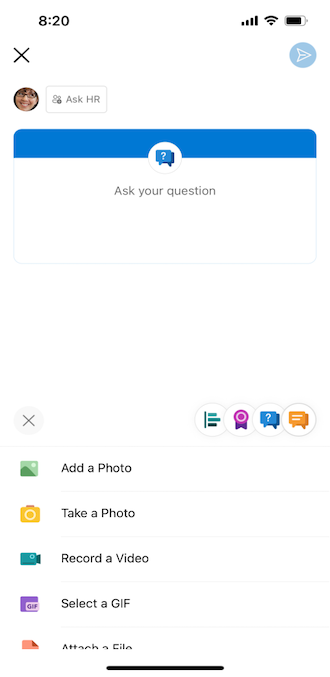
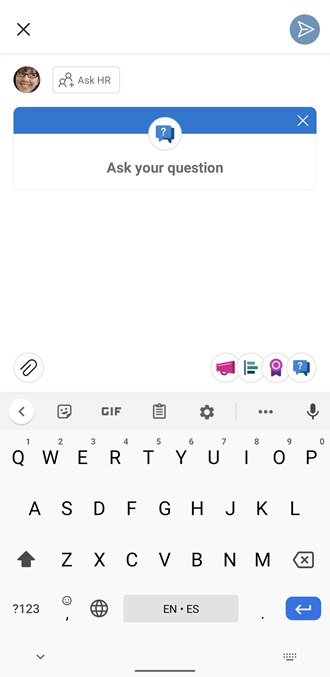
- At the bottom of the screen, select the question icon.
| Question on the iOS platform | Question on the Android platform |
|---|---|
|
|
Review Top Questions
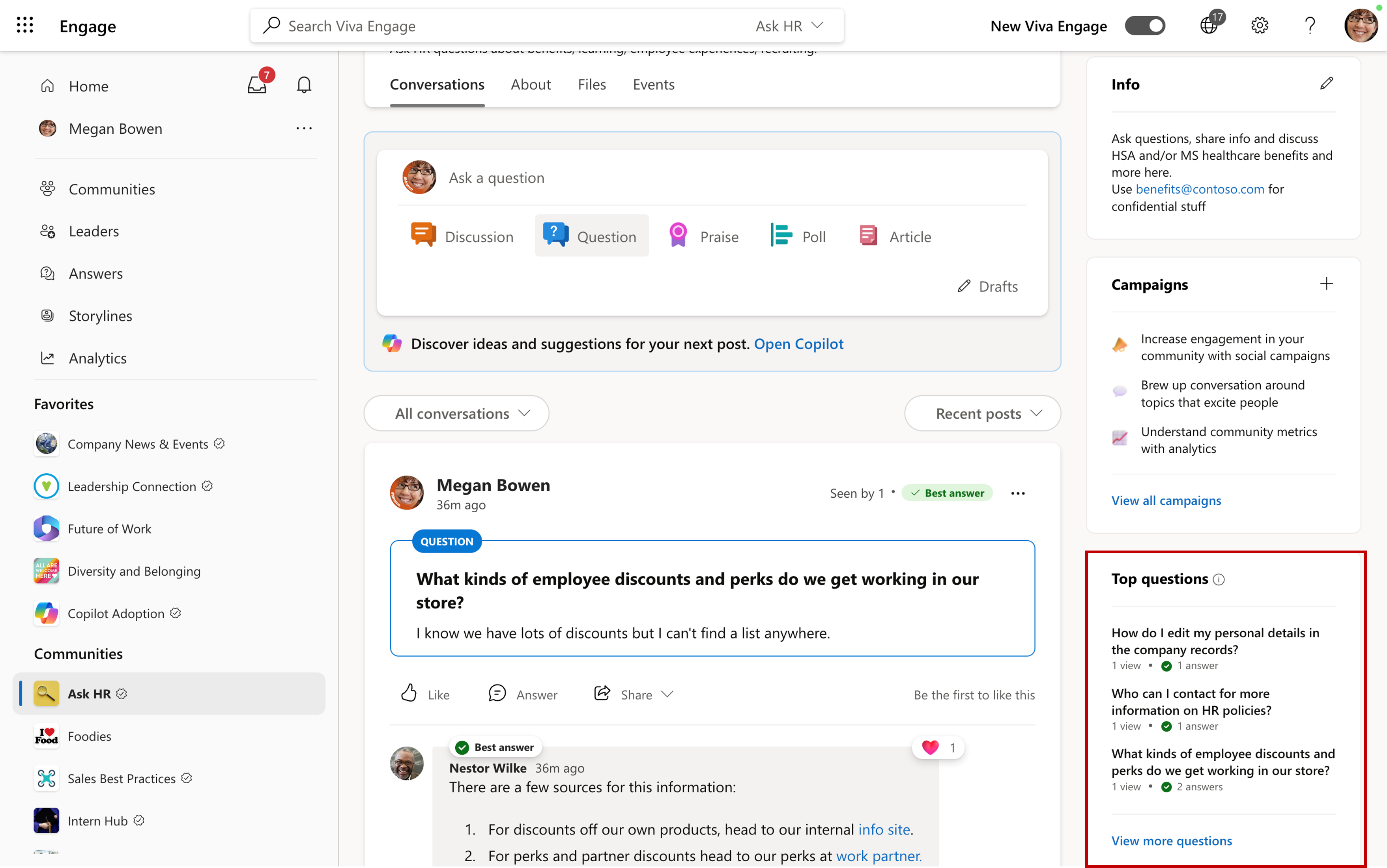
Review the Top questions tile to discover information that participants find most useful in the community. Top questions shows the three questions that have received the most views in the last 90 days.
To see the top ten most highly viewed questions, select View more questions.
Note
The Top Questions tile appears when community users ask at least two questions during the last 90 days, and each of those questions receives at least one view.
Answer a question
All community members can answer a question.
- To respond to a question, write an answer in the text box below the question.
Upvote answers
All community members can upvote answers to a question. Members can upvote multiple answers but can only upvote each answer once. Answers with the most upvotes appear at the top, according to how they rank.
- To upvote an answer, click the vote button below it.
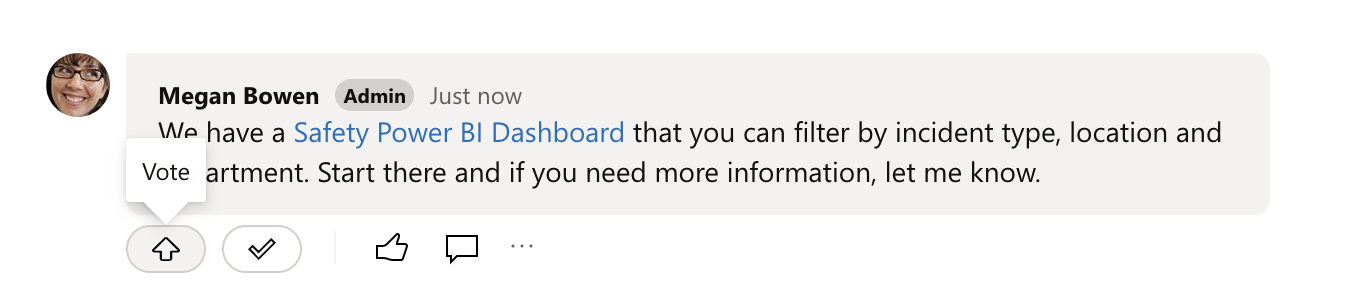
- To see who upvoted an answer, click the vote count.
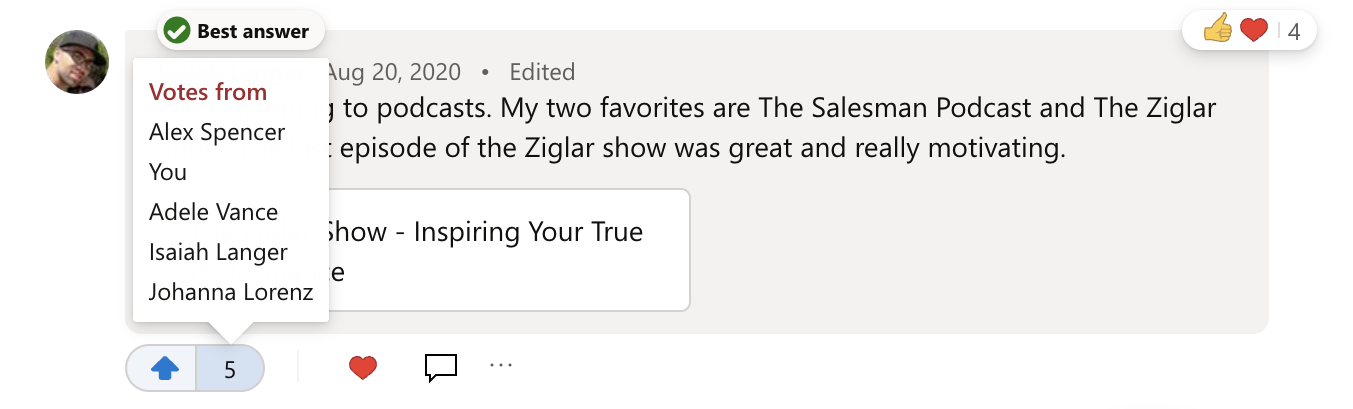
Mark an answer as Best Answer
Answers can be marked as Best Answer by the member who posted the question or by a community admin. For questions in the All Company community, network and verified admins can mark a Best Answer.
A question can only have one Best Answer.
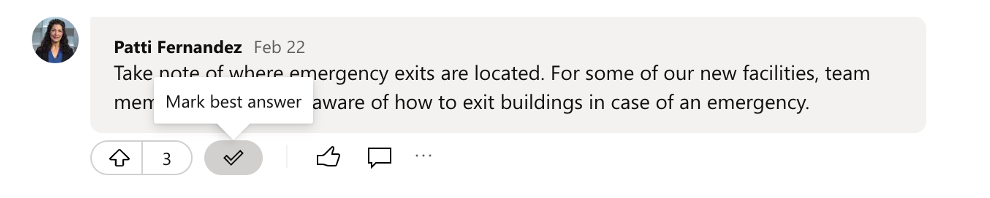
- In the conversation options below the answer, select Mark Best Answer.
The answer is pinned under the question and marked as Best Answer. If there are other answers, you can read them by clicking the link below the best answer.
- If a better answer is posted, select the new, better answer as Best Answer. Alternatively, you can select Remove Best Answer.
Consider posting a new answer that includes all the content of the proposed multiple best answers and marking that one as Best Answer.
Set the default conversation type
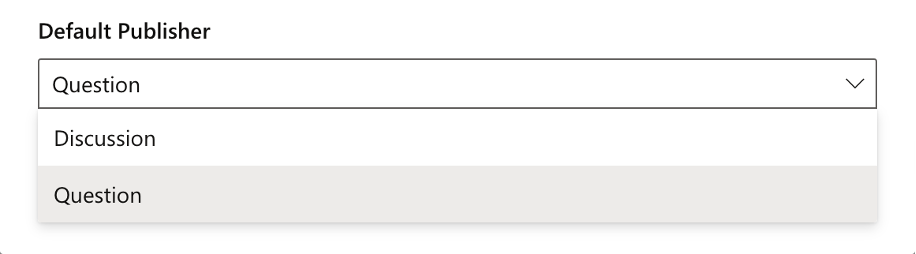
If you're a community admin, you can set the default conversation type of a community to Question to encourage community members to ask more questions.
You can do this as you're creating the community or afterward by changing the Default Publisher setting.
- In the community, select More Options
 to the right of the community name, then select Settings
 .
. - Under Default Publisher Type, select Question.
See who marked an answer as the best answer
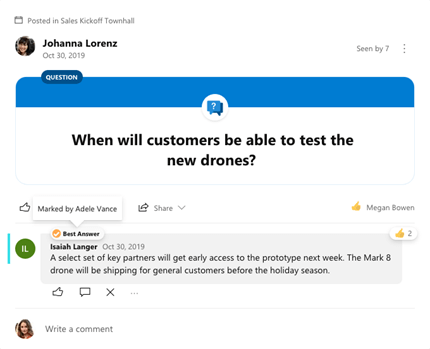
Hover over the best answer to see who chose it.
See all unanswered questions in a community
Community admins, Answers admins and community experts can find questions that need help.
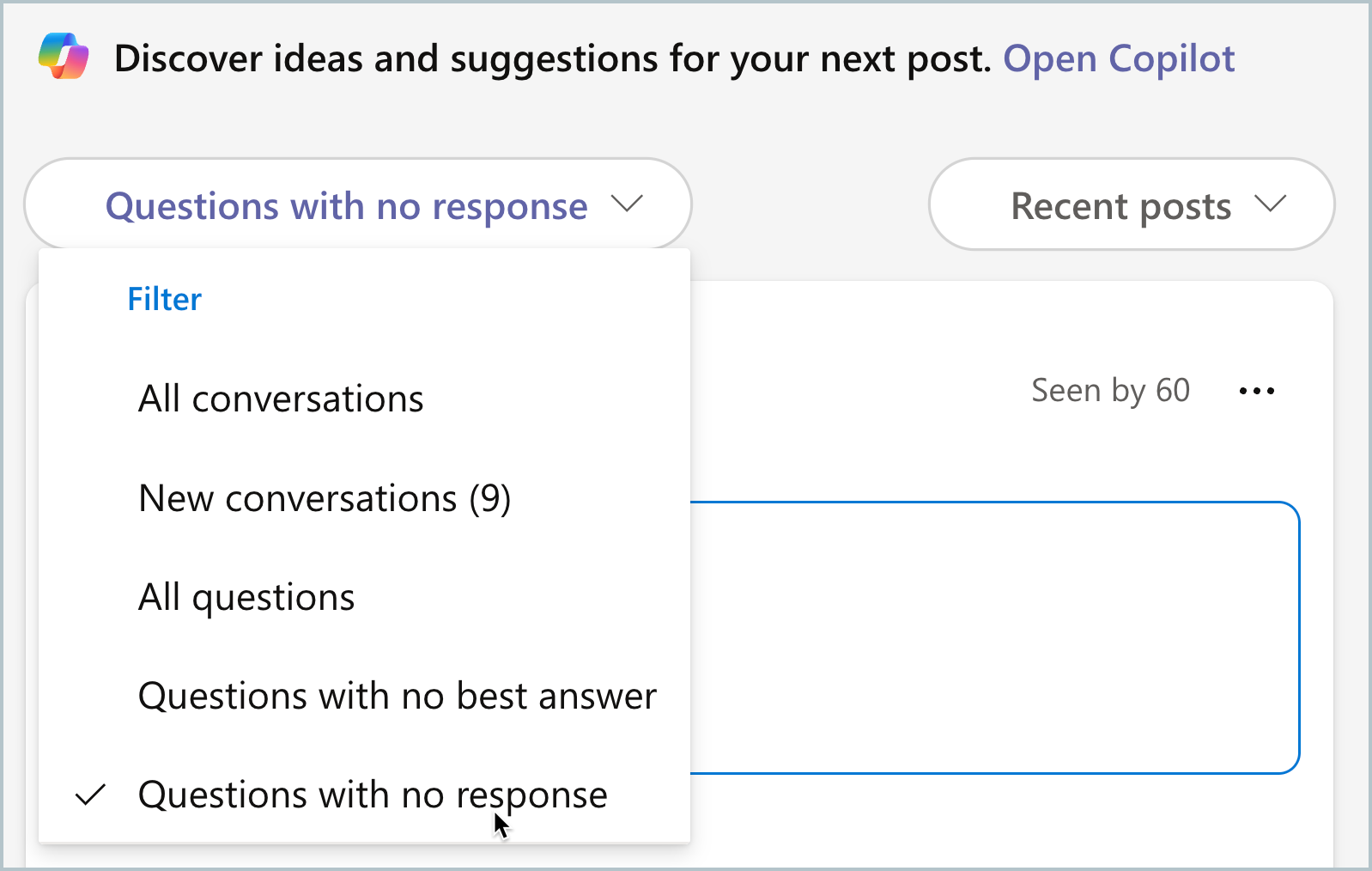
- At the top of a community feed, select the down arrow in the community filter.
- To see all questions in the community, select the All Questions filter.
- To find questions that haven’t received an answer, select Questions with no response.
Note
Questions posted before March 9, 2024 won't appear in Questions with no response filter
4. To see all questions that haven’t been reviewed, select Questions with no best answer.
Change the conversation type to a question
If you're a community admin or posted the conversation, you can change the conversation type to a question if that's more fitting. Then, you can use question and answer features, such as marking a Best Answer and filtering for unanswered questions if members haven’t yet responded.
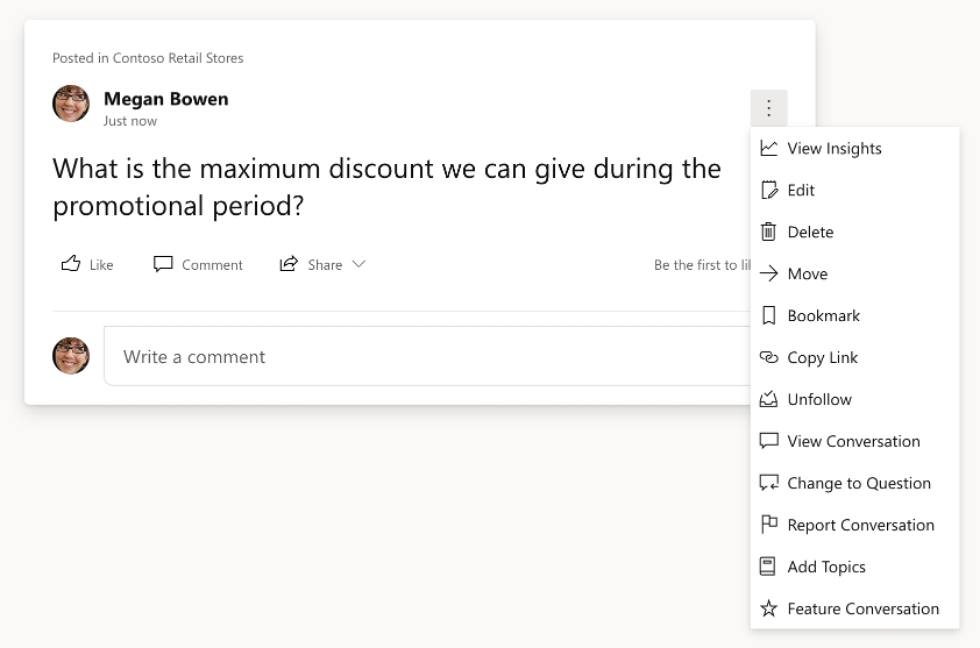
On a regular discussion-style message, select More Options
dropdown to the right of the conversation, and then select Change to Question.
Note
You can also change a question to a discussion post by selecting More Options
, and then Change to Message. If you change a question with a Best Answer to a regular message, it loses its Best Answer designation, even if you change the conversation back into a question later.
Create a community specifically for questions and answers
As a community admin, you can create a questions-only community in a few simple steps.
- Specify questions as the default conversation type. (See steps in this article.)
- Use the About section and announcements to educate community members on the purpose of the community. If needed, you can also change discussion into questions.
- Pre-populate the community with question-and-answer pairs by importing existing content, like FAQs with the Answers Intelligent Importer.