
Windows includes a security feature called kernel Code Integrity that helps protect your system by ensuring that kernel drivers loaded on your system run with integrity and are cryptographically signed by an authority trusted by Microsoft.
If you see this message, it means that a driver or kernel mode software, is not properly signed or does not meet the Windows kernel Code Integrity signing requirements.
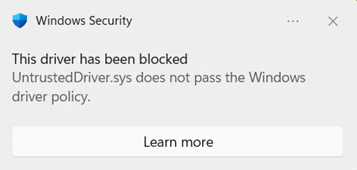
Windows requires all new drivers to be submitted and signed through the Windows Hardware Compatibility Program (WHCP) process. Windows previously trusted drivers signed by the now-expired cross-signed program . However, with the April 2026 security update, these drivers are no longer trusted by default. The announcement is available here: https://go.microsoft.com/fwlink/?linkid=2356646.
What is the Windows Driver Policy?
The Windows Driver policy is a policy in the Windows kernel that restricts which kernel-mode drivers can load on your device. When active, only the following drivers are allowed to load:
-
Drivers properly signed through the Microsoft WHCP certification process
-
Drivers that appear on the Windows Driver policy allow list of reputable drivers signed by the cross-signed program
Drivers that are not Microsoft WHCP signed or appear on the Windows Driver policy will be blocked on in scope, enabled systems.
This feature helps protect you from potentially unsafe or untested drivers, reducing the risk of malware, system instability and security vulnerabilities caused by unvetted drivers and driver publishers.
How does this feature work?
The Windows Driver policy uses a two-phase approach, like Smart App Control , to gradually increase protection on your device:
Evaluation mode (Audit)
When the feature is first activated, it starts in evaluation mode . In this phase:
-
Drivers that would be blocked by the policy are audited but still allowed to load . This ensures your device continues to work normally while Windows determines if enforcement is a good fit for your system.
-
Windows tracks how many drivers on your system would be affected by the policy.
-
If a driver that would violate the policy is detected during evaluation, the evaluation progress is reset . This means the countdown to enforcement starts over, giving Windows more time to observe your system's driver usage.
Evaluation criteria
Windows monitors the following criteria to determine when your device is ready for enforcement:
-
System uptime : Your device must have accumulated 100 hours of active use.
-
Boot sessions : Your device must have been rebooted at least 3 times (2 times on Windows Server) since evaluation began.
-
No policy violations : If a driver that would be blocked is loaded during the evaluation period, the uptime and boot session counters are reset to zero , extending the evaluation period.
If your device consistently loads drivers which pass policy and meets these criteria, the system is considered a good candidate for enforcement.
Enforcement mode
Once the evaluation criteria are met, Windows automatically transitions to enforcement mode . In this phase:
-
Devices are protected against drivers that do not meet the signing requirements in the Windows Driver policy.
-
These drivers are blocked from loading and generate Diagnostic Data for Microsoft to review, and entries in the Windows Event Log that you can review.
-
An allow list of specific drivers and publishers is included in the policy to allow certain widely-used legacy drivers that have not yet been WHCP-certified to continue functioning.
Once enforcement mode is active, the policy remains in effect across reboots.
Frequently Asked Questions
If a driver is blocked by this policy, you may see:
-
A hardware device is not functioning correctly.
-
A peripheral or component (printer, network adapter, GPU, etc.) is not recognized.
-
An application that depends on a kernel driver fails to start.
You can confirm whether the Windows Driver policy is responsible by checking the Code Integrity event logs using the following two methods.
Query Code Integrity events Manually
-
Right click the Start button and select Event Viewer .
-
In the left pane, navigate to: Applications and Services Logs > Microsoft > Windows > CodeIntegrity > Operational
-
Look, or filter the log, for events with these IDs:
-
Event ID 3076 — A driver was audited (would have been blocked but was allowed because the policy is in audit mode).
-
Event ID 3077 — A driver was blocked from loading because it violated the enforcement policy.
In the event details, look for the Policy ID field. Events caused by this feature will reference one of the following Policy GUIDs:
-
Audit policy : {784C4414-79F4-4C32-A6A5-F0FB42A51D0D}
-
Enforce policy : {8F9CB695-5D48-48D6-A329-7202B44607E3}
Query Code Integrity events with PowerShell
You can use PowerShell to quickly find events related to this feature:
# Find audit events (Event ID 3076) from the Windows Driver audit policy
$events = Get-WinEvent -LogName 'Microsoft-Windows-CodeIntegrity/Operational' -FilterXPath "*[System[EventID=3076]]" -ErrorAction SilentlyContinue |
Where-Object { $_.Message -like '*784C4414-79F4-4C32-A6A5-F0FB42A51D0D*' }
$results = $events | ForEach-Object {
$xml = [xml]$_.ToXml()
$data = $xml.Event.EventData.Data
[PSCustomObject]@{
TimeCreated = $_.TimeCreated
DriverName = ($data | Where-Object { $_.Name -eq 'File Name' }).'#text'
ProductName = ($data | Where-Object { $_.Name -eq 'ProductName' }).'#text'
ParentProcess = ($data | Where-Object { $_.Name -eq 'Process Name' }).'#text'
}
}
$results | Select-Object DriverName, ProductName, ParentProcess -Unique | Format-Table -AutoSize -Wrap
# Find block events (Event ID 3077) from the Windows Driver enforced policy
$events = Get-WinEvent -LogName 'Microsoft-Windows-CodeIntegrity/Operational' -FilterXPath "*[System[EventID=3077]]" -ErrorAction SilentlyContinue |
Where-Object { $_.Message -like '*8F9CB695-5D48-48D6-A329-7202B44607E3*' }
$results = $events | ForEach-Object {
$xml = [xml]$_.ToXml()
$data = $xml.Event.EventData.Data
[PSCustomObject]@{
TimeCreated = $_.TimeCreated
DriverName = ($data | Where-Object { $_.Name -eq 'File Name' }).'#text'
ProductName = ($data | Where-Object { $_.Name -eq 'ProductName' }).'#text'
ParentProcess = ($data | Where-Object { $_.Name -eq 'Process Name' }).'#text'
}
}
$results | Select-Object DriverName, ProductName, ParentProcess -Unique | Format-Table -AutoSize -Wrap
The event details will include the name of the driver that was audited or blocked and the name of the process that tried to load the driver, which can help you identify which driver or device is affected.
If you are the device user or IT administrator
-
Check the event logs using the steps above to identify which driver is being blocked.
-
Check Windows Update for updated drivers. WHCP-certified, signed drivers may already be available through Windows Update. Go to Settings > Windows Update > Advanced options > Optional updates > Driver updates to check for available driver updates.
-
Visit the manufacturer's website . Download the latest driver version from the vendor's official support page — newer versions are more likely to be WHCP-signed.
4. Contact the hardware or software vendor that publishes the driver. Ask them whether a WHCP-certified version of the driver is available and where to access it. Most vendors already WHCP certify their drivers.
If you are a driver publisher
If you develop and distribute kernel-mode drivers for Windows, you must ensure your drivers are signed through the WHCP process:
-
Join the Windows Hardware Dev Center . Register at Windows Hardware Dev Center with a valid EV (Extended Validation) code signing certificate.
-
Create a submission . In the Hardware Dashboard, create a new product and submit your driver package for certification.
-
Run the HLK tests . Use the Windows Hardware Lab Kit (HLK) to run the required tests for your driver type and device category.
-
Submit for signing . After tests pass, submit your HLK results along with the driver package. Microsoft will sign the driver with the WHCP certificate.
-
Distribute the signed driver . Once signed, publish the WHCP-certified driver through Windows Update and/or your website.
Important: Drivers signed using only cross-certificates without WHCP certification may be blocked on systems with the Windows Driver policy in enforcement mode.
Warning: Disabling this feature reduces the security of your device. We recommend keeping it enabled and working with driver publishers to obtain WHCP-signed drivers instead.
The Windows Driver policy is a signed Code Integrity policy stored on the EFI System Partition and protected by Windows early boot components. Turning off the feature requires the following manual steps so malicious software running as admin cannot tamper with the feature:
Step 1: Disable Secure Boot
-
Restart your computer and enter the UEFI firmware settings menu (BIOS). You can typically do this by pressing a key during boot (such as F2 , F10 , Del , or Esc — check your device manufacturer's documentation)
-
Alternatively, in Windows: go to Settings > System > Recovery > Advanced startup > Restart now . Then choose Troubleshoot > Advanced options > UEFI Firmware Settings > Restart .
-
-
In your firmware settings, locate the Secure Boot option (usually under the Security or Boot tab).
-
Set Secure Boot to Disabled .
-
Save changes and exit the firmware settings.
Step 2: Delete the policy files from the EFI System Partition
1. Open PowerShell as an administrator .
2. Mount the EFI System Partition by running:
mountvol S: /s
You can use any available drive letter in place of `S:`.
3. Delete the audit policy file:
del S:\EFI\Microsoft\Boot\CiPolicies\Active\{784C4414-79F4-4C32-A6A5-F0FB42A51D0D}.cip
4. If the enforcement policy is also present, delete it:
del S:\EFI\Microsoft\Boot\CiPolicies\Active\{8F9CB695-5D48-48D6-A329-7202B44607E3}.cip
5. Also check for and delete the policies from the Windows system directory:
del %windir%\System32\CodeIntegrity\CiPolicies\Active\{784C4414-79F4-4C32-A6A5-F0FB42A51D0D}.cip
del %windir%\System32\CodeIntegrity\CiPolicies\Active\{8F9CB695-5D48-48D6-A329-7202B44607E3}.cip
6. Unmount the EFI partition:
mountvol S: /d
Step 3: Restart your computer
Restart your device for the changes to take effect. After restart, the policy will no longer be active and all signed drivers — including those without WHCP certification — will be allowed to load.
Step 4: Re-enable Secure Boot
After removing the policy files, re-enable Secure Boot in your UEFI firmware settings to maintain other Secure Boot protections.
The feature starts in evaluation mode , where it logs but does not block uncertified drivers. After your system meets the evaluation criteria (sufficient uptime and reboots with no policy violations), the policy automatically transitions to enforcement mode , and drivers that are not WHCP-signed will be blocked. This can cause drivers that were working previously to stop loading.
There is currently no way to bypass the policy for individual drivers. You can either disable the feature entirely (see above) or — preferably — contact the driver publisher and ask them to provide a WHCP-signed version of their driver.
This feature applies to kernel-mode drivers only . User-mode applications are not affected by this policy.
You can check by running the following commands as an admin in PowerShell:
$evalPolicy = (citool -lp -json | ConvertFrom-Json).Policies | Where-Object { $_.PolicyID -eq "784c4414-79f4-4c32-a6a5-f0fb42a51d0d" }
$enforcedPolicy = (citool -lp -json | ConvertFrom-Json).Policies | Where-Object { $_.PolicyID -eq "8F9CB695-5D48-48D6-A329-7202B44607E3" }
if ($enforcedPolicy.IsEnforced -and $enforcedPolicy.IsAuthorized) { Write-Host "✅ The feature is in enforcement mode" -ForegroundColor Green }
elseif($evalPolicy.IsEnforced -and $evalPolicy.IsAuthorized) { Write-Host "✅ The feature is in evaluation mode" -ForegroundColor Green }
else { Write-Host "❌ The feature is not available on this system" -ForegroundColor Red }
Yes - Windows Server 2025 and newer server platforms. However, on Windows Server, the boot session requirement is 2 reboots (compared to 3 on client editions). All other criteria are the same.
If you reset or reinstall Windows, the feature will start fresh in evaluation mode. The evaluation counters will be reset and the transition to enforcement will begin again from the start.
Need more help?
If you continue to experience issues with a blocked driver, please visit the Microsoft Community forums or contact Microsoft support .
We'd love your feedback on this feature. To share your experience:
-
In Windows, open the Feedback Hub (press Win + F ).
2. In Step 2 — Choose a category , select Security and Privacy > App Control .








