Information Rights Management (IRM) helps you prevent sensitive information from being printed, forwarded, or copied by unauthorized people. The permissions are stored in the document where they are authenticated by an IRM server.
Using IRM in Microsoft 365, you can rights manage XML Paper Specification (.xps) files and the following Word file types:
- Documents .doc, .docx
- Macro-enabled document .docm
- Template .dot, .dotx
- Macro-enabled template .dotm
Configure your computer to use IRM
To use IRM in Microsoft 365, the minimum required software is Windows Rights Management Services (RMS) Client Service Pack 1 (SP1). The RMS administrator can configure company-specific IRM policies that define who can access information and what level of editing is permitted for an e-mail message.
For example, a company administrator might define a rights template called "Company Confidential," which specifies that an e-mail message that uses that policy can be opened only by users inside the company domain.
Download permissions
The first time you try to open a document with restricted permission, you must connect to a licensing server to verify your credentials and download a use license. The use license defines the level of access that you have to a file. This process is required for each file that has restricted permission.
Downloading permissions requires that Microsoft 365 send your credentials, which includes your e-mail address, and information about your permission rights to the licensing server. Information contained in the document is not sent to the licensing server.
Restrict permission to content in files
IRM lets you apply restrictions on a per-user, per-file, or per-group basis (group-based permissions require Active Directory).
For example, in a document Ranjit creates, he might give Adele permission to read but not change it. and give Alex permission to edit the document. Ranjit might also decide to apply a five-day limit to both Adele and Alex's access to the document.

Save the document.
Select the File tab.
Select Info, choose Protect Document, point to Restrict Permission by People, and then select Restricted Access.
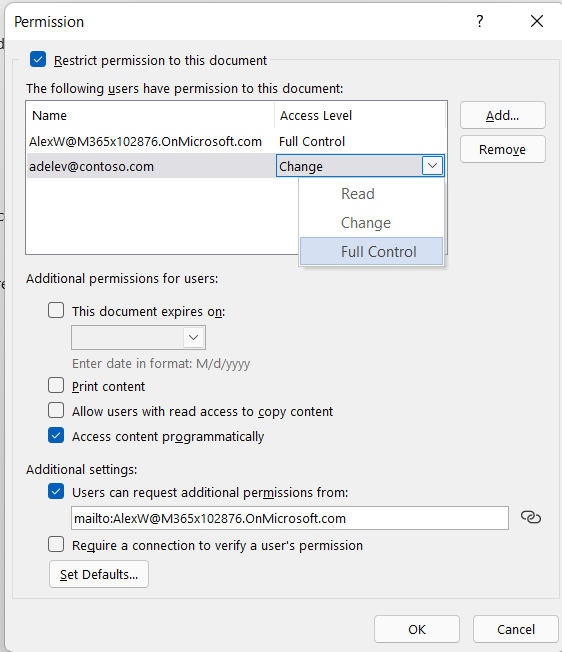
In the Permissions dialog box, select Restrict permission to this document, and then assign the access levels that you want for each user.
Note
Your choices might be limited if an administrator has set custom permission policies that individuals can't change.
Permission levels
- Read Users with Read permission can read a document, but they don't have permission to edit, print, or copy it.
- Change Users with Change permission can read, edit, and save changes to a document, but they don't have permission to print it.
- Full Control Users with Full Control permission have full authoring permissions and can do anything with the document that an author can do, including set expiration dates for content, prevent printing, and give permissions to users.
After permission for a document has expired for authorized users, the document can be opened only by the author or by users with Full Control permission to the document. Authors always have Full Control permission.
- To give someone Full Control permission, in the Permissions dialog box, select More Options, and then in the Access Level column, select the arrow, and then select Full Control in the Access Level list.
- After you assign permission levels, select OK.
The Message Bar appears, which indicates that the document is rights-managed. If you must make any access permission changes to the document, select Change Permission.

If a document that has restricted permission is forwarded to an unauthorized person, a message appears with the author's e-mail address or Web site address so that the unauthorized person can request permission for the document.
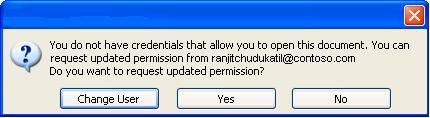
If the author chooses not to include an e-mail address, unauthorized users just get a message letting them know they can't access the file.
Set an expiration date for a file
- Open the file.
- Go to File.
- On the Info tab, select Protect Document, point to Restrict Permission by People, and then select Restricted Access.
- In the Permissions dialog box, select the Restrict permission to this document check box, and then select More Options.
- Under Additional permissions for users, select the This document expires on check box, and then enter a date.
- Select OK twice.
Use a different Windows user account to rights-manage files
Open the document, worksheet, or presentation.
Select the File tab.
On the Info tab, select Protect Document, point to Restrict Permission by People, and then select Manage Credentials.
Do one of the following:
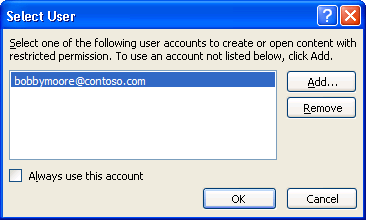
- In the Select User dialog box, select the e-mail address for the account that you want to use, and then select OK.
- In the Select User dialog box, select Add, type your credentials for the new account, and then select OK twice.
View content with restricted permission
To view rights-managed content that you have permissions to by using Microsoft 365, just open the document.
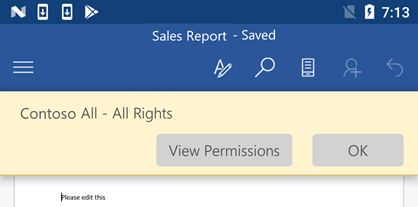
If you want to view the permissions you have, either select View Permission in the Message Bar or choose This document contains a permissions policy
 .
.