
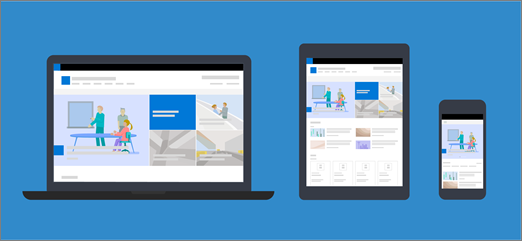
Tänapäevased lehed ja veebiosad on loodud nii, et need reageerivad täielikult kõigis seadmetes, mis tähendab, et veebiosades kasutatavad pildid mastaapivad erinevalt olenevalt sellest, kus need kuvatakse, millist paigutust kasutatakse ja millises seadmes neid vaadatakse. Näiteks kaasaegsed lehed on loodud nii, et need näeksid mobiilsideseadmetes head välja ning piltide automaatne mastaapimine aitab luua selle pilkupüüdva kujunduse.
Millised pildisuurused kõige paremini toimivad?
Reageeriva lehekujunduse tõttu pole pikslites kindlat kõrgust ega laiust, mis tagaks, et pildil säiliks kõigis seadmetes ja paigutustes kindel kuju. Pilte muudetakse ja kärbitakse automaatselt, et näidata parimat võimalikku tulemust eri seadmetes ja paigutustes. Siiski on mõned juhised, mis aitavad teil veenduda, et teie pildid näeksid lehtedel head välja.
Lehele sobivaima pildisuuruse leidmine sõltub järgmistest teguritest.
- Proportsioonid: piltide kõrguse ja laiuse suhe
- Veerupaigutus: lehe veergude tüüp ja arv
- Veebiosa paigutus: paigutus, mille valite selle veebiosa jaoks, kus pilti kasutatakse
Proportsioonid
Proportsioonid on piltide laiuse ja kõrguse suhe. Seda väljendatakse tavaliselt kahe arvuna (nt 3:2, 4:3 või 16:9). Laius on alati esimene arv. Näiteks võib suhte 16:9 laiuseks olla 1600 pikslit ja kõrgus 900 pikslit. Või võib see olla 1920 x 1080, 1280 x 720 või mõni muu laiuse/kõrguse kombinatsioon, mille saab arvutada nii, et see võrdub 16:9. Veebist leiate proportsioonide kalkulaatorid ja mõned fototöötlustööriistad, mis aitavad teil piltide proportsioone kindlaks teha.

Enamikul juhtudel toimivad tänapäevastes veebiosades olevad pildid kõige paremini paigutustes ja seadmetes, kui nende proportsioonid olenevalt paigutusest on kas 16:9 või 4:3.
Veerupaigutused
Lehe saab paigutada jaotistesse, mis sisaldavad erinevaid veerutüüpe ja paigutusi (nt täislaiusega veerud, üks veerg, kaks veergu, kolm veergu, üks kolmandik vasakule ja üks kolmandik parem veerg). Üldreegel piltidele, millele eeldatakse veeru laiuse sisestamist, on see, et need on vähemalt sama laiad kui veerg, kuhu need paigutatakse. Näiteks ühe veeru pildi veebiosas peab olema vähemalt 1204 pikslit laiune pilt.
Allpool on toodud veerupaigutuste laiuse juhised.
| Paigutus | Laius pikslites |
|---|---|
| Täislaiusega veerg | 1920 |
| Üks veerg | 1204 |
| Kaks veergu | 586 veeru kohta |
| Kolm veergu | 380 veergu |
| Ühe kolmandiku võrra vasakule jääv veerg | 380 vasaku veeru puhul; 792 parema veeru jaoks |
| Ühe kolmandiku parempoolne veerg | 792 vasaku veeru puhul; 380 parema veeru jaoks |
Lehtede reageeriva olemuse tõttu kuvatakse täislaiusega veergudes olevad pildid alati ekraani täislaiusega ja automaatse kõrgusega vastavalt ekraani suurusele.
Muudes veerupaigutustes paigutatud piltide kõrgus sõltub teie proportsioonidest. Siin on kuvasuhete 16:9 ja 4:3 kõrguse/laiuse juhised (ümardatud üles-/allapoole lähima pikslini). See on kasulik, kui soovite, et teie pildid oleksid mobiilsideseadmete jaoks sobiva laiuse ja kõrgusega, näiteks:
| PROPORTSIOONID PAIGUTUS |
16 x 9 Laius x Kõrgus pikslites |
4 x 3 Laius x Kõrgus pikslites |
|---|---|---|
| Üks veerg | 1204 x 677 | 1204 x 903 |
| Kaks veergu | 586 x 330 | 586 x 439 |
| Kolm veergu | 380 x 214 | 380 x 285 |
| Ühe kolmandiku võrra vasakule jääv veerg | 380 x 446 vasaku veeru puhul; 792 x 446 parema veeru jaoks | 380 x 594 vasaku veeru puhul; 792 x 594 parema veeru jaoks |
| Ühe kolmandiku parempoolne veerg | 792 x 446 vasaku veeru puhul; 380 x 446 parema veeru jaoks | 792 x 594 vasaku veeru puhul; 380 x 594 parema veeru jaoks |
Veebiosade paigutused
Kasutatavad veebiosade paigutused mõjutavad ka piltide mastaapimist. Järgmistes näidetes on ära toodud erinevad veebiosad ning mõned kasutatavad suvandid ja proportsioonid.
| Põhipildi veebiosa | Paigutuste Paanid ja Kihid puhul on järgmised proportsioonid.

|
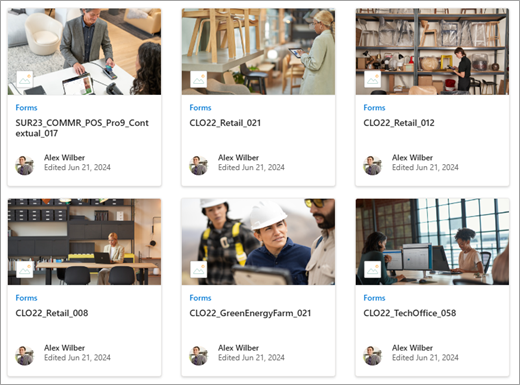
| Esiletõstetud sisu veebiosa | 16:9 on karusselli-, filmi- ja ruudustikupaigutuste proportsioonid. Järgmises näites on kuvasuhe 16:9. Esimesel pildil on kujutatud paigutus Filmilint ja teine paigutus Ruudustik. 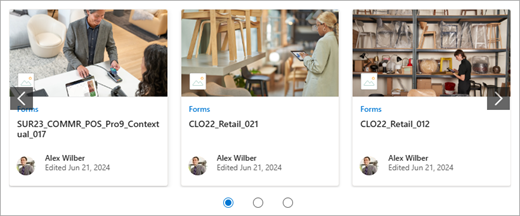
|
| Pildi veebiosa | Pildid laiendatakse veebiosa sisaldava jaotise laiuseni. Siin on näide pildi veebiosas olevast pildist, mis kasutab kuvasuhet 16:9. 
Samuti saate pildi redigeerimisriista abil muuta proportsioone või kärpida vabakäeredigeerimistööriista või kasutada pildi suuremaks või väiksemaks muutmiseks suurusepidemeid. 
|
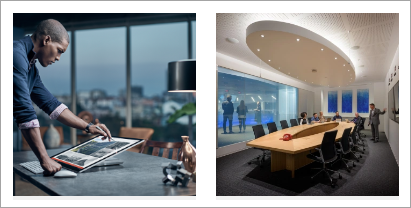
| Pildigalerii veebiosa | Erinevates paigutustes saab kasutada järgmisi proportsioone.

|
| Uudiste veebiosa | Olenevalt paigutusest võivad veebiosas Uudised olla pildid 4:3, 16:9 või 21:9. Siin on näide piltidest ülemises loos ja karussellipaigutuses. 
|
| Lehe tiitliala | Pildid näevad kõige paremini välja horisontaalpaigutuses või kuvasuhtes 16:9 või suuremad ja kui nende maht on vähemalt 1 MB. Samuti seadke kindlasti fookuspunkt, et hoida pildi kõige olulisem osa vaates, eriti kui pilti kasutatakse pisipiltides, uudisepaigutustes ja otsingutulemites. Näide (algne pilt 16:9), kus kõlarile on määratud fookuspunkt: 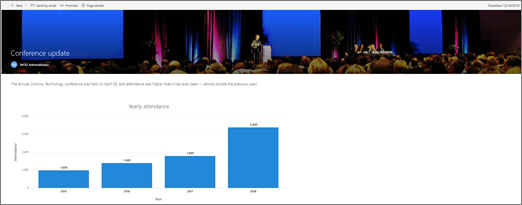
|
| Lehe pisipilt | Lehe pisipildid kuvatakse kohtades nagu otsingutulemid, esiletõstetud sisutulemid, uudisepostitused jne. Vaikimisi pärineb pisipilt lehe tiitlialalt või veebiosast, mis on lehe esimeses järjestuses (nt leheküljendi vasakus ülanurgas). Saate vaikeväärtuse alistada ja muuta lehe pisipilti. Sel juhul on parem kasutada kuvasuhtega 16:9 pilti. Näide (algne pilt 16:9): 
|
| Kiirlinkide veebiosa | Kiirlinkide veebiosal on kuus erinevat paigutust. Siin on eelseadistatud proportsioonid.


|
Näpunäide.
Kui lisate pildi lehe tiitlialale või pannoosse, on mõistlik määrata ka pildi ala fookuspunkt, mida soovite alati kuvada. Lisateavet nende kahe stsenaariumi jaoks keskpunkti määramise kohta leiate teemadest Pannoo kasutamine ja SharePointi saidil uudsete lehtede loomine ja kasutamine.

Saidipäise pildisoovitused
Lisaks lehtedele võiksite laiendatud paigutusele lisada ka kohandatud logosid või pilte. Siin on nende elementide suurusesoovitused.
| Element | Kirjeldus | Soovitus Laius x Kõrgus pikslites |
|---|---|---|
| Saidi logo | Suurem logo, mis võib sõltuvalt üleslaaditud kujundusest olla mitteruututav ja läbipaistev. | 192 x 64 Vorming: PNG, JPEG, SVG (SVG pole rühmaga ühendatud saitidel lubatud) |
| Saidi logo pisipilt | Ruudukujuline logo pisipilt, mida kasutatakse siis, kui saidi logo pole üles laaditud või kohtades, kus ruutvorming on nõutav. See element on nõutav. |
64 x 64 Vorming: PNG, JPEG, SVG (SVG pole rühmaga ühendatud saitidel lubatud) |
| Laiendatud paigutuse saidi logo | Laiendatud päisepaigutuse saidi logo on laiendatud. | 300 x 64 Vorming: JPEG, PNG, SVG |
| Laiendatud paigutuse taustpilt | Uus taustpilt, mida saab kasutada laiendatud päisega. | 2560 x 164 Vorming: JPEG, PNG |