

NB!
Outlook for Maci pärandversiooni tugi lõpeb 2026. aasta oktoobris. Outlook for Maci pärandversiooni tugi sõltub teie Microsoft 365, Office'i või Outlooki litsentsist. Lisateavet leiate artiklist Outlook for Maci pärandversiooni tootetoe lõpp.
Meilisõnumite, kontaktide ja muude üksuste käsitsi arhiivimine Outlook for Maci andmefaili (.olm), et sisendkausta mahtu hõlpsalt vähendada. OLM-faili saate salvestada mis tahes asukohta Mac-arvutis või muus arvutis, et seda turvaliselt hoida.
Klõpsake menüüs Tööriistad nuppu Ekspordi.
Märkus.
Kas nuppu Ekspordi ei kuvata? Veenduge, et teil oleks Outlooki uusim versioon. Klõpsake Outlooki menüüs Spikker käsku Otsi Teabevärskendused. Kui kõik Outlooki värskendused on rakendatud ja nuppu Ekspordi ikka ei kuvata, otsige Outlooki menüü Fail käsku Ekspordi.
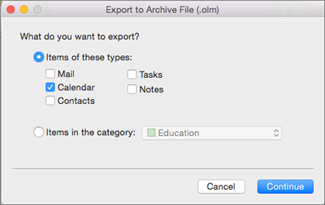
Märkige väljal Ekspordi Arhiiviteenus faili (.olm) üksused, mida soovite eksportida, ja valige Jätka.
Valige dialoogiboksis Salvesta arhiivifail nimega suvand Koht või valige jaotises Lemmikud kaust Allalaaditud failid ja seejärel valige Salvesta.
Kui andmed on eksporditud, saate teatise. Klõpsake nuppu Valmis.
Lisateavet outlook for Maci andmefailis (.olm) salvestatud andmetele juurdepääsu kohta leiate teemast Meilisõnumite, kontaktide ja muude üksuste importimine Outlook 2016 for Macisse.
Soovin eksportida iCloudi või mõnda muud tüüpi arhiivifaili
Praegu on ainus ekspordisuvand OLM-arhiivifail.
Seotud artiklid
PST-faili importimine Outlook 2016 for Maci rakendusest Outlook for Windows
Outlook for Maci üksuste automaatne arhiivimine või varundamine