Võimalik, et olete salvestanud Outlooki üksused Outlooki andmefaili (.pst), mille lõite klassikalises Outlookis. Kui soovite PST-faili avada või sulgeda, saate seda nüüd teha mõne lihtsa toiminguga kas uuest Outlookist või klassikalisest Outlookist.
Valige altpoolt kasutatava Outlooki versiooni vahekaart.
Milline Outlooki versioon mul on?
Märkus.
Kui selle menüü Uus Outlook juhised ei toimi, ei pruugi te uut Outlooki Windowsi versiooni veel kasutada. Valige Klassikaline Outlook ja täitke hoopis need juhised.
PST-Outlooki andmefaili lisamine uude Outlooki
- Avage sätted>Files Outlooki>andmete Files.
- Valige Lisa fail.
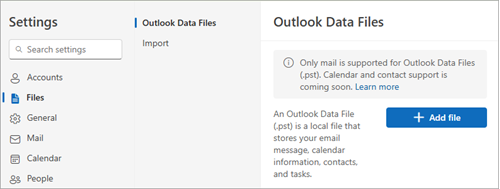
- Valige PST-fail ja seejärel valige Ava.
Märkus.
PST-failide avamiseks uues Outlookis peab olema installitud ka klassikaline Outlook. Mõlemad versioonid peavad olema sama arhitektuuriga: 32-bitine (x86) või 64-bitine (x64).
PST-Outlooki andmefaili eemaldamine (sulgemine) uues Outlookis
- Avage sätted>Files Outlooki>andmete Files.
- Valige suletavas PST-failis Halda .
- Valige Sule fail.
Outlooki andmefaili (.pst) avamine klassikalises Outlookis
Märkus.
Kui teie asutuses on kehtestatud poliitikad meilisõnumite automaatseks arhiivimiseks, võidakse varasemad meilisõnumid, kalendrisündmused ja tööülesanded salvestada Outlooki andmefaili (.pst). Isegi kui teie konto kasutab kogu igapäevase teabe jaoks ühenduseta Outlooki andmefaili (.ost), võib teil siiski olla vanemat teavet sisaldav fail archive.pst.
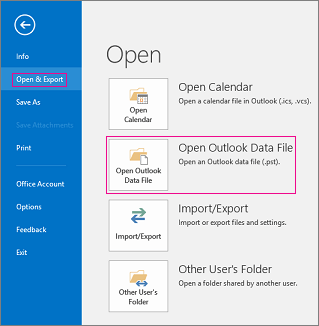
Valige Fail>Ava & Ekspordi Ava>Outlooki andmefail.
Märkus.
Olenevalt Sellest, kuidas Outlook on häälestatud, avaneb tõenäoliselt kaust, kuhu PST-fail salvestatakse. Kui mitte, avage sirvides faili asukoht. Kui te pole kindel, kus teie Outlooki andmefail asub, lugege teemat Outlooki andmefailide otsimine.
Valige Outlooki andmefail (.pst) ja seejärel valige Ava.
Kui avate Outlooki andmefaili (PST-fail), kuvatakse fail teie kaustapaanil. Tavaliselt on see kaustaloendite lõpus. Järgmine pilt on näide. Outlooki andmefaili (PST-fail) nimi ilmselt pole outlooki andmefail. Enamasti nimetatakse see failiga seotud konto järgi.
Outlooki andmefaili (.pst) eemaldamine (sulgemine) klassikalises Outlookis
Kaustapaanilt klassikalise Outlooki andmefaili eemaldamiseks sulgege fail. See ei eemalda siiski faili teie arvutist.
- Paremklõpsake kaustapaanil Outlooki andmefaili nime ja valige seejärel Sule „Outlooki andmefail”.
Lisateave

