Schedule an appointment
- In Calendar, select New Appointment.
- Add a Subject, Location, and the start and end times.
- Select Invite Attendees to turn the appointment into a meeting.
- Select Save & Close to finish, or Send if it's a meeting.

Use the Scheduling Assistant
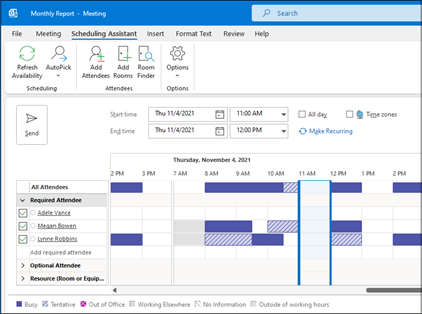
When you create a meeting, use the Scheduling Assistant to see when attendees and rooms are available.
- From a new meeting request, select Scheduling Assistant.
- The shaded area with vertical bars shows the meeting time. Drag the bars to adjust the meeting time.
- The grid shows when attendees are available. To the right of the meeting request, Outlook shows suggested times and the number of conflicts.
Add a contact
- Select the People icon.
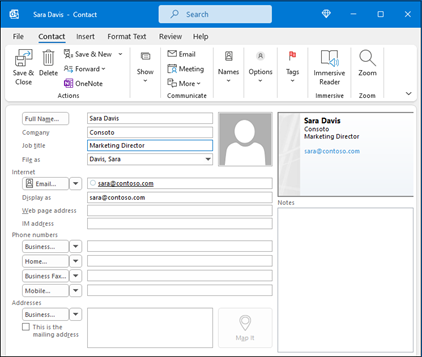
- Select New Contact or press Ctrl+N.
- Enter a name and any other information that you want to include for the contact.
- Select Save & New to create another contact, or Save & Close if you're done.