Définir le format d’une forme
- Sélectionnez la forme que vous voulez définir le format.
- Sous l’onglet Accueil, sélectionnez une option :
- Styles de formes : sélectionnez un style.
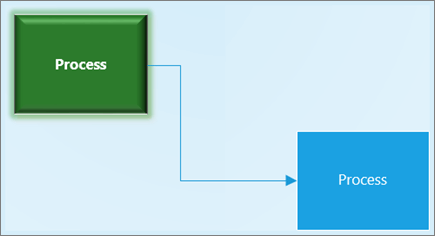
- Remplissage : sélectionnez une couleur, Aucun remplissage ou Autres couleurs. Sélectionnez Options de remplissage pour afficher toutes les options.
- Ligne : sélectionnez la couleur, l’épaisseur ou le type de ligne. Sélectionnez Options de ligne pour voir toutes les options.
- Effets : sélectionnez un effet : Ombre, Reflet, Lumière, Contours adoucis, Biseau, Rotation 3D.

Ajouter du texte à la page de dessin
- Sélectionnez
 d’accueil>Texte ou appuyez sur Ctrl+2.
 - Faites glisser pour dessiner une zone de texte.
- Tapez le texte.
- Cliquez en dehors de la zone de texte ou appuyez sur Échap.
- Sélectionnez Le
 >Pointeur Outil pointeur ou appuyez sur Ctrl+1 lorsque vous avez terminé d’ajouter du texte.
Pour plus d’informations, voir Ajouter, modifier, déplacer ou faire pivoter du texte dans Visio.


Appliquer des thèmes et variantes
Donnez à votre dessin Visio un aspect professionnel.
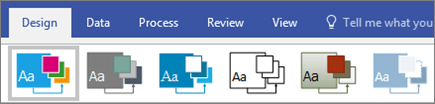
- Sous l’onglet Création, sélectionnez l’un des Thèmes.
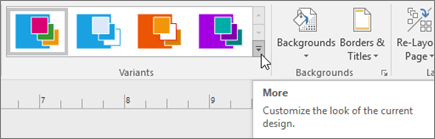
Pointez sur chaque thème afficher un aperçu. - Sélectionnez l’une des Variantes.
Sélectionnez le pour afficher d’autres thèmes et variantes.
Sélectionner un arrière-plan
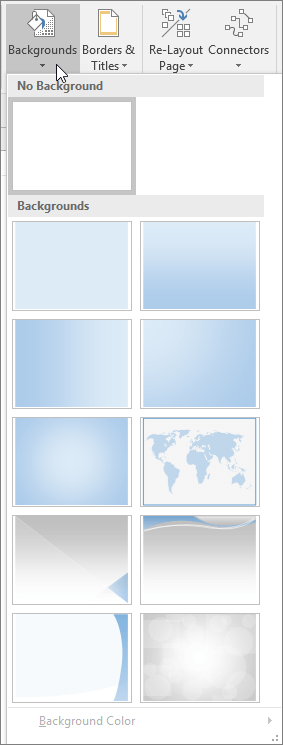
- SélectionnezArrière-plansde conception>.
- Sélectionnez un arrière-plan :
- Uni
- Dégradés vertical, horizontal, d’angle et central
- Monde
- Verve
- Flux
- Technique
- Devise
La couleur d’arrière-plan change en fonction des Thèmes et Variantes.