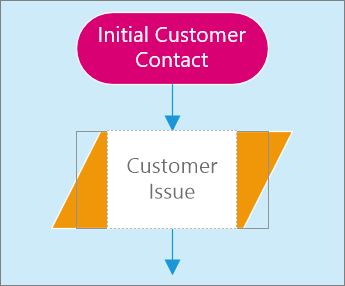
Add a shape
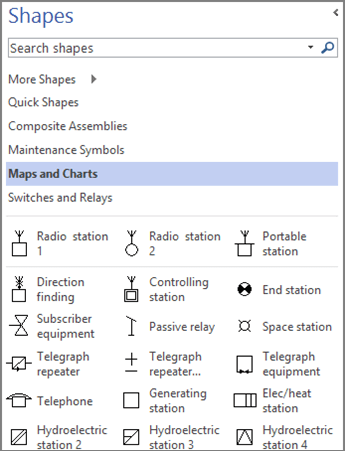
- Select a category in the Shapes pane:
More Shapes, Quick Shapes, ... - Select a shape and drag it to the drawing page.
Add and automatically connect shapes
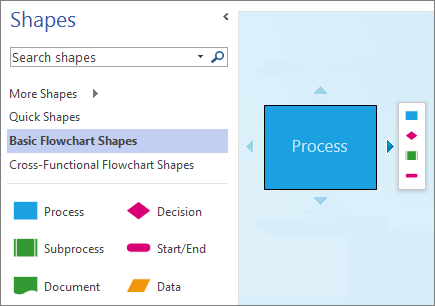
- Point to a shape until the AutoConnect arrows appear around the shape.
If you don't see the AutoConnect arrows, select View > AutoConnect. - Point to the arrow that points the direction you want to add a shape, and select a shape from the mini toolbar.
If you want a shape that isn't on the mini toolbar, drag a shape from the Shapes pane to an AutoConnect arrow.
Connect shapes
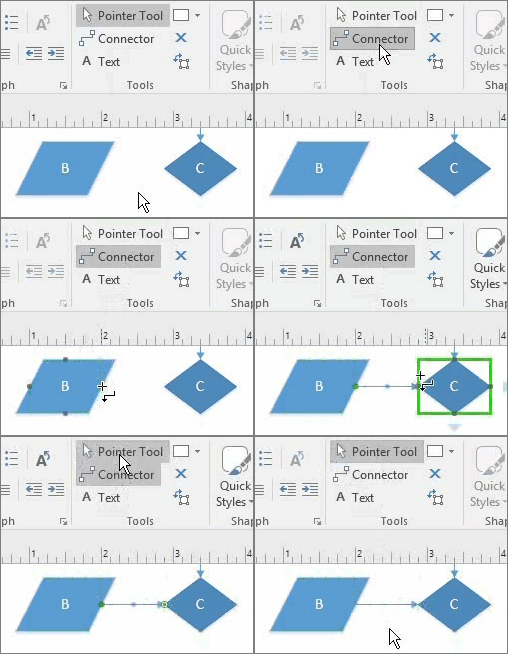
- Select Home > Connector.
- Drag a connector from one shape to another.
- When you're done, select the Pointer Tool.
Add text to a shape
- Select the shape.
- Type the text.
- When you're done, click outside the shape or press Esc.