Agar presentasi dapat memuat lebih dari satu tema (tata letak yang berisi warna, font, dan efek), tambahkan master slide lain ke presentasi, lalu terapkan tema pada master slide baru.
Menggunakan beberapa tema dalam presentasi
Presentasi Anda saat ini memiliki satu master slide dengan tema diterapkan. Untuk menambahkan tema kedua, tambahkan master slide lain dengan tema berbeda. Berikut ini caranya:
- Pada tab Tampilan, pilih Master Slide.
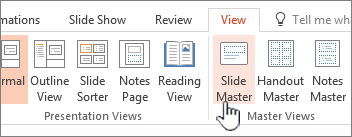
- Pada tab Master Slide, pilih Sisipkan Master Slide.
Master slide kedua akan disisipkan dalam panel gambar mini di sebelah kiri.
- Dengan master slide baru dipilih pada panel gambar mini, pada tab Master Slide di pita, pilih Tema, lalu pilih tema dari daftar.
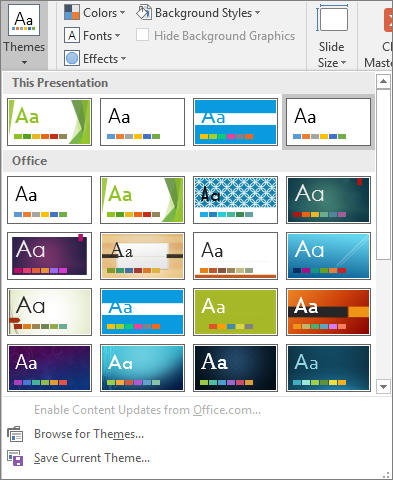
Master Slide yang telah Anda tambahkan kini akan memiliki tema berbeda dari Master Slide lainnya di presentasi.
- Jika sudah selesai membuat pilihan, klik Tutup Tampilan Master.
Tema baru yang baru Anda pilih belum diterapkan ke slide apa pun, tetapi sekarang Anda memiliki dua tema berbeda yang bisa Anda terapkan ke slide. Lihat dua prosedur di bawah ini untuk menggunakan master slide dan tema baru yang baru saja ditambahkan.
Untuk menerapkan tema ke slide baru
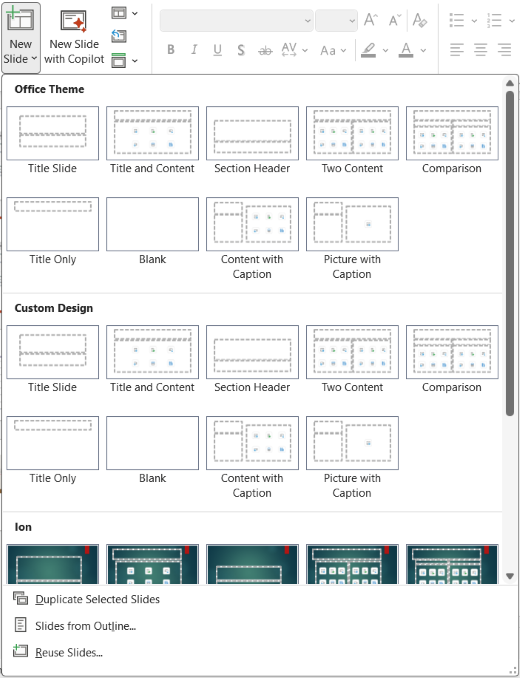
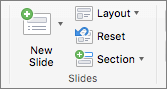
Pada tab Beranda di pita, di bagian Slide , klik panah bawah di samping Slide Baru untuk membuka galeri gambar mini tata letak slide.
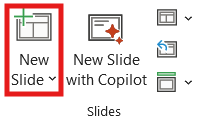
Gulir gambar mini dan klik tema dan tata letak yang ingin Anda gunakan.
Untuk informasi selengkapnya, lihat Mengedit dan menerapkan ulang tata letak slide.
Untuk menerapkan tema ke slide yang sudah ada
Pilih slide yang ingin Anda ubah.
Di bagian Slide , klik panah bawah di samping Tata Letak Slide untuk menurun pilihan gambar mini.
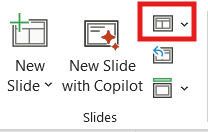
Gulir gambar mini dan klik tema dan tata letak yang ingin Anda gunakan.
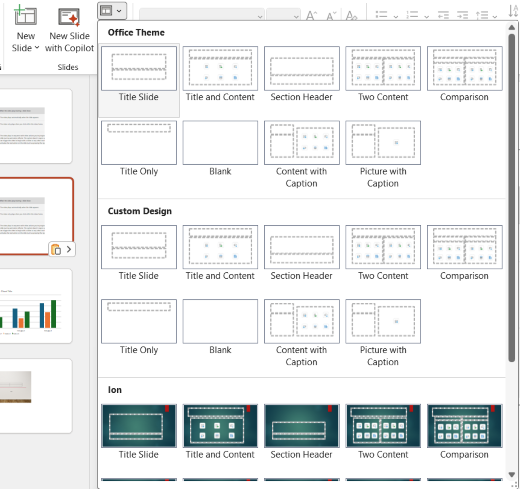
Untuk informasi selengkapnya, lihat Mengedit dan menerapkan ulang tata letak slide.
Menerapkan tema lain ke slide
Pilih slide tempat Anda ingin menerapkan tema lain.
Tahan CONTROL, kemudian pada tab Desain, dalam Tema, klik slide yang diinginkan untuk menerapkan tema, lalu klik Terapkan ke Slide yang Dipilih.
Tips
Jika ingin menampilkan sedikit warna atau tidak sama sekali pada slide (tampilan biasa), terapkan tema Putih.
Tema adalah kumpulan font, warna, dan tata letak slide tertentu. Jika salah satu elemen ini diformat secara manual, pemformatan tersebut akan menimpa tema. Misalnya, jika presentasi Anda menggunakan font Courier dan Anda secara manual memformat beberapa teks sebagai Tahoma, menerapkan ulang atau mengubah tema tidak akan memengaruhi teks yang diformat dengan font Tahoma.
Untuk mengembalikan elemen yang diformat secara manual ke pengaturan tema, lihat bagian berikut:
Memulihkan font ke font tema
Setiap tema memiliki dua set font, satu untuk judul dan satu lagi untuk teks isi. Jika teks Anda merupakan judul, gunakan font Judul Tema. Jika tidak, gunakan font Isi Tema.
Pilih teks yang ingin Anda ubah menjadi font tema.
Tips
Anda dapat menahan SHIFT untuk memilih lebih dari satu kotak teks atau objek yang berisi teks. Jika tidak dapat memilih objek atau teks pada slide, ubah master slide.
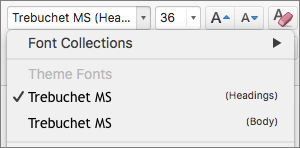
Pada tab Beranda, dalam Font, klik panah di samping kotak nama font.
Untuk mengubah teks sesuai font tema, klik font Judul Tema atau font Isi Tema.
Tanda centang memperlihatkan bahwa font Judul Tema atau font Isi Tema dipilih.
Memulihkan warna tema ke objek
Jika Anda menerapkan tema dan beberapa objek tidak berubah menjadi warna tema, mereka mungkin memiliki format manual yang diterapkan.
Pilih objek yang ingin dipulihkan warna temanya.
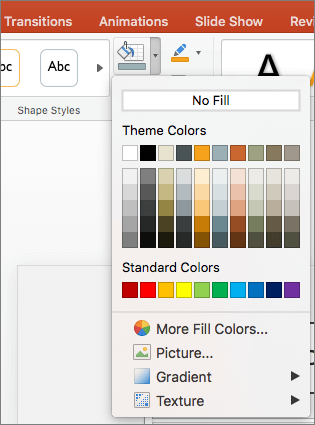
Pada tab Format Bentuk , klik panah di samping Isian Bentuk, lalu klik warna yang Anda inginkan.
Memulihkan tata letak tema
Jika tema telah diterapkan tetapi beberapa slide tidak berubah sesuai tata letak tema, tata letak tersebut mungkin sudah diubah secara manual. Misalnya, jika Anda memindahkan judul ke tempat lain pada slide atau mengubah posisi tabel, item tersebut memiliki tata letak yang diformat secara manual yang tidak berubah ketika tema berubah.
Klik item yang ingin dipulihkan ke tata letak tema, misalnya judul yang sudah diposisikan ulang.
Pada tab Beranda , di bagian Slide , klik Reset.
Lihat juga
Membuat tema Anda sendiri di PowerPoint
PowerPoint untuk web tidak mendukung penggunaan lebih dari satu tema dalam presentasi. Anda harus menggunakan PowerPoint versi desktop untuk itu.

